Event Queue
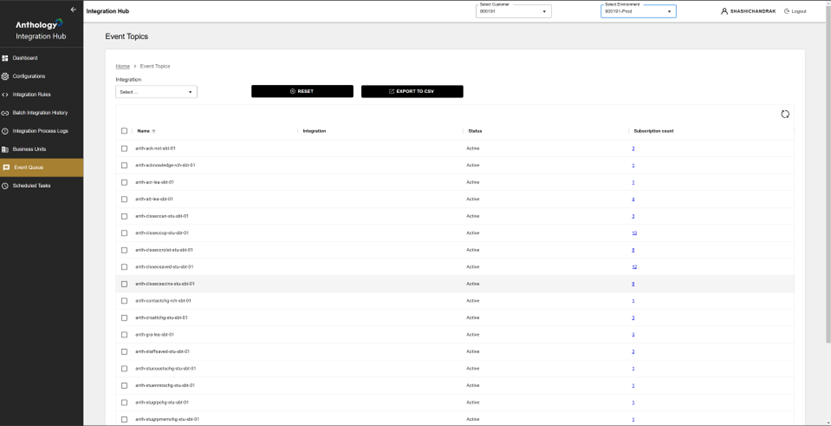
The Event Queue screen provides monitoring capabilities for Azure Service Bus queues. It is a snapshot of the current state of the Service Bus. This screen supports a subset of the features available in the Azure Service Bus Explorer.
The Integration Hub displays a list of topics and subscriptions, shows active and dead-letter message counts, and provides insights into queue statuses. Using the Event Queue screen, you can review all the topics and subscriptions for a particular Azure Service Bus and determine the status of messages. To retry failed messages, use the Integration Process Logs screen.
The Event Queue screen leverages the Service Bus API endpoints.
Features
-
Event Subscription Monitoring – Helps track how many subscribers are consuming each event topic.
-
Filtering by Integration – Users can narrow down event topics relevant to specific integrations.
-
Active Status Indicator – Ensures users can monitor the current state of event topics.
-
Subscription Count Links – Provides quick access to detailed subscriber information.
-
Real-Time Monitoring – Displays pending and failed event counts for each subscription.
-
Navigation Control – Users can easily switch between event topics and their subscriptions.
-
Error Detection – Helps identify event backlogs based on Pending and Failed counts.
-
Scalability – Supports multiple subscriptions under a single event topic.
How to Use It
When you select a subscription, you can determine how many messages are in the active queue (Pending) and how many messages are in the dead-letter queue (Unprocessed) for the selected subscription.
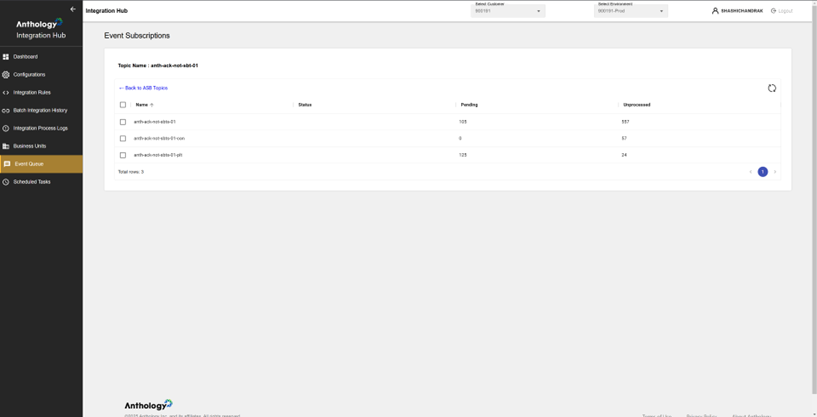
Example: Anthology Student - Anthology Reach Integration
The Event Queue shows a large number of messages from Anthology Reach in failed status and 0 active messages in pending status. This indicates that Anthology Student has picked up the messages, but for some reason, they failed.
If there is an alarming number of active messages in pending status, it indicates that Anthology Student has not picked the messages.
Deploying Functions or Triggers to the ASB
In Integration Hub Dynamics, each Service Bus instance must be linked to its corresponding Product and Environment.
For example:
-
Product: Student-Reach (Example: Product Id: 5) can be associated with Service Bus Id: 1 and Environment Id: 6.
-
Product: Reach-Student (Example: Product Id: 7) is a distinct product, so Service Bus Id: 2 can be mapped to Product Id: 7 and Environment Id: 8.
Product & Environment Association in Integration Hub
-
Products are integrated into the Integration Hub instance via the pipeline.
-
Environments & Customers are registered dynamically when a new customer is onboarded in an Integration Hub instance.
-
Service Bus details are configured when trigger functions are deployed for a customer.
To set up product-specific trigger function pipelines for subscriptions, the Development team collaborates with the SCM team.
Handling Distributed ASBs from a Centralized Deployment
When Azure Functions are used as the subscriber mechanism, one function cannot be used to point to multiple ASBs. In the Anthology Student ASB example, since each customer has their own ASB, each ASB would need to have a corresponding Azure Function to handle the subscription.
To reduce deployment of a multitude of identical Azure Functions which contain implementation logic, the Integration Organization uses a strategy of creating a “triggering function” on the Student ASB in each Anthology Student deployment, which has no logic other than to forward processing of the event into a single centralized handler Azure function contained in the integration deployment.
