Configure Anthology Student to Use the Reporting Database
Now that a reporting (Subscriber) database has been created, the next step is to configure Anthology Student to use the new reporting (Subscriber) database for running reports. Without this change, Anthology Student will continue to use the Production (Publisher) database for reporting functions.
-
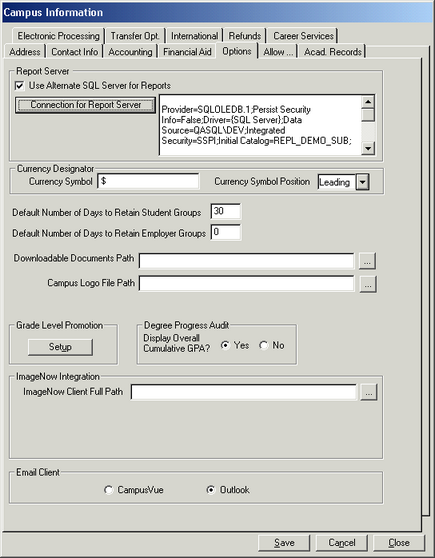
In Anthology Student, select Setup > Campus Locations. The Campus Information dialog box is displayed.
-
Select the Connection for Report Server button on the Options tab and specify the connection information.
-
Invoke the Campus Information dialog box for each campus in the Anthology Student database, and specify the connection information for the reporting database.
The reporting database connection information is configurable at the campus level, which allows the implementation of multiple reporting databases. This option is very useful for large environments that have varied campus locations.
Tip: For Multiple Campuses
When Anthology Student is set up to use a reporting server, the specified Reporting Server Connection String is stored in the ReportServerPath and CnReportRandomKey columns of the SyCampus table in the Anthology Student database.
After you set up the Report Server connection string for a campus, use the encrypted values from the ReportServerPath and CnReportRandomKey columns within the following update statement to set all of the remaining campuses to use the same report server:
Update	SyCampus
Set		ReportServerPath = '',
		CnReportRandomKey = ''
Now you can use the same reporting server for multiple campuses without specifying connection information individually for each campus.
