Edit the Email Address for Offline Surveys
Offline surveys are presented to visitors when no agents are available to chat. This allows the user to send a message. By default, the email address provided when Live Assist for Microsoft Dynamics 365 was installed is used. You can change the offline survey email address to another email address in the Engagement portal on the Campaigns tab.
-
In Anthology Reach, select Live Assist> Administration Portal.
-
Log in to Live Assist Admin Center.
-
Navigate to Links > Engagement Portal.
-
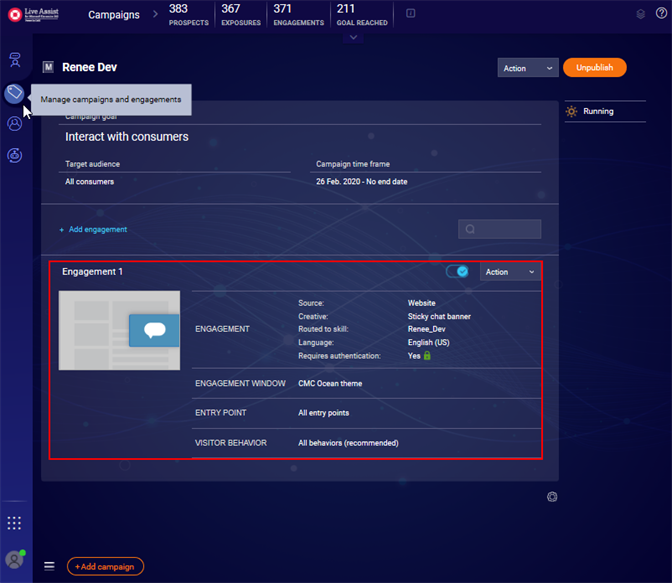
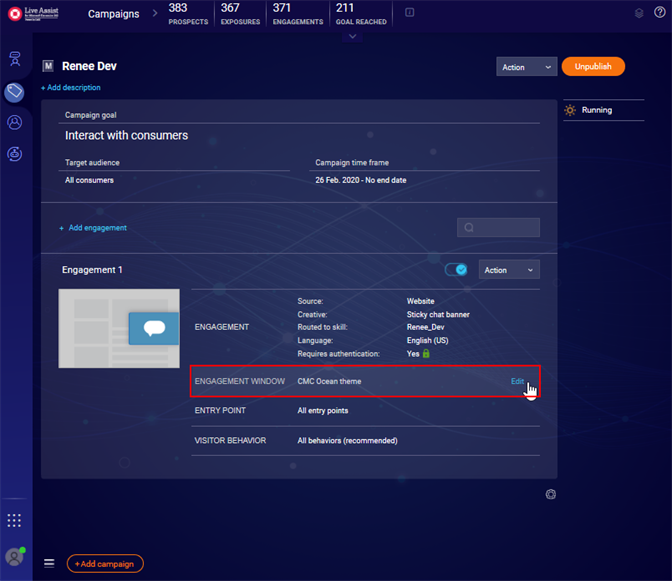
Select Manage campaigns and engagements in the left ribbon and select your Engagement.

-
In the Engagement Window section, click Edit.
-
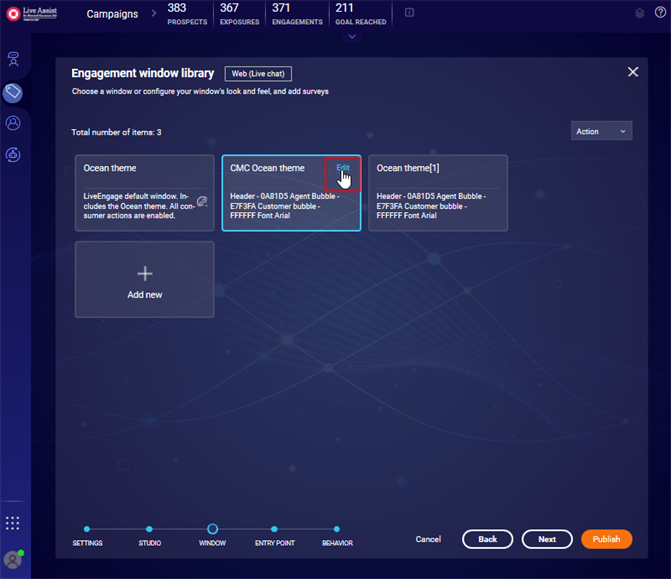
Click Edit in the highlighted theme.
-
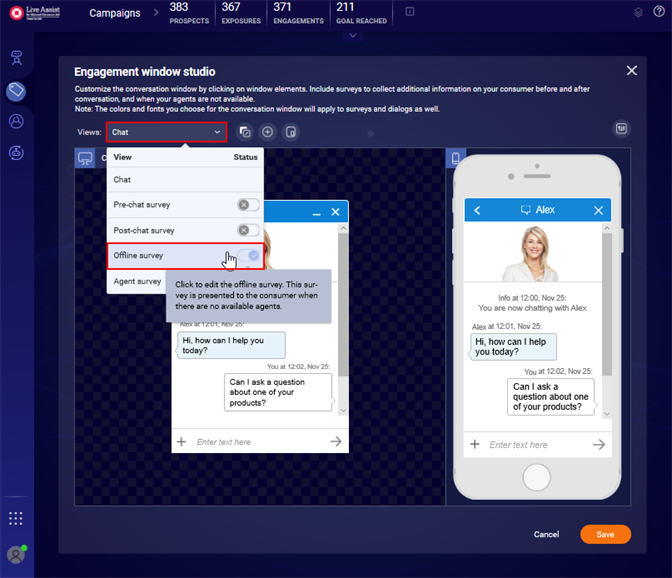
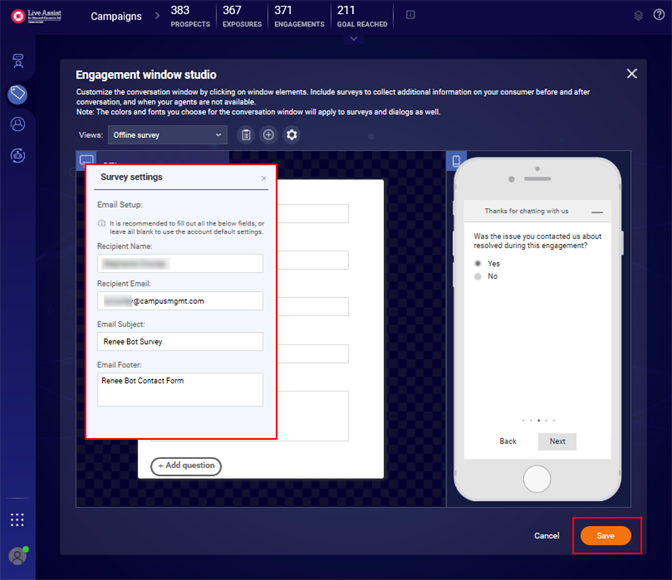
In the View drop-down, select Offline survey.
-
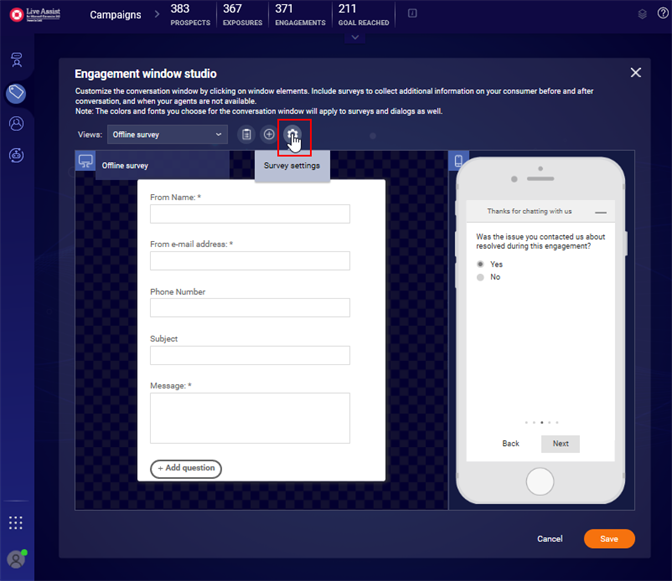
Select Settings for the offline survey.
-
Specify the Recipient Name, Recipient Email, Email Subject, and Email Footer and then click Save.
-
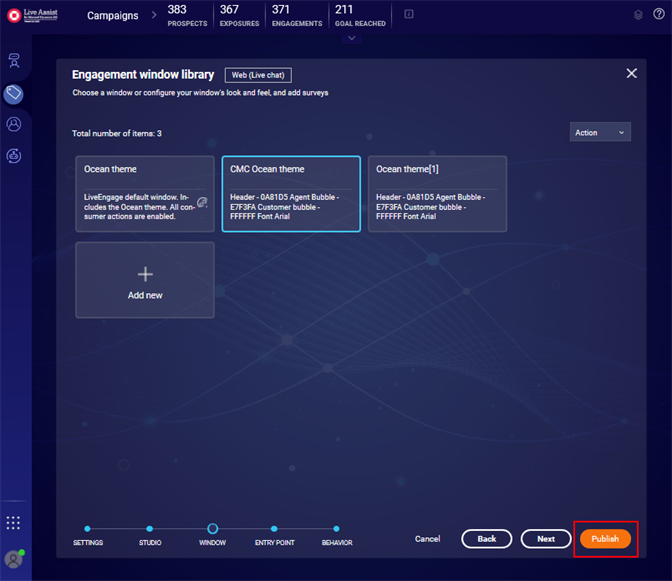
Click Publish.
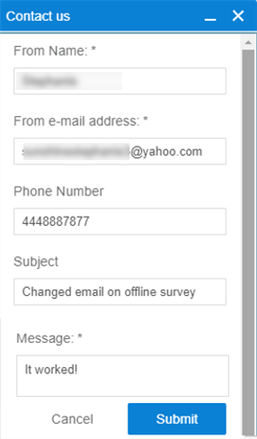
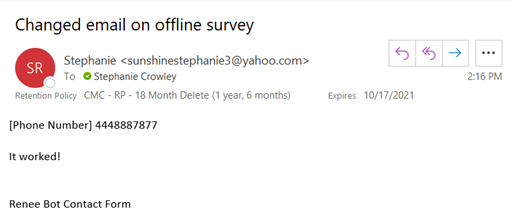
To test the configuration, submit an offline survey in Anthology Digital Assistant and check your inbox for the resulting email message.