The topic "Bot is not online in the Administration Portal" is not available in Version 1.0.0
Bot is not online in the Live Assist Administration Portal
If you completed all setup and configuration steps for the Digital Assistant and the Bot is not online in the Live Assist Administration Portal, verify that the Live Assist Tenant Administrator is an Enabled User with System Administrator and System Customizer roles.
-
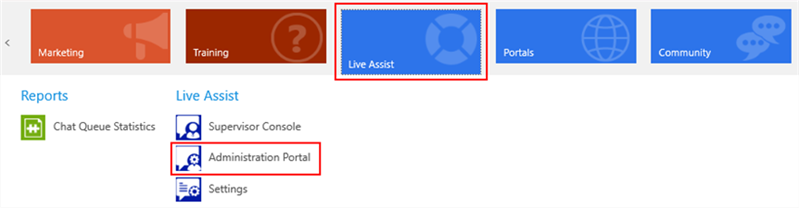
Log in to the Live Assist Administration Portal.

-
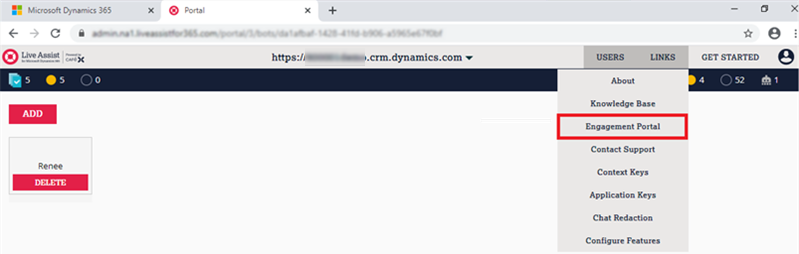
In the Live Assist Administration Portal, navigate to LINKS > Engagement Portal.
-
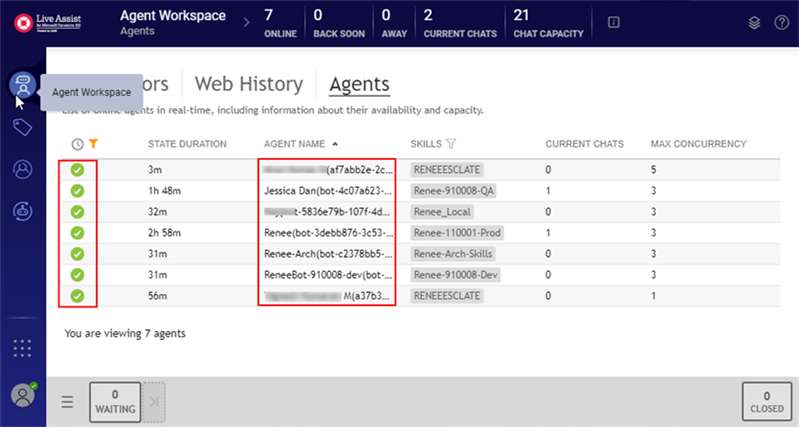
Select Agent Workspace in the left menu and click the Agents tab.
Check the AGENT NAME column and make sure the name of the Bot you created in the Add a Bot procedure is listed and online (
 ).
). -
If your Bot is not listed on the Agent page and not online:
-
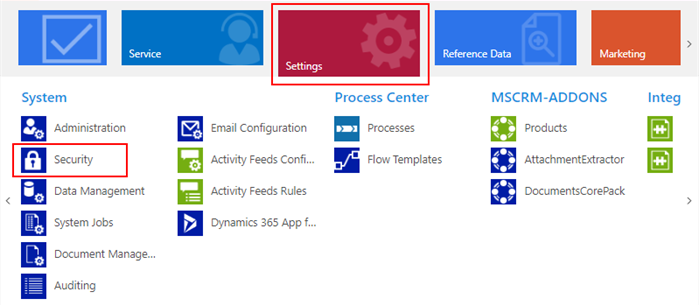
In Anthology Reach, select Settings > Security.
-
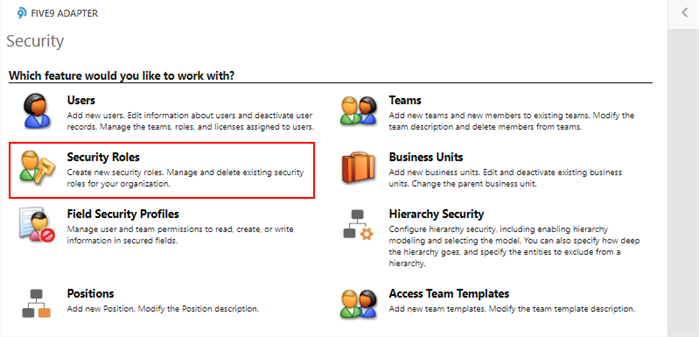
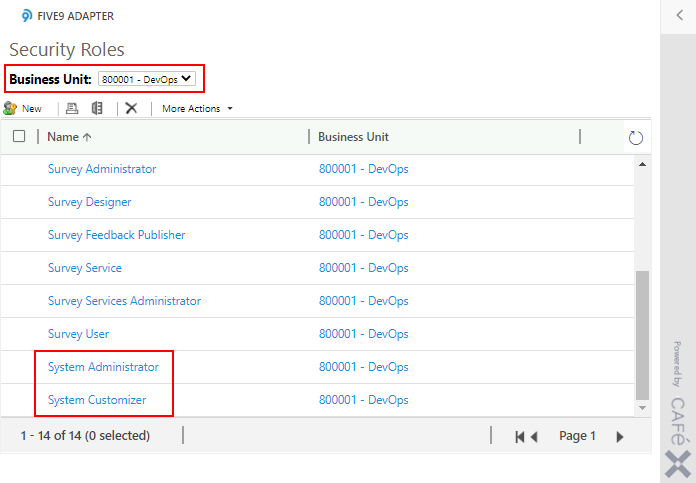
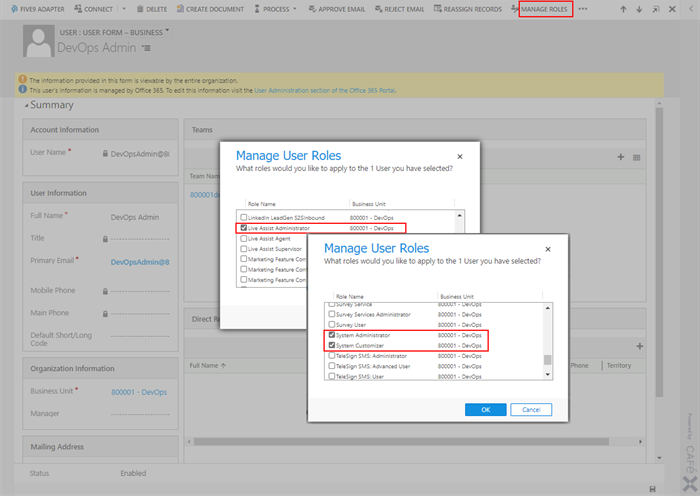
On the Security page, select Security Roles, select your Business Unit, and make sure that the System Administrator and System Customizer roles are available.
-
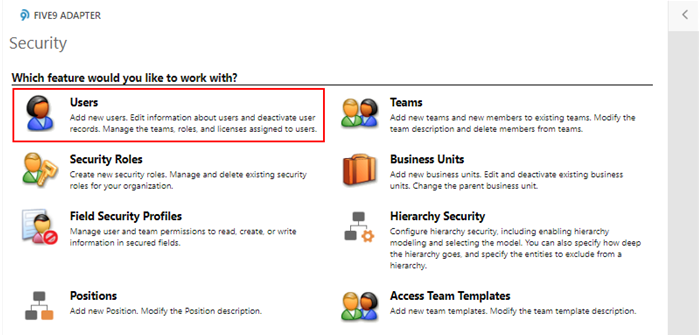
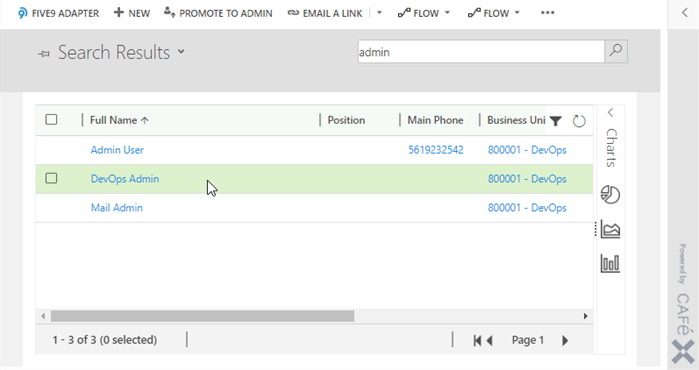
Return to the Security page, select Users and find your Live Assist Tenant Admin.
-
Select Manage Roles and make sure that your Live Assist Tenant Admin has the System Administrator and System Customizer roles.
-
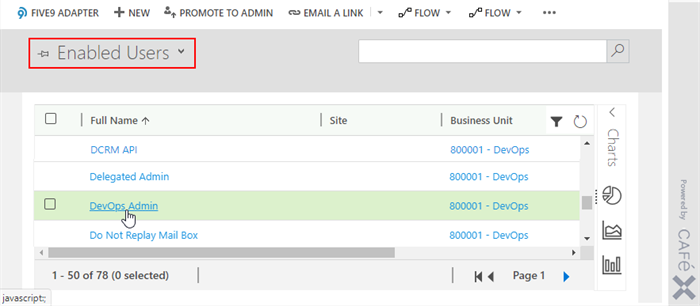
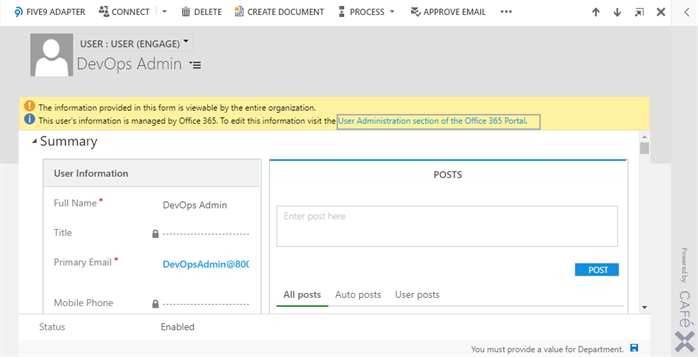
Make sure that your Live Assist Tenant Admin is an Enabled User in Anthology Reach.
-
-
If the Live Assist Tenant Admin does not have the System Admin and System Customizer roles and is not an enabled user in Anthology Reach, change Live Assist Tenant Admin as follows:
-
Make sure <newadmin> has the same CRM roles in Microsoft Dynamics 365 as <oldadmin>. The roles should be:
- System Administrator
- System Customizer
- Live Assist Administrator.
Important: Live Assist roles are assigned via the Live Assist Portal and not directly via Dynamics 365.
-
Ensure <oldadmin> account can log in to all Live Assist enabled Dynamics 365 instances.
-
Make <newadmin> a Billing Admin as per: https://support.liveassistfor365.com/hc/en-us/articles/360006115514#updatetenantadmin (skip to "Managing the Billing Admins").
-
Make <newadmin> a Global Admin in Office 365.
After completing this step, reach out to Live Assist to ensure the organization has been successfully re-provisioned with server-side updates (if any).
-
If the steps above do not resolve the issue, contact Anthology Inc. Support at (1-800-483-9106).
