Workflow Execution
Task Scheduler Occurrence Event
Prior to Anthology Student 20.0
If a workflow is based on Task Scheduler Occurrence Event:
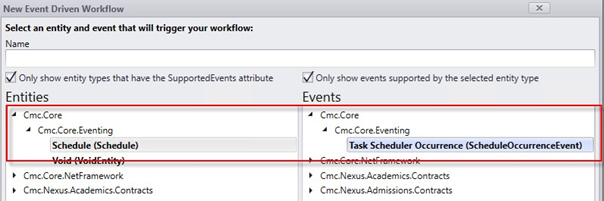
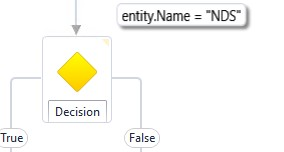
Your triggering decision in WF would have entity.Name = “NDS” for example. (Entity Name is whatever name you want to give and is a string and has to match the key in the scheduled SQL job exactly.)
Workflow:
SQL Job:

Create/Schedule the Job in SQL:
The name of the Job can be anything. I always try to call it whatever I am doing so I can find it accordingly in the list.

The Job Key matches the entity.Name in your Workflow.
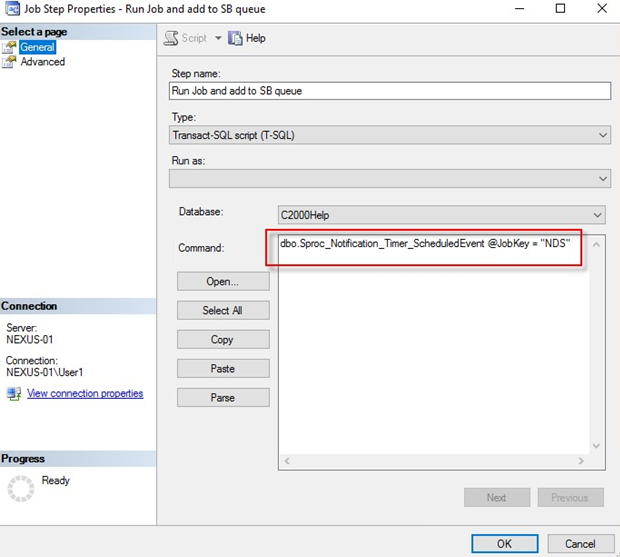
Note: Complete Schedule/Alerts/Notifications steps based on your preference.
Anthology Student 20.0 and Forward
-
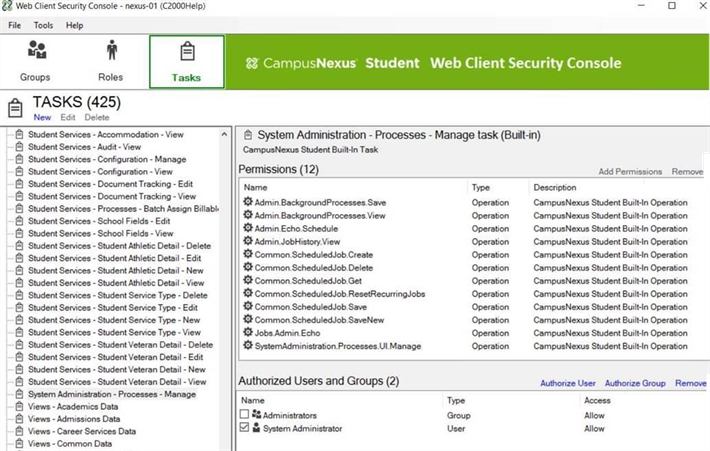
Sign into Anthology Student with an Administrator User Id. Specifically, a user with NSA permissions to the Admin.BackgroundProcesses.View and Admin.BackgroundProcesses.Save operations.
-
Go to: Processes → [System Administraton] → Background Processes.
-
Select New.
-
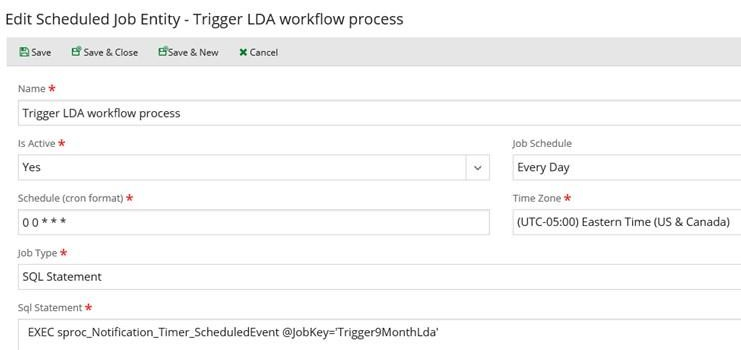
Enter the job parameters similar to what is shown below in the screenshot.
Note the cron schedule – you can select from one of the pre-defined “Job Schedule” entries in the drop down, or enter your own, custom cron string – cron string reference.
The schedule below will execute the job every day at midnight.
-
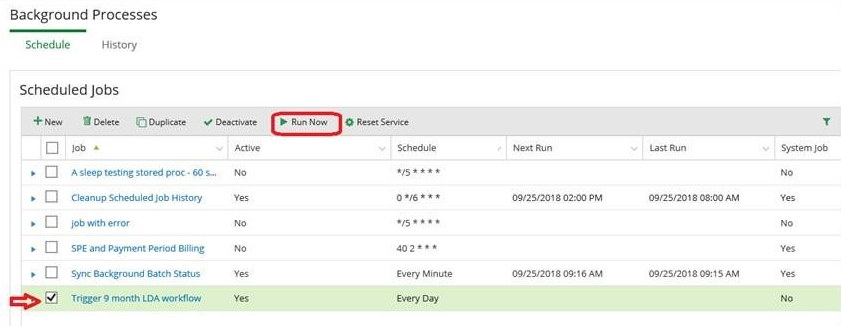
You can test the job by selecting Run Now after the Scheduled Job has been saved, and it is selected in the grid:
-
View the results by expanding the row:

Workflow Validation of Business Process in Web Client
The change from previous Anthology Student versions (prior to 20.0) is that we never allowed a workflow to cancel further business process execution -– or to specify at which phase of the process the workflow will execute.
To test it out: Here’s a simple example – School’s Business Rule: Limit student account transactions to 10,000 or less – (don’t allow to post if amount is greater than 10,000)
- Add workflow: Validate Student Account Charge Transaction Amount
- Service: Student Account Transaction Service
- Event: PostAccountTransactionChargeEvent
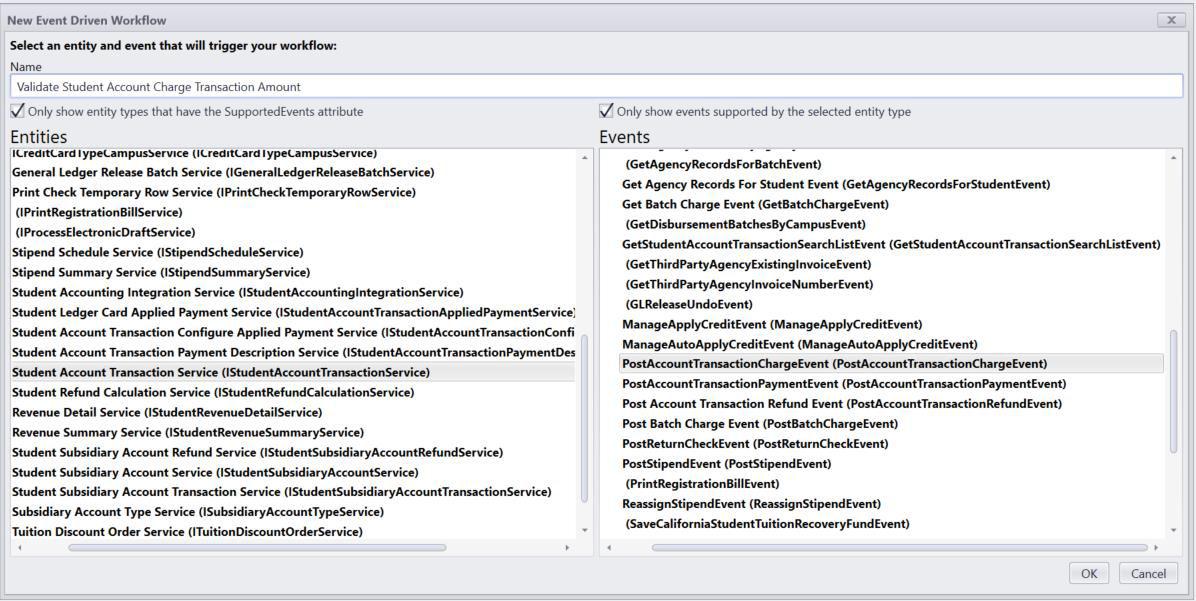
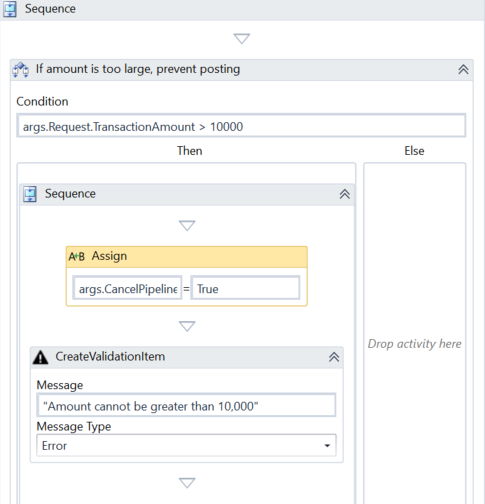
Add a condition – check if the requested TransactionAmount exceeds 10,000:
If true, cancel execution by using the Assign activity, set: args.CancelPipelineExecution = true
Then, add whatever validation text you want to return, e.g., “Amount cannot be greater than 10,000”
Update the WorkflowDefinition so that it runs during the Validation phase (need to do this with a SQL Query for now, but with 21.0, it will be in Workflow Composer):
update dbo.WorkflowDefinition
set eventphase = 0
where name = 'Validate Student Account Charge Transaction Amount'
EventPhase 0 = Validation (before any posting occurs)
EventPhase 1 = Execution (during the posting to the database)
EventPhase 2 = Completion (after all has been committed)
Note: In a (near) future version of Workflow Composer, setting of the EventPhase will be available in the UI. It will appear similar to the following, when publishing a workflow:
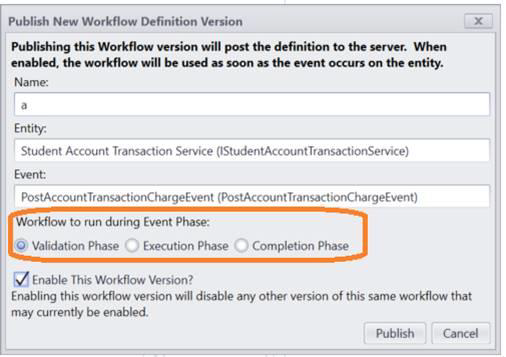
Also, note – although the framework will allow it in other phases; you should only set CancelPipelineExecution during Validation phase workflows. Cancelling later in the process will return unexpected results as you would have no idea what had been posted up until that point.
Test it out: Run the App and try to post a charge > 10,000
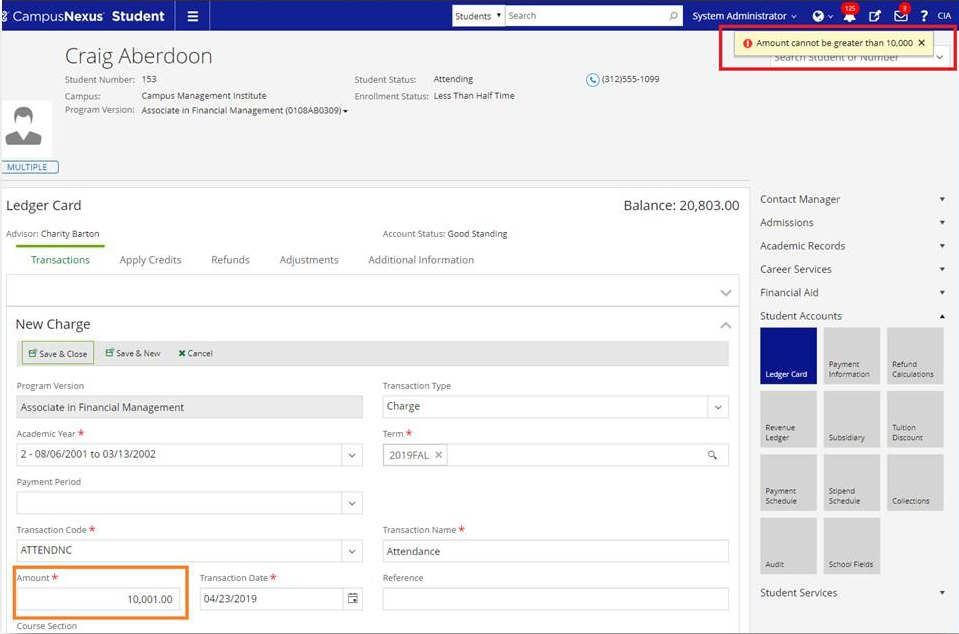
Verify that it was not saved:
select top 5 SaTransId, SyStudentId, SaBillCode, Amount, PostDate
from satrans
where systudentid = 26777
order by satransid desc
| SaTransId | SyStudentId | SaBillCode | Amount | PostDate |
|---|---|---|---|---|
| 32057 | 26777 | BOOK | 55.00 | 2018-08-13 11:39:47.487 |
| 31629 | 26777 | TUIT | 6000.00 | 2018-06-13 00:00:00.000 |
| 31628 | 26777 | INS | 1200.00 | 2018-06-13 00:00:00.000 |
| 31627 | 26777 | BOOK | 1200.00 | 2018-06-13 00:00:00.000 |
| 30963 | 26777 | ARTSUP | 25.00 | 2017-05-03 08:13:55.527 |
Then, save an amount of 10,000 or less and verify that it did post:
| SaTransId | SyStudentId | SaBillCode | Amount | PostDate |
|---|---|---|---|---|
| 32328 | 26777 | ATTENDNC | 10000.00 | 2019-04-23 12:48:51.377 |
| 32057 | 26777 | BOOK | 55.00 | 2018-08-13 11:39:47.487 |
| 31629 | 26777 | TUIT | 6000.00 | 2018-06-13 00:00:00.000 |
| 31628 | 26777 | INS | 1200.00 | 2018-06-13 00:00:00.000 |
| 31627 | 26777 | BOOK | 1200.00 | 2018-06-13 00:00:00.000 |
