Adobe Sign
You can use the Adobe Sign component to integrate Adobe Sign fields into a form. Forms Builder supports several types of Adobe Sign fields, e.g., Signature, Date Signed, and Initial. The fields are selected in the Type property of the Control Property Settings.
Before using the Adobe Sign component, you must set up and account with Adobe and configure the Adobe Sign Settings in Forms Builder.
Properties
Control Property Settings
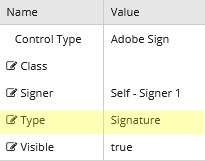
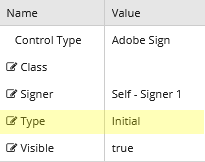
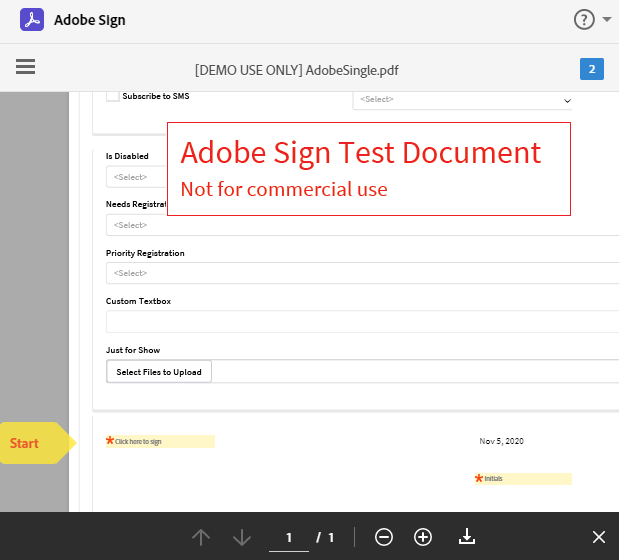
Rendered Components (Type=Signature and Type=Initial)
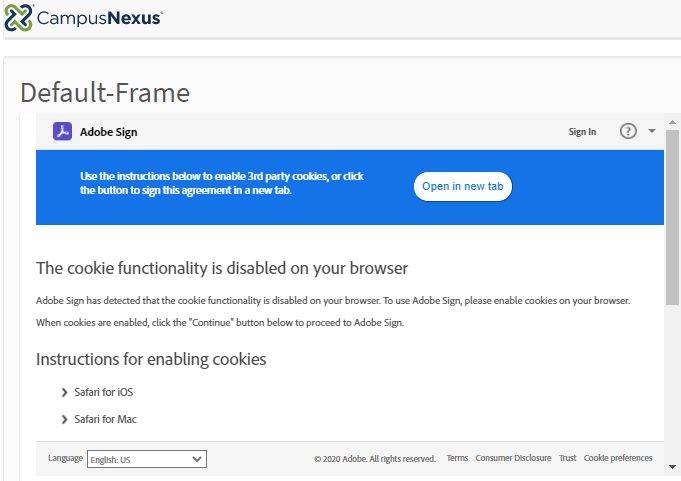
Depending on the user's browser settings, a page with instructions to enable cookies may be displayed before accessing the e-signature document. 
-
Class is an optional CSS class (or space separated classes) added to the top level of the control. CSS specific to the control can be applied. The class must be defined in a Renderer CSS file. For more information, refer to Custom Styles.
-
Font Size allows to modify the size of the Adobe Sign signature text. This property helps to modify the Font size to make the signatures look bigger when rendered and executed in any document. Below is the default size defined for Font Size and recommended minimum and maximum sizes of the Adobe Sign Field being used as a Signature / Initial / Date Signed.
- Default - 17
- Minimum (Recommended) - 8
- Maximum (Recommended) - 30
-
Height allows to modify the height of the Adobe Sign signature text. This property helps to modify the Height to make the signatures look bigger when rendered and executed in any document. Below is the default size defined for Height and recommended minimum and maximum sizes of the Adobe Sign Field being used as a Signature / Initial / Date Signed.
- Default - 10
- Minimum (Recommended) - 8
- Maximum (Recommended) - 20
The Font-Size and / or height are auto-populated to the default defined values. However, if the fields are kept blank, then the system takes the default values defined in Adobe Sign.
-
Id is required property. It can be any valid javascript id attribute value (Must start with a letter followed by 0 o 9, a to z, dash or underscore characters). It should not have any spaces. Binding is not supported for this property.
-
Signer provides the following options:
- Self - Signer 1
- Signer 2
- Signer 3
- Signer 4
- Signer 5
-
Type provides the following Adobe Sign fields:
Field Description Required / Optional Date Signed Allows the recipient to specify the date the document was signed. Optional Initial Allows the recipient to initial the document. Required Signature Allows the recipient to sign a document. Required -
Visible makes the control visible or hidden.
-
Can be bound to a workflow argument or another control's value. This property is dynamic.
-
A property array string index requires single quotes, e.g., vm.models.xxx.CustomProperties['yyyyy'].
-
An expression can be used that evaluates to true or false, e.g., vm.models.myvalue==7 (>,<, !=, ==, >=, <=). If comparing to a string, it must be in single quotes.
-
(true and false must be all lowercase)
-
Working with the Adobe Sign Component
You are designing a form in which you want the person completing the form to sign and date the form electronically.
-
Drag two Adobe Sign components into the Layout pane of your form in Form Designer.
-
On the first Adobe Sign component, set the Signer to Self - Signer 1 and set the Type to Signature.
-
On the second Adobe Sign component, set the Signer to Self - Signer 1 and set the Type to Date Signed.
When Anthology Student fields are inserted into a form, the student is automatically directed to the section that needs an e-signature.
If the fields are not inserted into a form but e-signature is enabled, the student is directed to electronically sign the document and can drag out the signature anywhere on the document.
