Roles
Roles can be created based on your institution’s business needs. Each Role will be assigned a permission that will dictate access to areas and functionality for users assigned.
To access Roles, go to Administrators > User Administration > Roles.
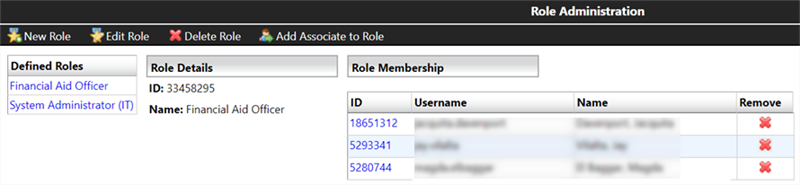
The following functions can be accessed on the Role Administration page:
- New Role
- Edit Role
- Delete Role
- Add Associate to Role
New Role
-
To create a new role, select the New Role tab.

-
Enter new role name in the Create a New Role window and select Save.
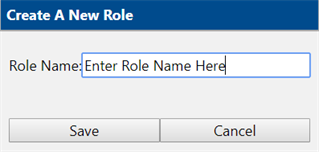
The new role will be displayed in the Defined Roles and Role Details sections of the Role Administration page.
Edit Role
-
Choose the role you would like to edit in the Defined Roles section on the Role Administration page.
-
The role will be displayed in the Role Details section.
-
Select the Edit Role tab.

-
Select the appropriate check boxes to add or remove permissions for the chosen role and select Save.
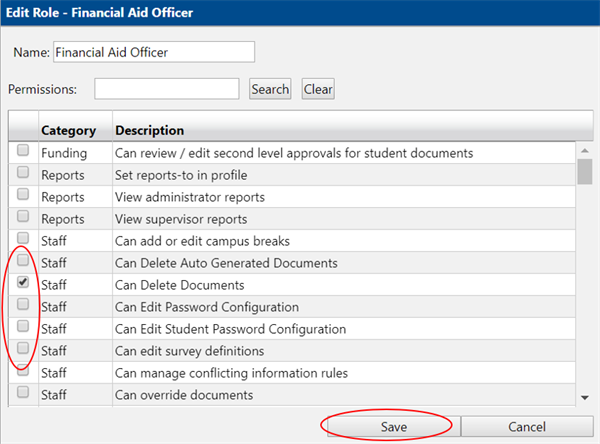
You can also search Permissions by entering key words. Then, select Search.
Please refer to the Associate Portal for a full list of permissions.
Delete Role
-
Choose the role you would like to delete in the “Defined Roles” section on the “Role Administration” page. The role will be displayed in the “Role Details” section.
-
Select the Delete Role tab.

-
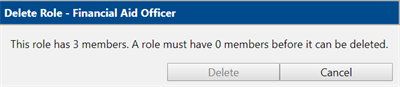
Choose the Delete button on the “Delete Role” pop-up window. The role will be removed from the “Defined Roles” section on the “Role Administration” page.
Add Associate to Role
-
Choose the role under Defined Roles section on the Role Administration page.
-
Verify the correct role is displayed in the Role Details section.
-
Select the Add Associate to Role tab.

-
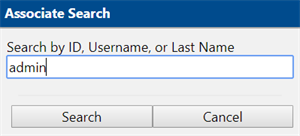
Search for the associate you would like to add by entering the ID, Username or Last Name into the Associate Search box. Then, select Search.
-
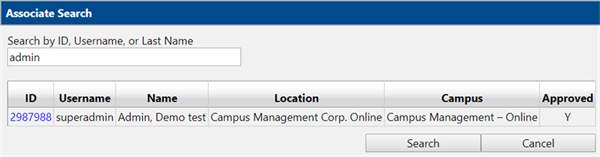
The Associate Search window will display the associate details. Select the User ID associated with the user you would like to add.
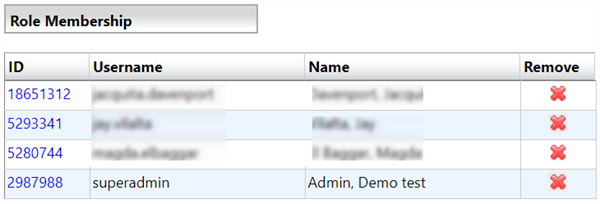
The selected associate will now appear in the Role Membership area on the Role Administration web page.
Remove an Associate from a Role
-
Select the role you would like to edit in the Defined Roles section of the Role Administration page.
-
Validate the correct role is displayed in the Roles Details section. The users with permission to access the role will be listed in the Role Membership area.
-
Select the
 by the associate’s name in the Role Membership section to remove associate from that role.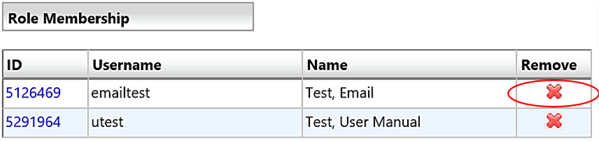
The associate’s name will be removed from the Role Membership section.
