Managing Consent for Email, SMS, and WhatsApp (Real-time Journeys)
In Dynamics 365 Customer Insights - Journey, consent management plays a pivotal role in ensuring compliance and respecting the preferences of your contacts. The Real-time Journeys module supports Contact Point Consent and stores consent at the Contact Point level. This means each communication detail, such as an email address or phone number has its own individual consent status (Opted In, Opted Out, or Not Set). Even if multiple contacts or leads share the same email address, that email address will still have one unified consent status. In Customer Insights - Journeys, consent is tied to these contact points and channels.
Recording Consent in the Systems
Recording consent in the system is essential for ensuring compliance.
-
Journeys with a transactional purpose—such as sending system alerts or essential updates—can sometimes be run without explicit opt-in consent, depending on the context.
-
However, under a restrictive enforcement model, a consent record is always required when sending messages through:
-
Email
-
SMS
-
Custom channels (e.g., WhatsApp)
Note: WhatsApp is considered a custom channel. Therefore, any consent related to WhatsApp should be recorded under the Custom channel option.
-
Proper consent tracking not only ensures compliance but also enhances personalization and targeting in Real-time Marketing. For more information, see Microsoft Documentation.
Consent Settings Page On Portal
Students can manage their communication preferences directly from the portal. This gives students full visibility and control over how they wish to be contacted across different channels such as SMS, WhatsApp, and email through Real-time Marketing.
With the Consent Settings page on the portal:
-
Students get a clear, consolidated view of the consent associated with each of their contact points, such as phone numbers and email addresses.
-
Students can easily see whether they’ve opted out of all communication or selectively opted in or out of specific channels, Email, SMS, or WhatsApp for different types of institutional messages, including Commercial and Transactional communications.
-
Students can update their consent preferences at any time, choosing which type of message they want to receive on each channel.
-
The portal offers a single, convenient place to review and manage consent across all channels, helping students stay aligned with their communication choices.
-
Students can view the consent records configured in Reach for each contact point (Email, Phone, WhatsApp) and each communication policy (compliance profile) by selecting Load Consentson the Consent Settings page.
-
It is recommended to create a compliance profile with a meaningful name in Reach so that the portal users can easily understand when selecting it from the communication policy drop-down list on the Consent Settings page.
-
For information on configuring a Consent Settings page on the portal for customers prior to Reach 2025.4 version, see the Consent Management Widget section in Customizing the Portal.
Automating the Consent Creation Process
If your institution relies on ongoing automations or processes that create new contact records and you do not want to give students direct control to manage their communication consents from the portal using the Consent Settings page then it is essential to automate the creation of contact point consent records in the Consent Center. This ensures that every new contact has the appropriate consent status initialized and maintained accurately without requiring student intervention.
Before implementing this, it’s important to understand the basics of how consent is managed in Customer Insights – Real-time Marketing. For more information, see Microsoft Documentation.
Reach provides an ability to automatically load consent records in the consent center when a contact is created or updated. You can create consent records based on customizable rules. This means you can define criteria under which consent records should be automatically created, offering greater flexibility and precision.
The Real-time Journey feature supports creation of consent records per contact point (i.e., per email address or phone number) instead of per contact record, which can be viewed in the Consent Center page.
By default, consent records are created manually in the Consent Center page using one of the following methods:
-
Creating a consent record for each contact point from the Consent Center page
-
Using the Load consent option.
Note: To create consent records using the Load consent option, the user must have the ANTH - Add On - Load RTM Consent role in addition to the mandatory roles and permissions in Anthology Reach. For more information, see Security Roles.
The following topics explain how consent records for Email and SMS contact points can be automatically loaded when creating or updating contact records in Anthology Reach for the Real-time Journeys feature.
-
Overview of the 'Contact - Create Realtime Marketing Contact Point Consents' Workflow
-
Create a Copy of the 'Contact - Create Realtime Marketing Contact Point Consents' Workflow
-
Configurations to Create a Consent Record for Additional Email and Phone Number Fields
-
Create SMS Consent Records Based on Opt-In and Opt-Out Keywords
Overview of the 'Contact - Create Realtime Marketing Contact Point Consents' Workflow
The Anthology Reach solution includes a sample workflow, Contact - Create Realtime Marketing Contact Point Consents, which uses the settings in the Contact Point Consent Configuration page to automatically create contact point consent records based on the following trigger conditions:
-
When a Contact record is created.
-
When the phone number or email field of the contact record is updated.
-
When the Contact preference fields are updated.
By default, the Contact - Create Realtime Marketing Contact Point Consents workflow is inactive and needs to be activated, and the contact point fields need to be configured to enable automatic creation of consent records for the configured contact points.
When the Contact - Create Realtime Marketing Contact Point Consents workflow is enabled, it creates consent records for contact points based on the following configurations:
-
Configure Contact Point Consent Settings
For more information, see Configuring Contact Point Consent Settings.
-
Audience Configurations
-
The consent records are automatically created for only those Email and Phone numbers which are configured in an active Audience Configuration related to the Contact point type, Email, Text Message, and custom channel (e.g. WhatsApp).
For more information, see Microsoft Documentation.
Note: If you have added additional or new fields in the Audience Configuration then the new or additional fields must be configured in the Contact - Create Realtime Marketing Contact Point Consents workflow for the process to consider them while creating consent records. For details, see Configurations to Create a Consent Record for Additional Email and Phone Number Fields.
-
-
Compliance Profiles - Consent Purposes and Topics
-
Institutions can configure Compliance Profiles with the required consent purposes and add topics for each consent purpose.
-
A consent record is created for each consent purpose and each topic of the consent purpose configured in the Compliance Profile.
For more information, see Microsoft Documentation.
-
Note
-
Consent records for Text Message / SMS is created only when the phone number is prefixed with a + sign.
-
The Contact - Create Realtime Marketing Contact Point Consents workflow is configured to use the default compliance profile. The compliance profiles and related purposes may vary from customer to customer, the Contact - Create Realtime Marketing Contact Point Consents workflow acts as a sample and can be used as a reference to configure your own process. It is recommended to configure your own process and test the process before making it live. For more information, see Changing the Compliance Profile in the Workflow.
Create a Copy of the 'Contact - Create Realtime Marketing Contact Point Consents' Workflow
You can create copies of the Contact - Create Realtime Marketing Contact Point Consents workflow to configure and use multiple compliance profiles for creating consent records based on the configurations in the Contact Point Consent Configuration page.
Steps to Create a Copy of the of the 'Contact - Create Realtime Marketing Contact Point Consents' Workflow
-
In the Anthology Reach environment, navigate to the Processes page (under Advanced Settings > Process Center > Processes).
-
Select All Processes in the view drop-down.
-
In the Process Name column, locate and click Contact - Create Realtime Marketing Contact Point Consents.
-
In the Process: Contact - Create Realtime Marketing Contact Point Consents perform the following steps:
-
Click Deactivate.
-
In the Activate As field, select Process Template.
Note: You can change the field back to the original setting after creating a copy of the workflow. -
Click Save and Close.
-
-
In the Processes page, select the Contact - Create Realtime Marketing Contact Point Consents Process Template and click Activate.
-
Click New to create a new process.
-
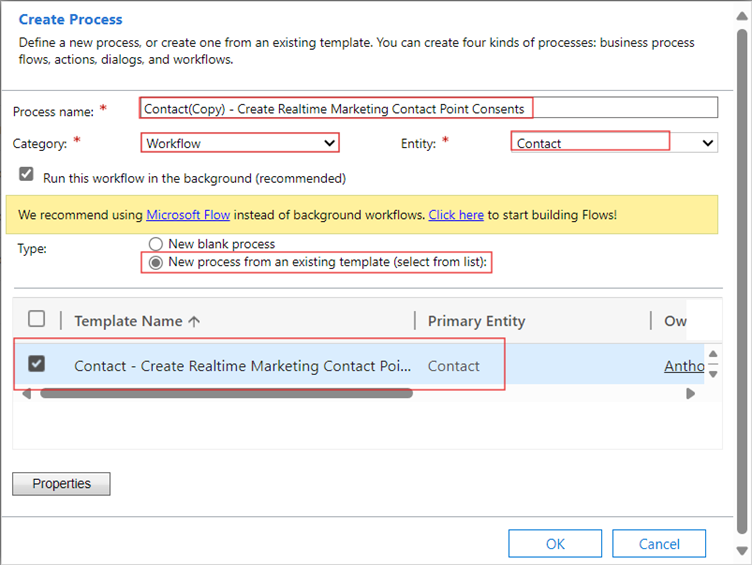
In the Create Process page, perform the following steps:
-
In the Process name field, specify the name of the process.
-
In the Category field, select Workflow.
-
In the Entity field, select Contact.
-
In the Type field, select New process from an existing template (select from list) and select Contact - Create Realtime Marketing Contact Point Consents.
-
Click OK.
-
A copy of the Contact - Create Realtime Marketing Contact Point Consents workflow is created. Update the compliance profile and other default settings in the workflow and then activate the workflow to enable creation of consent records.
For information on updating the fields and the compliance profile in the Contact - Create Realtime Marketing Contact Point Consents workflow copy, see the following topics:
Configurations to Create a Consent Record for Additional Email and Phone Number Fields
By default, the Contact - Create Realtime Marketing Contact Point Consents workflow is configured to use the following Phone number and Email address fields of the Contact entity to create consent records based on the Audience Configuration for the following fields:
-
For the Email Contact point type - emailaddress1
-
For the Phone Contact point type - mobilephone
If institutions have configured new or additional fields in the Audience Configuration for the Email and Text message contact points, the Contact - Create Realtime Marketing Contact Point Consents should be updated with the new or additional fields for creating the consent records automatically based on the new or additional fields.
The following steps provide information on updating the Contact - Create Realtime Marketing Contact Point Consents workflow based on the new fields configured in the Audience configuration for the Contact entity.
-
Update the 'Recipient Field' Values in the Audience Configuration Record for the Email Contact Point
Update the 'Recipient Field' Values in the Audience Configuration Record for the Email Contact Point
-
On the Anthology Reach environment, navigate to the Audience Configuration page (under Marketing > Settings > Customer engagement > Audience configuration).
-
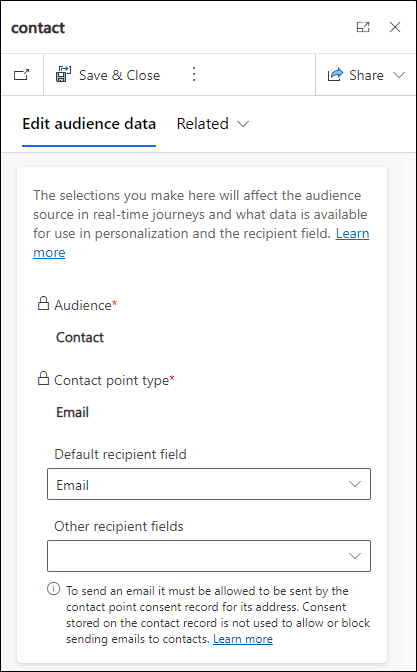
Select the record for the Email contact point type for the Contact entity for which the Recipient fields need to be updated.
-
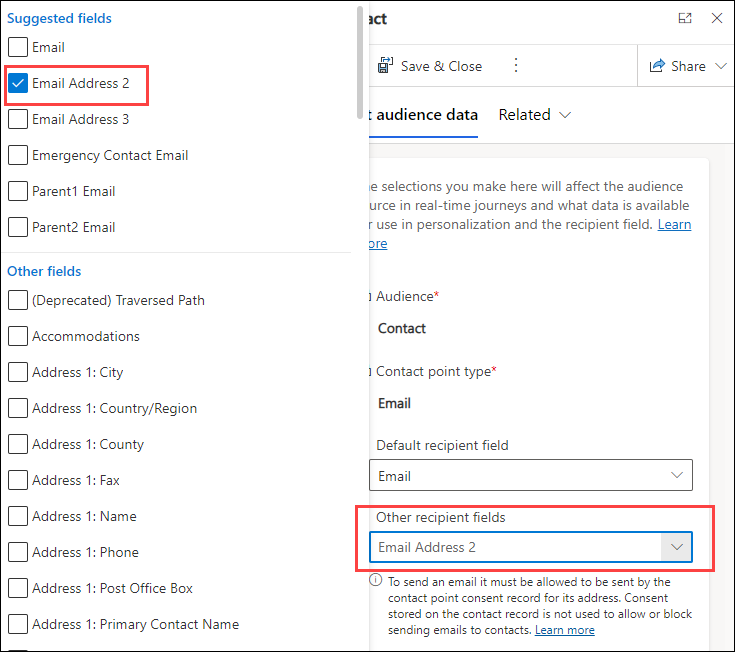
In the Edit audience data tab, select the required phone number fields in the following fields:
-
Default recipient field
-
Other recipient field
-
-
Click Save and Close.
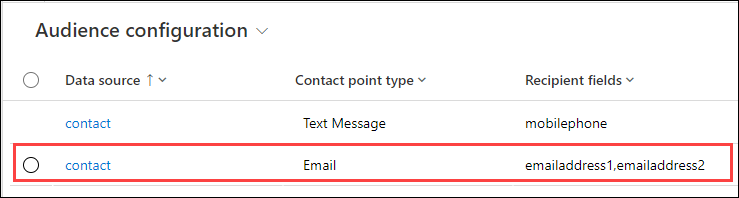
The Audience Configuration record for the Email contact point is updated.
Update the 'Recipient Field' Values in the Audience Configuration Record for the Text Message (SMS) Contact Point
-
On the Anthology Reach environment, navigate to the Audience Configuration page (under Marketing > Settings > Customer engagement > Audience configuration).
-
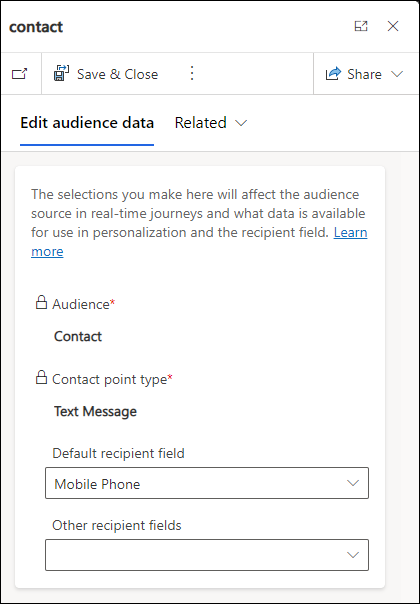
Select the record for the Text Message contact point type for the Contact entity for which the Recipient fields need to be updated.
-
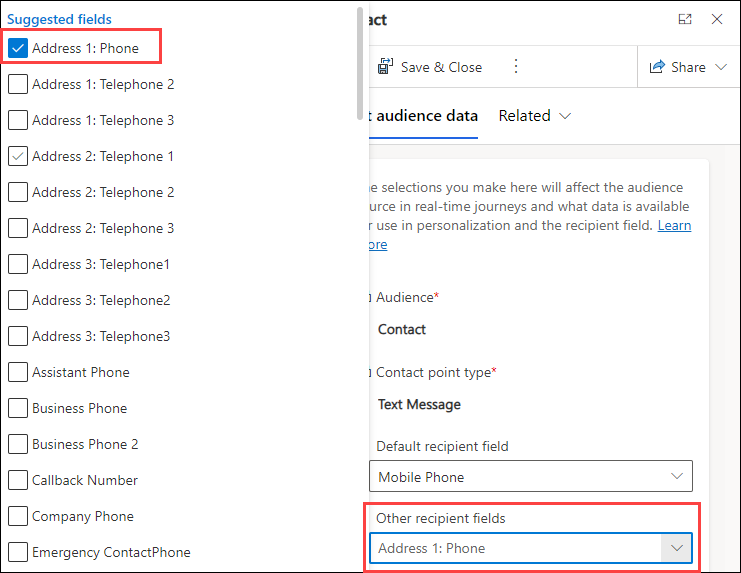
In the Edit audience data tab, select the required phone number fields in the following fields:
-
Default recipient field
-
Other recipient field
-
-
Click Save and Close.
The Audience Configuration record for the Text Message contact point is updated.
Update the Email and Phone number Fields in the 'Contact - Create Realtime Marketing Contact Point Consents' Workflow
-
In the Anthology Reach environment, navigate to the Processes page (under Advanced Settings > Process Center > Processes).
-
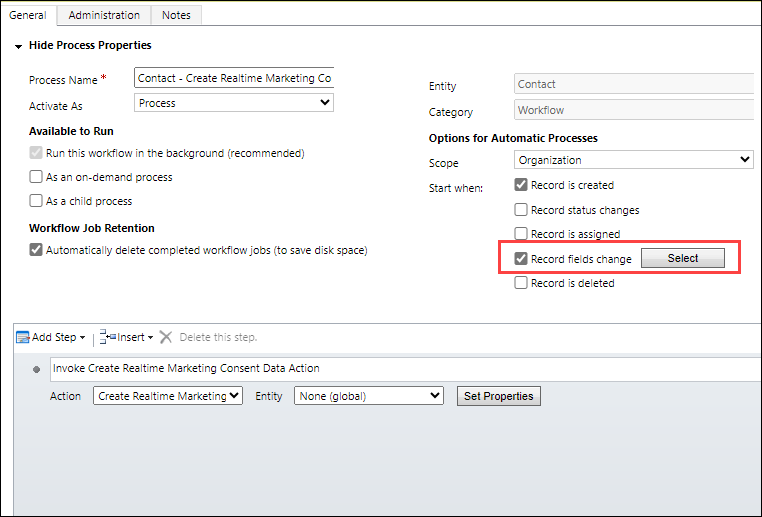
Locate and click on the Contact - Create Realtime Marketing Contact Point Consents process name.
-
Click the Select button next to the Record fields change check box.
-
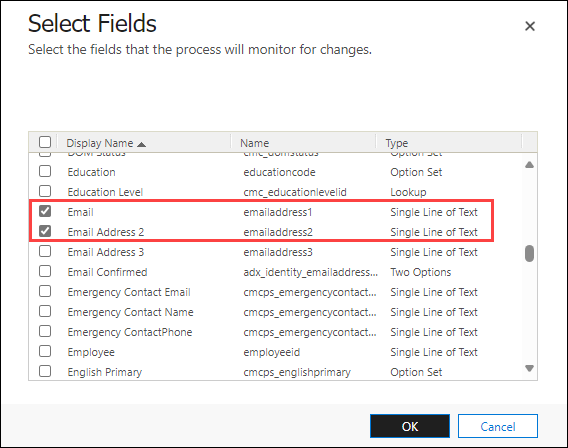
Select the phone number and email field names that are configured as the Recipient fields for the Email and Text Message contact points in the Audience Configuration.
-
Click OK.
Change the Compliance Profile in the Workflow
The Contact - Create Realtime Marketing Contact Point Consents workflow is configured to use the default Compliance profile. However, you can change the compliance profile in the workflow and use a custom Compliance profile that you have created as per your requirements. The following steps provide the steps to change the Compliance profile in the Contact - Create Realtime Marketing Contact Point Consents workflow.
-
In the Anthology Reach environment, navigate to the Processes page (under Advanced Settings > Process Center > Processes).
-
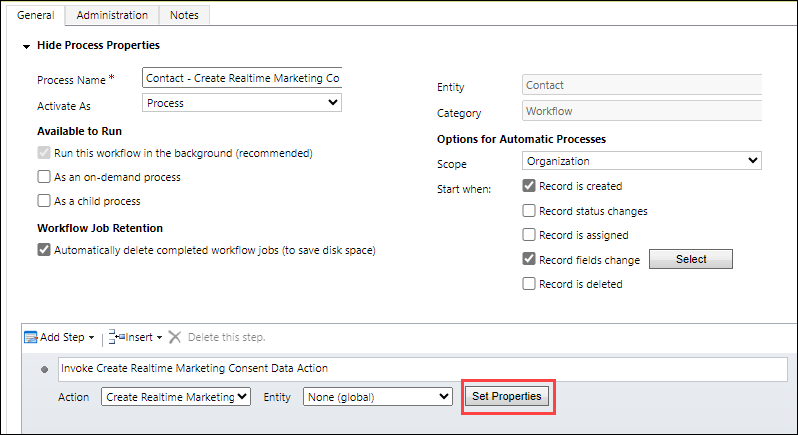
Locate and click on the Contact - Create Realtime Marketing Contact Point Consents process name.
-
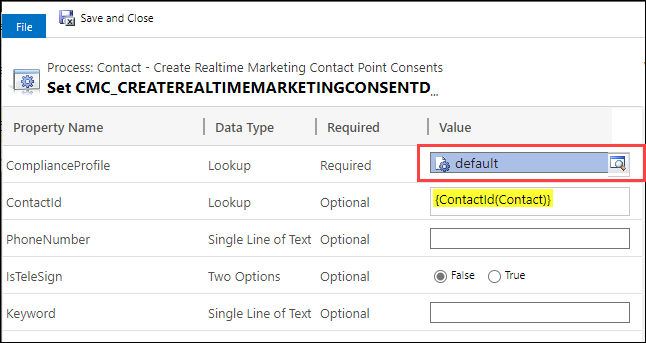
Click the Set Properties button.
-
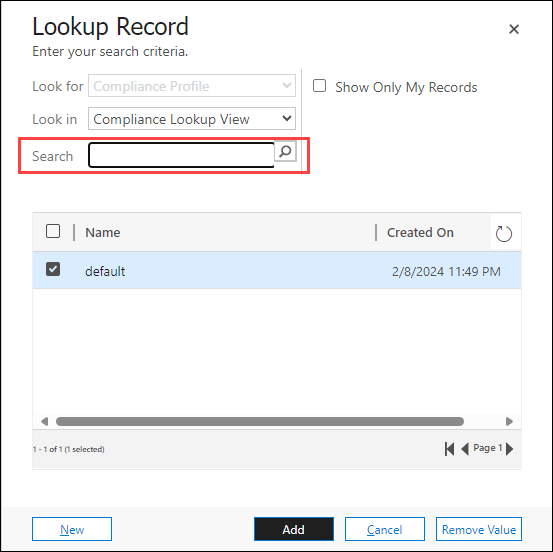
For the Compliance Profile property, click search icon.
-
In the Lookup Record dialog box, search for the required compliance profile record and click Add.
The workflow is updated with the new compliance profile.
Create SMS Consent Records Based on SMS Opt-In and Opt-Out Keywords
Anthology Reach includes an OOTB sample workflow, TeleSign - Create Realtime Marketing Contact Point Consents, which is shipped in an inactive state and needs to be manually activated to enable the creation of consent records for sending Real-time Journeys SMS.
The creation of consent records for sending Real-time Journeys SMS consists of the following steps:
-
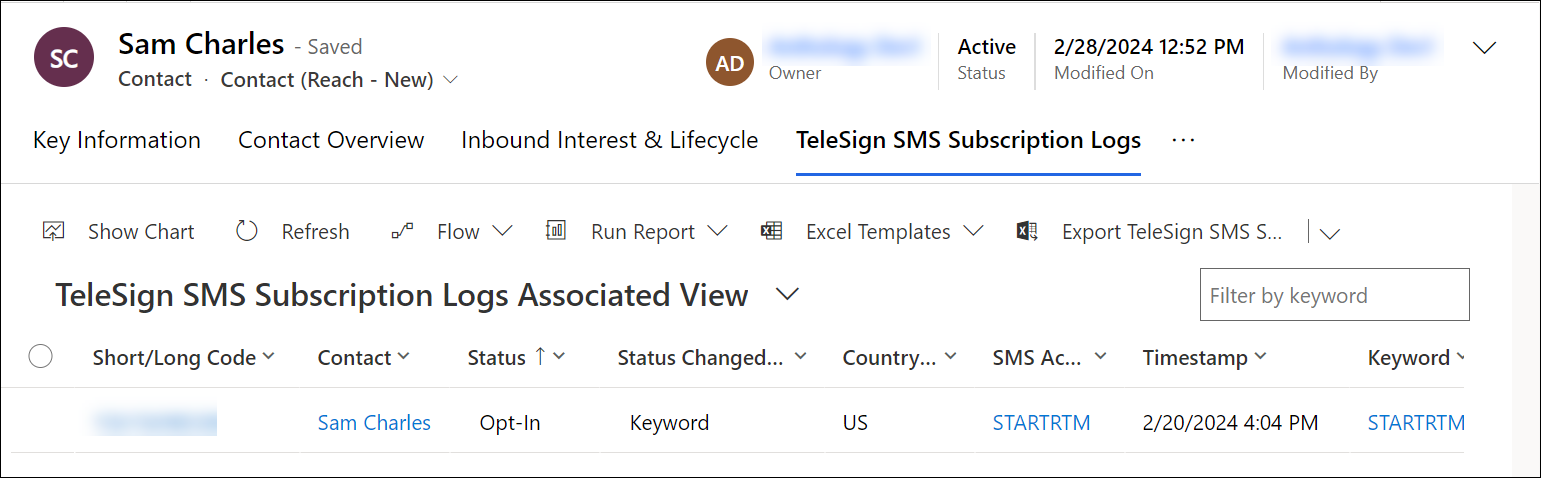
When a contact responds to an SMS message with the Opt-In or Opt-Out keyword configured for the Realtime Journeys SMS in the Default Configurations, a Telesign SMS Subscription Log record is created for the phone number from which the contact sent the Opt-In or Opt-Out message.
-
The creation of a Telesign SMS Subscription Log record triggers the TeleSign - Create Realtime Marketing Contact Point Consents workflow, that checks the keyword in the Telesign SMS Subscription Log record and calls the Create Realtime Marketing Consent Data action to create consent records for the contact's phone number based on the Compliance Profile selected in the TeleSign - Create Realtime Marketing Contact Point Consents workflow.
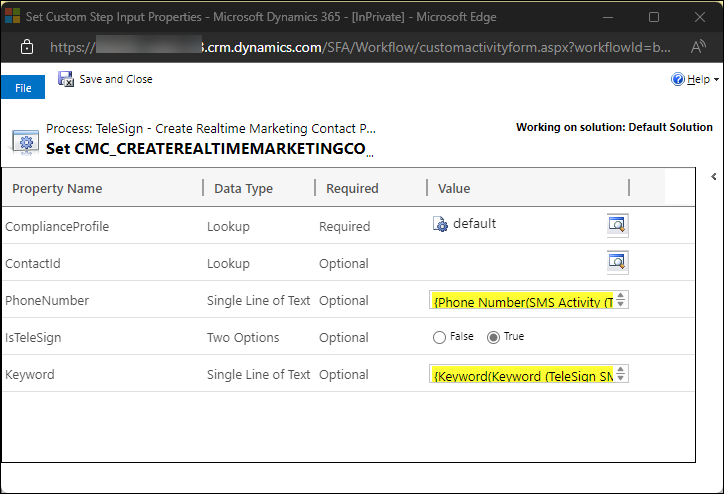
For steps to change the Compliance Profile, see Change the Compliance Profile in the Workflow.
