User Configuration Process
The following settings need to be made by each user. While it’s possible to perform these steps by running a script, each user can easily make the following changes.
 Configure Gmail to Enable External Access to the Mailbox using the POP3 Protocol
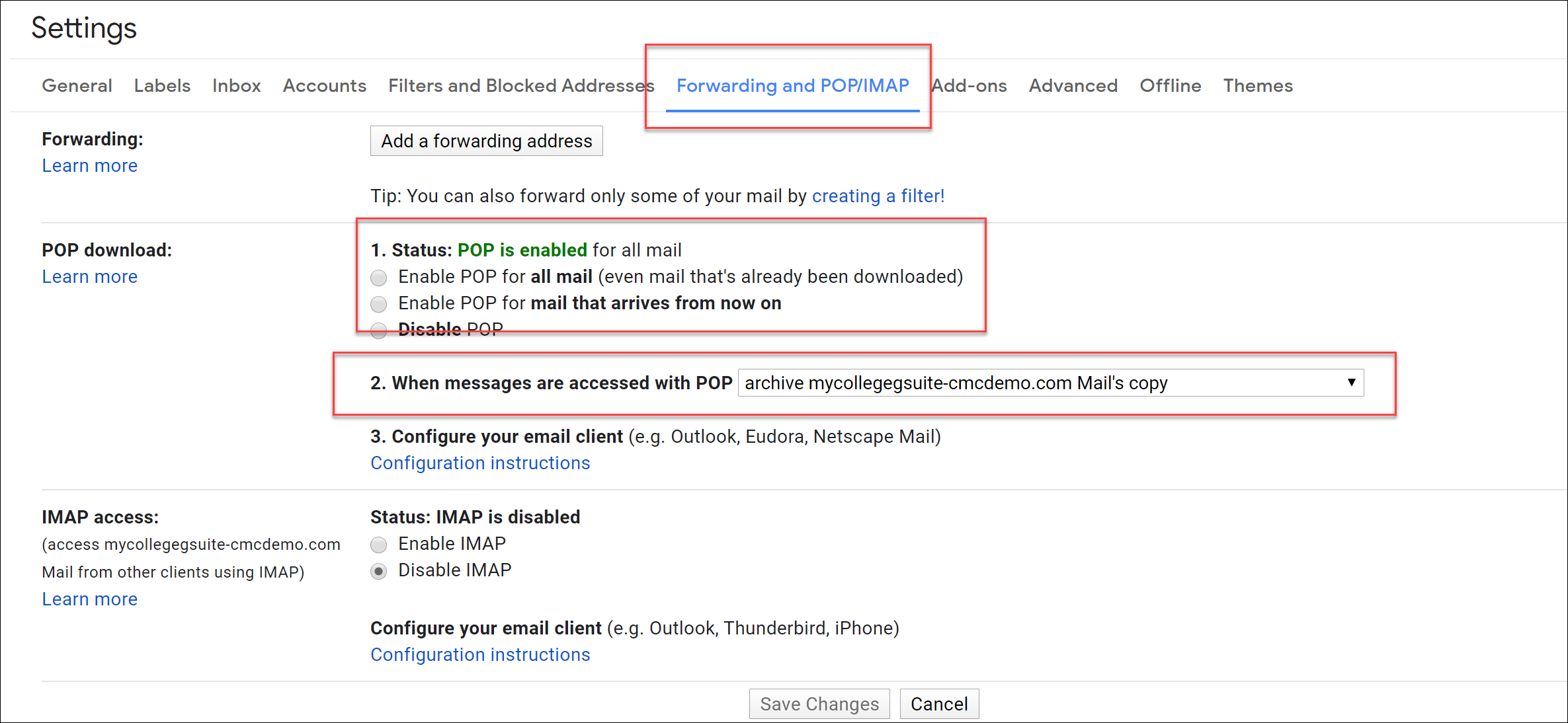
- From https://mail.google.com, navigate to Settings > Forwarding and POP/IMAP.
- Make the following changes:
- Select “Enable POP for mail that arrives from now on”.
- In the option When messages are accessed with POP, select archive Gmail’s copy.
- Click Save Changes.
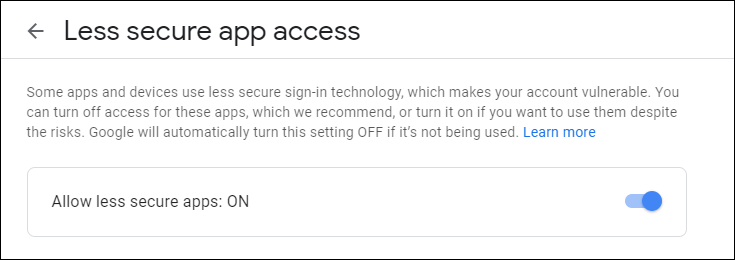
Occasionally, Gmail will block connections from third party applications. While Dynamics 365 uses built-in security features to keep data safe, it is not exempt from Google's own built-in security features.
To enable this connection:
- Go to https://myaccount.google.com/lesssecureapps.
- Toggle Allow less secure apps: ON.
Configure Tracking in Dynamics 365
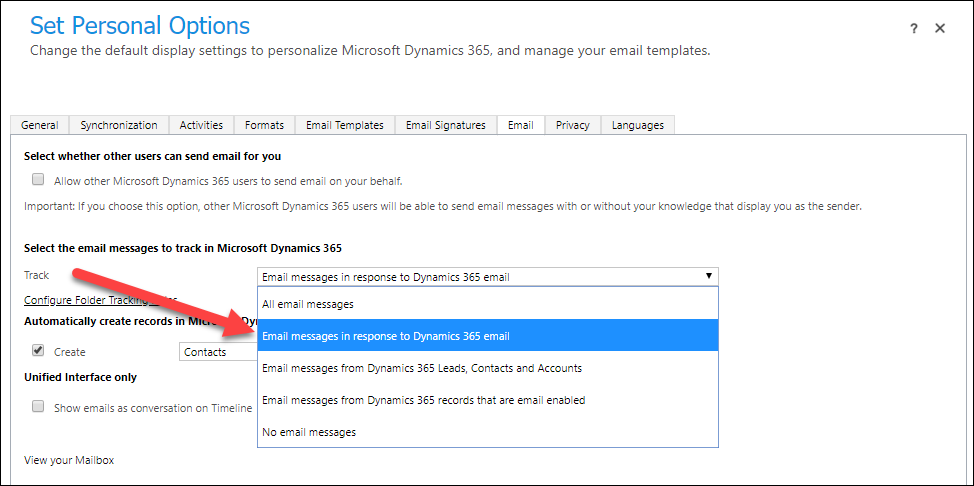
- Click on the Email tab and select Email Messages in Response to Dynamics 365 email.
Update Mailbox with Login and Password Details
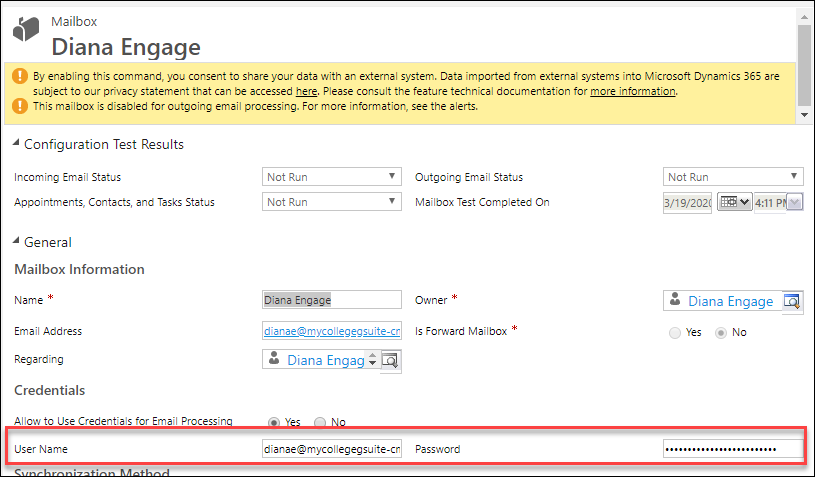
- Users need to open their mailbox record from their User record by clicking Open Mailbox.
- In the option Allow to use Credentials for Email processing, select Yes.
- Enter the Gmail user name and password and then save and close the record.