Working with Twilio Integration for SMS
The topics in this section provide information on working with the Twilio integration in Anthology Reach for SMS.
 Configure Consent for SMS for a Contact Record
-
Navigate to the contact record in Anthology Reach.
-
Select the Contact Overview tab, and in the Contact Preferences section, update the value of the SMS Text field to Allow.
-
Select the Save menu option.
Steps to Send a Message using Twilio-
Currently, sending SMS messages is supported only for the Contact records.
-
The phone number stored in the phone number field configured in the Contact SMS Recipient Field field in the Text Message Provider record will be used:
-
For sending messages, and
-
For identifying the Contact when an incoming SMS is received.
For more information, see Configurations for Twilio Integration.
-
-
If a phone number stored in the Mobile Phone Number field of the Contact record is used for sending messages and for identifying the Contact when an incoming SMS is received.
-
Navigate to the contact record in Anthology Reach.
-
Go to the Timeline section, select the plus icon, and then the Message Details option.
-
In the New Message Details - Conversation Details page, specify the following details in the Details tab:
-
In the From field, search for the Text Message Sender record associated with your Twilio account to select the appropriate Long Code or Toll-Free number for sending the SMS.
-
In the 'Type a message' text area type your message, emojis, and select the Send button.
The Message Details section displays the details of the highlighted message, which include:
-
Message Direction - Indicates whether the message is incoming or outgoing.
-
Marketing Message - Yes in this field indicates that the message was sent as part of a Marketing Customer Journey.
-
Error Code - Displays the error code when an error occurs while sending a message.
-
Error - Displays the error description.
-
Receiving a text message-
The incoming SMS message is by default assigned to the owner of the text message sender ID record (e.g. Long code owner) in Anthology Reach.
-
Phone number stored in the Mobile Phone Number field of the Contact record is used for identifying the Contact when an incoming SMS is received.
-
If the same phone number is linked to multiple Contact records, the first available Contact is shown at the top in the conversation section when opening an SMS message record. However, you can search and select the other contact from the lookup field.
Keyword Based Opt-In and Opt-Out Messages
The SMS messages in Reach supports Twilio-based Opt-In, Opt-Out, and Help keyword functionality which are configured in the Twilio console. For more information, see Customizing Users' Opt-in and Opt-out Experience with Advanced Opt-Out.
When a contact sends an Opt-In or Opt-Out keyword to the Sender ID (such as a long code), the Twilio system automatically subscribes or unsubscribes that contact’s phone number from receiving messages.
Reach captures each of these interactions as activity records under the Message Details activity entity, which appears in the contact’s Timeline.
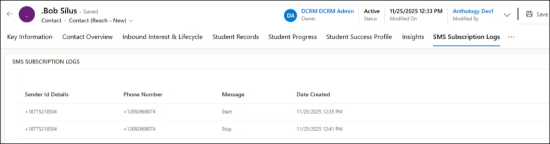
Additionally, users can view all subscription related events in the SMS Subscription Logs tab on the Contact form.
The SMS Subscription Logs tab
About Messages Sent as Part of Marketing Customer Journeys
When a message is sent as part of a Marketing Customer Journey, the letter M is displayed next to the message.
All the marketing messages sent to a contact and not just the ones which were sent from the selected Long code are displayed in the Message Details - Conversation Details area.
When a marketing message is viewed, in the Message Details section only the template name and the date and time when the SMS was sent through Customer Journey are displayed and not the actual content.
