Configuring Trace Log Level for an Azure Function App
Configuring the Trace log level for the Azure Function App created for the Reach Import and Export process, enables capturing all logs in the Azure Application Insights when a File Import process is run. This information helps in detailed diagnostics and performance tuning through custom queries.
Prerequisites
Obtain the Azure Function App name created for the Import and Export process
-
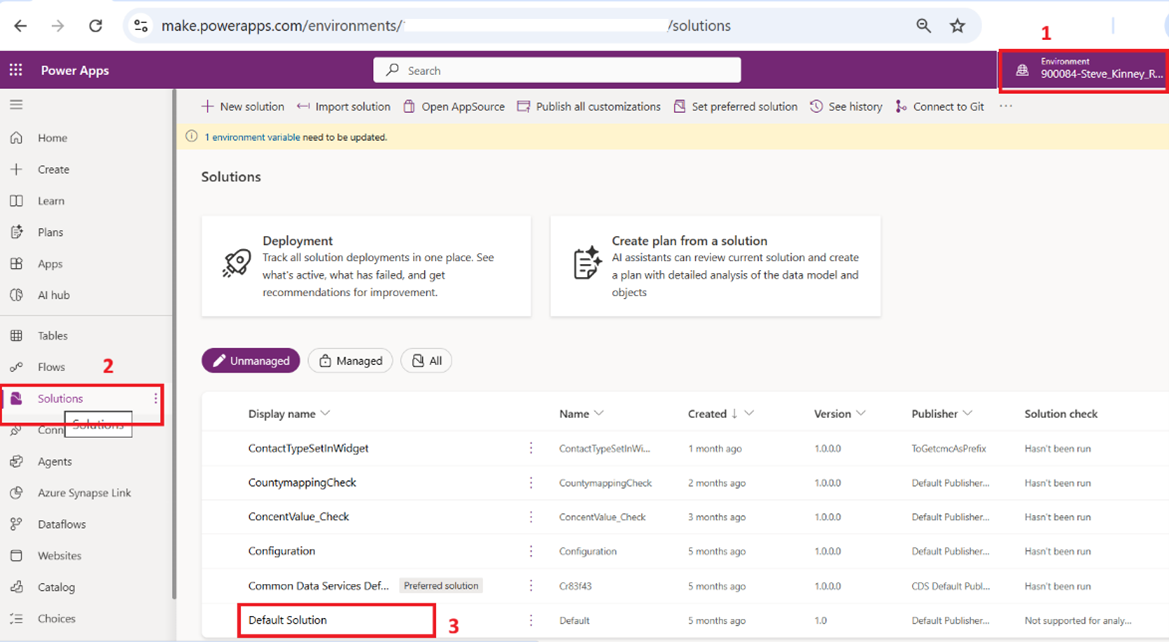
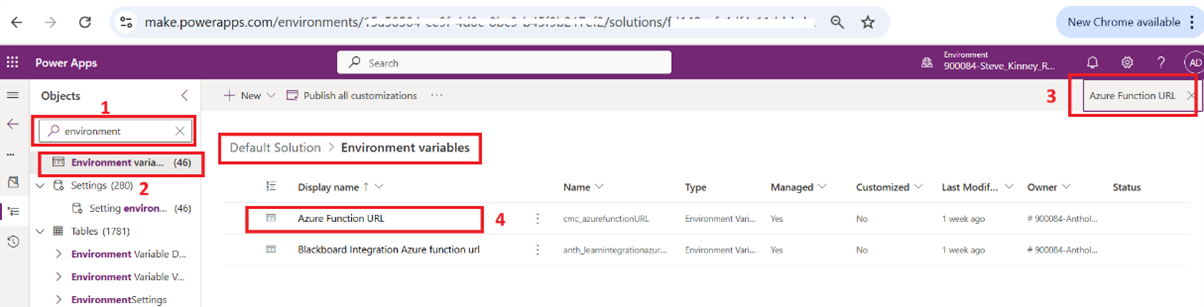
Navigate to https://make.powerapps.com/environments and select the Reach environment.
-
Click Solutions and select Default Solution.

-
In the search bar on the left side, search with the keyword Environment and select Environment variables to view the list of available environment variables.
-
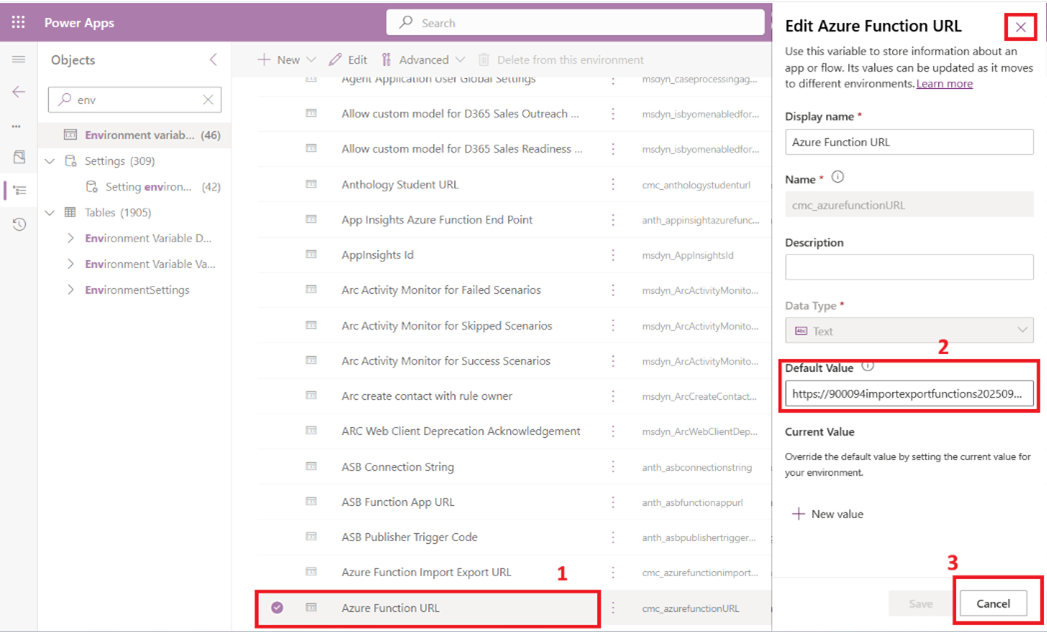
Select the Azure Function URL variable.
A pop-up window will appear on the right-side of the page with all the details.
-
Copy the URL from the Default Value field and paste it in a text editor (e.g. Notepad) for reference.
We will use this value to locate the Function App in the Azure portal in the Steps to Update the Log Level to Trace topic.
-
Close the pop-up window.
Steps to Update the Log Level to Trace
-
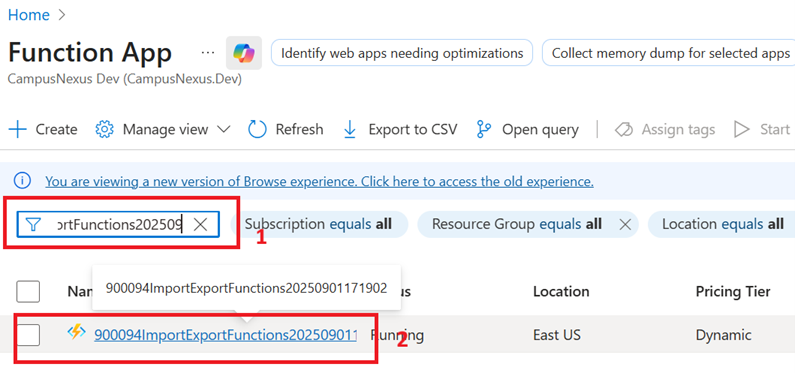
Navigate to https://portal.azure.com/, locate and select the Function App service.
-
In the Function App page search bar, paste the Default Value of the Azure Function URL copied in Step 5 of the Obtain the Azure Function App name created for the Import and Export processsection.
-
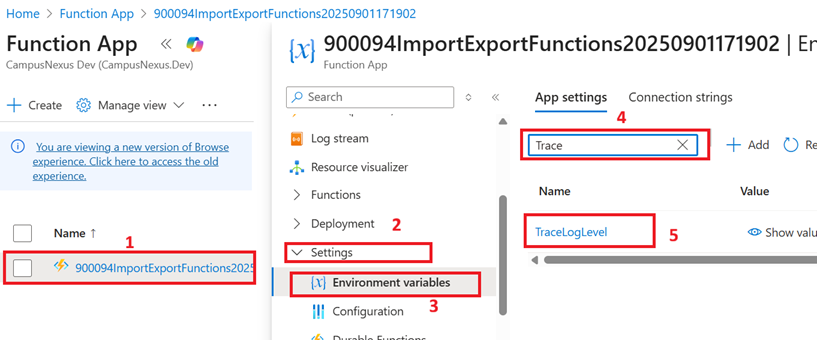
From the available list of Function App, select the required Function App to view its details.
-
Expand the Settings and select Environment variables.
-
On the right pane, search for the TraceLogLevel setting and click on the setting to view it in edit mode.
-
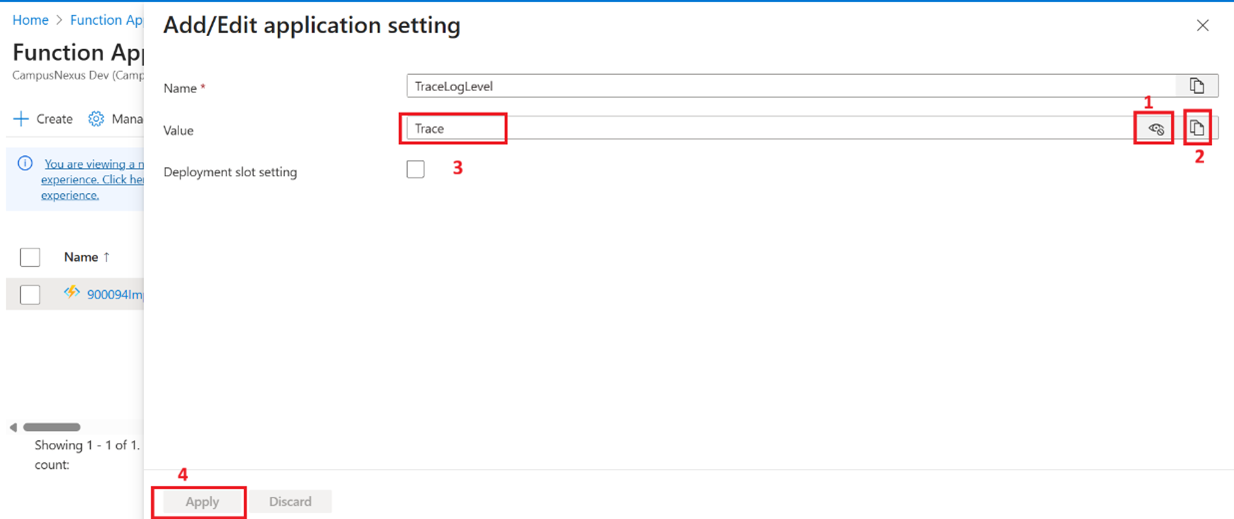
In the Name field, select the “eye” icon to display the value and select the copy icon to copy the value, and paste it in a text editor (e.g. Notepad).
The copied value of the TraceLogLevel setting will be later required to rollback the changes after completing the optimization of the import parameters.
-
Update the value of the TraceLogLevel setting Trace, and select the Apply button.
-
Click Applyon the parent page, and on the confirmation pop-up select the Confirm button to confirm the changes.
The new settings will take a few seconds to update.
Verify by re-running the File Import process using the Power Automate Flow. All logs will now be captured in the Azure Application Insights.