View Picker - Customizing the Selection of Views in Forms
Administrators can customize the list of views available for selection in forms. This means that default or user-defined views for a specific entity can be displayed. This behavior can be achieved using PCF (PowerApps Component Framework). Administrators can create views to provide customized experience to users.
- In the form designer, double-click the field in which you want to customize the list of values that can be displayed. The Field Properties dialog will be displayed.
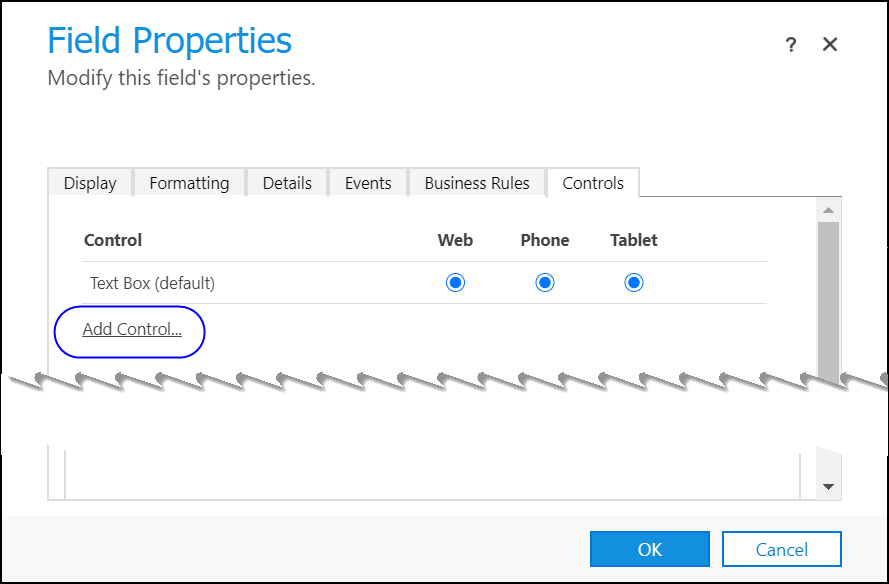
- In the Controls tab, click:
- Radio buttons of the interfaces (Web, Phone or Tablet) in which you want the control to appear.
- Add Control – The Add Control dialog will be displayed.
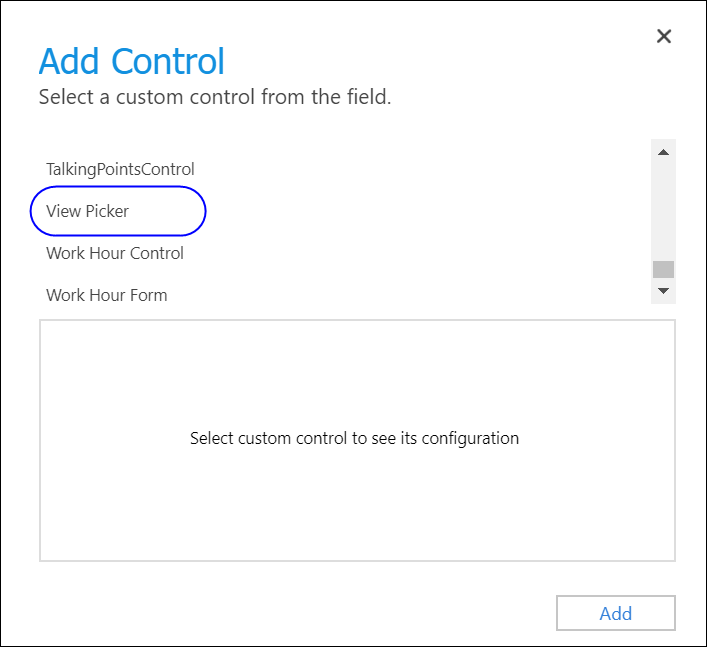
- Select View Picker and then click Add. The View Picker option will be displayed in the Control area of the Field Properties dialog.
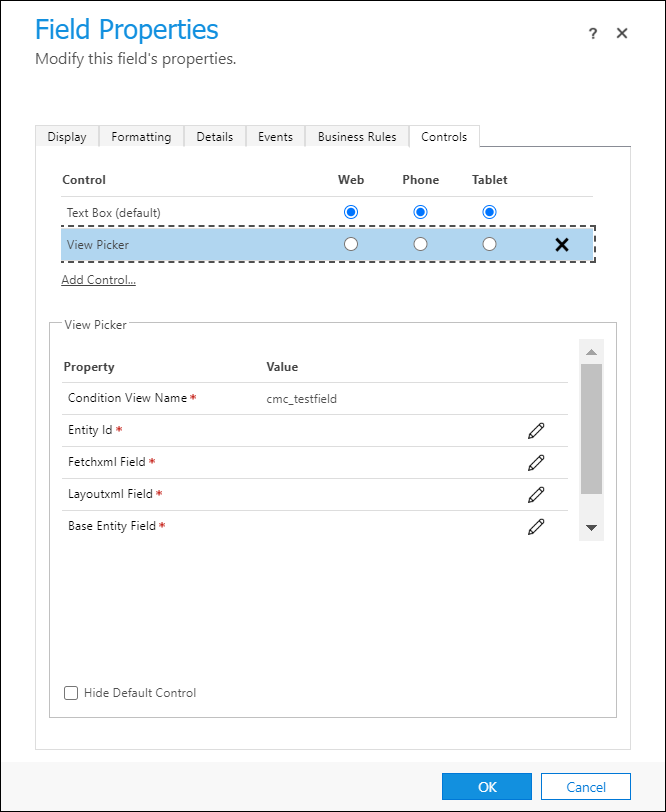
- In the View Picker area, perform the following steps in the indicated fields:
- Entity Id – Enables you to select the primary field of the entity.
In the option Bind to a value on a field, while multiple fields will be available, ensure that you select a primary field of the entity.
Example
The ID field of the assignment group entity can be selected. - Fetchxml Field – In the option Bind to a static value, select a field in which the FetchXML query will be saved.
Example
The value stored in the Query XML area of an assignment group record. - Layoutxml Field – In the option Bind to a static value, select a field in which the LayoutXML of the view will be saved.
- Base Entity Field – In the option Bind to a value on a field, select the field in which the base entity on which the FetchXML will be created will be saved.
Example
The entity that is set as the base entity in the assignment group record. - Entity Name Field – In the option Bind to a value on a field, select the field in which the name of the query will be stored. For example, the name of the field in which the query created in the assignment group will be stored.
- Entity Id – Enables you to select the primary field of the entity.
- Click the option Hide Default Control if your institution’s Dynamics 365 application supports custom controls. The configured controls and data will be displayed.
- Click OK to close the Field Properties dialog, and then click Publish, Save and Close.
The created custom controls will be available to users in your Anthology Reach implementation.
