AI Generated Record Summaries in Reach
Working with students, prospects, and alumni often means reviewing conversations and activities that span months or even years. Before reaching out, staff members may need to quickly understand what’s happened so far, spot any open items, and get the right context for your conversation.
The Reach solution leverages the AI powered record summarization capabilities of Dynamics 365 that can provide users with intelligent, contextual summaries of key records such as Contacts, Applications, Accounts, Inbound Interest, Lifecycle etc.
AI-generated record summaries help admissions, student services, and recruitment teams with a clear snapshot of a student’s history—right at the top of the record. The summary highlights key activities and engagement so that higher education staff member can prepare faster without searching through long timelines or multiple tabs.
The following topics provide information on configuring and using the AI generated record summaries features in Reach.
-
AI-Powered Record Summaries and Insights for Inbound Interest and Lifecycles
-
Intelligent Record Summaries and AI Powered Insights Across Key Entities with Copilot
AI-Powered Record Summaries and Insights for Inbound Interest and Lifecycles
You can use the record summarization capability of Copilot in Dynamics 365 to generate a quick summary of the Inbound Interest, Lifecycle, and Account entity records in Reach. Copilot generates the summary from predefined fields configured by your administrator.
The topics in this section provide information on configuring Copilot to generate and view record summaries of the Lifecycle, Inbound Interest, and Account entities.
Enable Copilot for Reach Apps
-
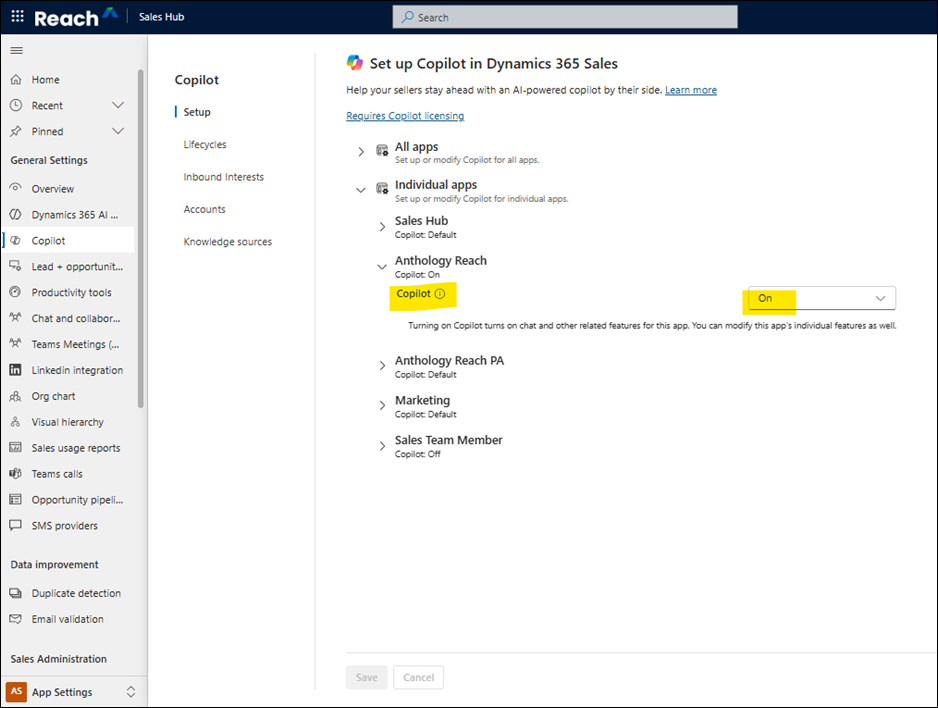
In your Reach environment, open the Sales Hub app.
-
Go to App Settings.
-
Select Copilot.
-
In Setup, turn on Copilot for your model-driven app.

Configure Entity Fields for Generating Record Summary
After enabling the Copilot option for the required model-driven apps, perform the following steps to configure the fields of the Lifecycle, Inbound Interest, and Accounts entities required for generating AI based record summary.
Note: The following steps use the Lifecycle entity as an example. You can follow the same steps for the Inbound Interest and Account entities.
-
In your Reach environment, open the Sales Hub app.
-
Go to App Settings.
-
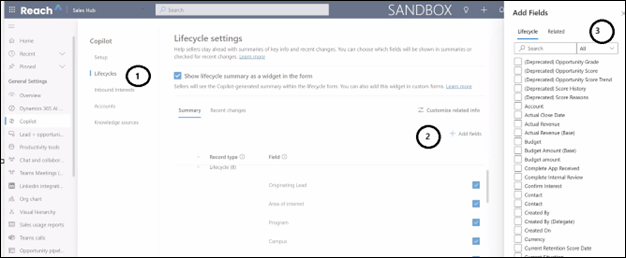
Select Copilot and then select Lifecycles.
-
Select the Summary tab and then click the Add Fields button.
-
In the Add Fields pop up window, select the fields from the Lifecycle and Related entities for generating the Lifecycle record summary, and select Add.
-
Select Save.
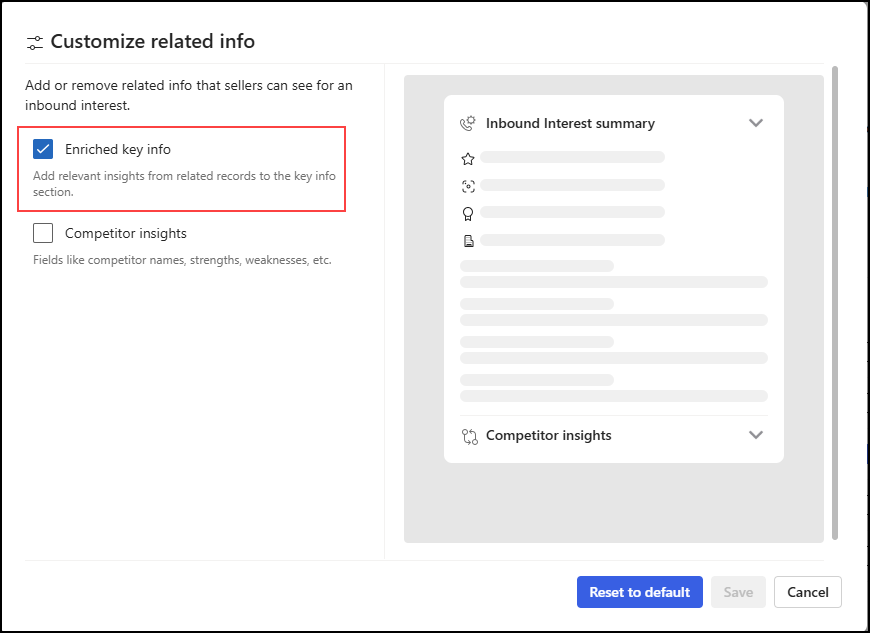
Recommendation: In the Customize related info page for all entities (Lifecycle, Inbound Interest, Account), select only the Enriched key info check box for better results.
View Copilot Generated Record Summary
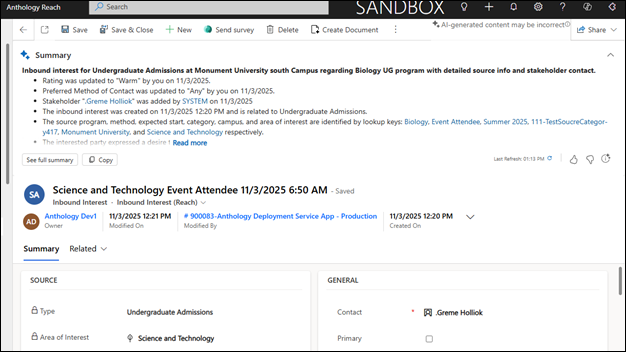
In Reach, open an Inbound Interest, Lifecycle , or Account entity record. At the top of the record page, you’ll see a summary insight banner that gives you a quick overview.
Here’s an example of what the summary insight banner looks like for an Inbound Interest record.
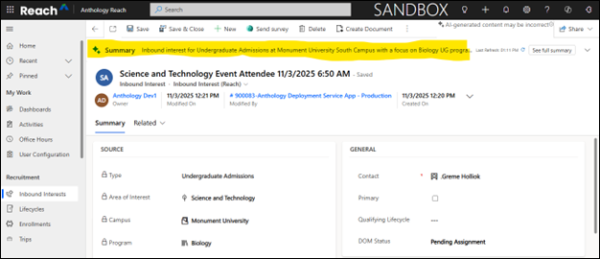
You can expand the summary insight banner to see more details.
Limitations for Copilot Generated Record Summary
-
You can only configure a maximum of 15 fields for generating the AI based record summary for an entity record.
Intelligent Record Summaries and AI Powered Insights Across Key Entities with Copilot
Records often contain numerous fields distributed across multiple tables, views, forms, tabs, and sections, making it time-consuming for users to locate and interpret critical information. By surfacing key fields and insights in a concise, at a glance summary, you can enable users to quickly understand the context of a record, regardless of where it is accessed.
AI-based record summaries can be configured for additional entities within Reach. You can create a custom prompt to define which columns should be included in a Copilot-generated row summary. These summaries are displayed in a consistent, dedicated experience, either within a collapsible summary bar at the top of the main form or accessible directly from views for individual rows providing users with quick access to the most relevant information for a record.
As part of the standard experience, row summaries with AI prompts are preconfigured for the Contact and Application entities. These sample prompts generate meaningful summaries by default and serve as reference examples for institutions. Customers can use the delivered prompts as-is or modify them to create customized summaries aligned with their specific business processes and requirements.
Preconfigured Row Summary for the Contact Entity
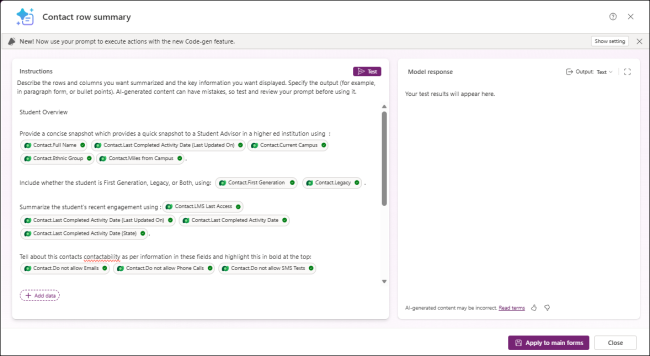
To configure row summary for an entity or edit the AI prompts in the row summary, see Microsoft Documentation.
The topics in this section provide information on working with the Intelligent Record Summaries and AI Powered Insights Across Key Entities with Copilot feature:
View Preconfigured Row Summary
To view and edit the preconfigured row summary prompt for the Contact or Application entities, perform the following steps:
-
Login to make.powerapps.com, and select the required environment.
-
Click Tables and select the Application table (cmc_application).
-
In the Data experiences section, select Forms.
The list of forms for the Application entity are displayed.
-
In the ribbon menu, select Row Summary and then select Edit summary.
The Application Row Summary page with the preconfigured AI Prompt is displayed.
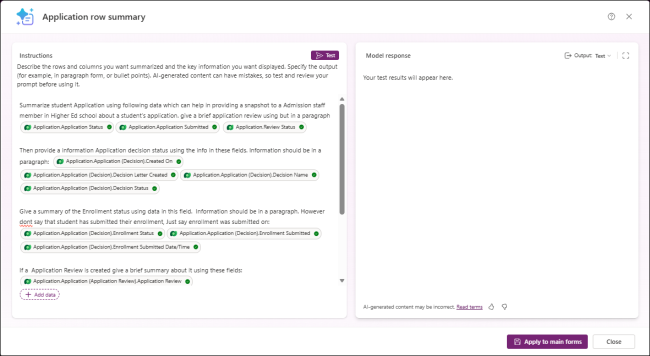
For information on editing the AI prompts in the row summary, see Microsoft Documentation.
View AI Generated Record Summary for Key Entities
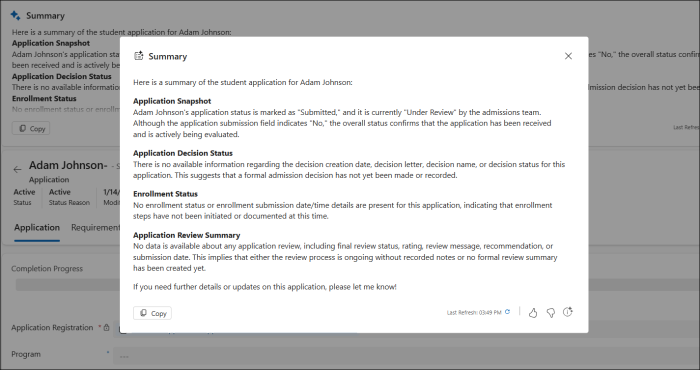
In Reach, open a Contact or Application record. At the top of the form, you’ll see a summary insight banner that gives you a quick overview.
Here’s an example of the AI generated record summary for an Application record in Reach.
Limitations for Generating AI Based Row Summary
-
Row summaries feature is not available for the Dynamics 365 apps tables, such as Case, Lead (Inbound Interest), and Opportunity (Lifecycle). For more information, see Microsoft Documentation.
-
When you configure row summary for a table, it applies to all main forms of the table. That is, you cannot enable or disable the prompts for individual main form of the table.
-
The prompt configured in the row summary for a table will be applicable for all the main forms. That is, you cannot configure a different prompt for each main form of the table.
-
You can’t reliably pull “all related records” into the prompt. Row summary works best with direct fields or single-value look-ups (1:1 / N:1).
