A message is added to the Dead Letter Queue
Summary
When Anthology Finance & HCM is integrated with an external system, an alert email is sent from the Azure Monitor that has the following alert description:
A message is added to the Dead Letter Queue (DLQ). Use the ‘Service Bus Explorer’ tool to identify and resolve the error.
Cause
This alert is sent when a new message is added to the Dead Letter Queue (DLQ).
Resolution
Use the Service Bus Explorer tool to view the dead letter queues. Service Bus Explorer is an open source tool to manage the Azure Service Bus. For more information, refer to Service Bus Explore on GitHub and Using Service Bus Explorer.
Resolve the issue using the following steps:
Connect to the Azure Service Bus namespace
-
Open the Service Bus Explorer tool.
-
Select File > Connect.
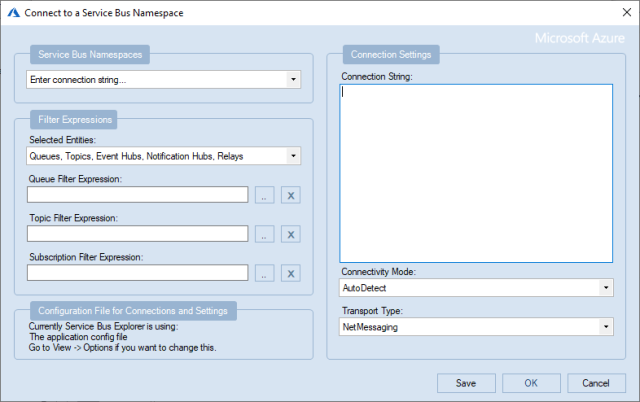
The Connect to a Service Bus Namespace dialog box is displayed.
-
In the Service Bus Namespace field, select Enter connection string.
-
In the Connection String field, specify the connection string generated for the Service Bus Namespace on the Azure portal. To obtain the connection string for the Service Bus Namespace, perform the following steps:
-
In the Azure Portal, navigate to the Resource group under which the service bus namespace is created and select the service bus namespace name.
-
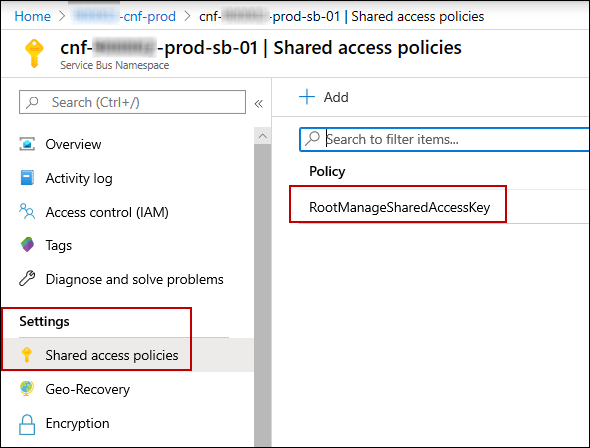
On the service bus namespace page, in the left pane, select Settings > Shared access policies, and select the RootManageSharedAccessKey policy.
-
On the SAS Policy: RootManageSharedAccessKey page, if the keys are not already generated, select the Manage check box to generate the keys and connection strings.
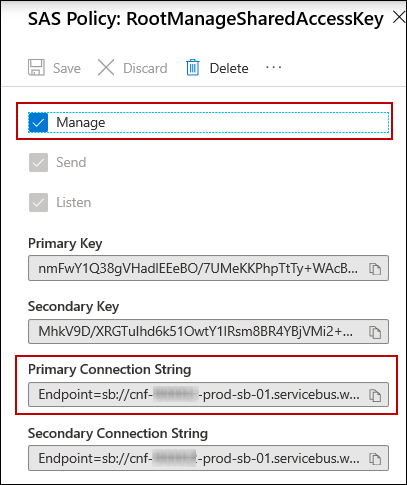
- Copy the value from the Primary Connection String field.
-
-
In the Enter the key for the Service Bus namespace dialog, select OK.
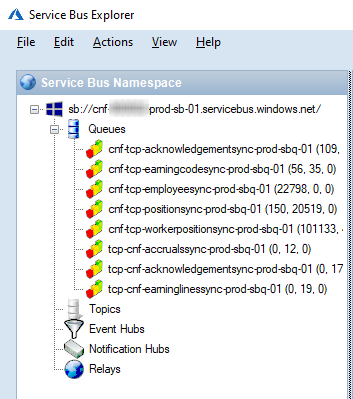
The Service Bus Namespace is connected, and the queues within the namespace are listed.
View the Dead Letter Queue and resolve the issue
-
In the Service Bus Explorer, connect to the service bus namespace for which the alert is triggered.
-
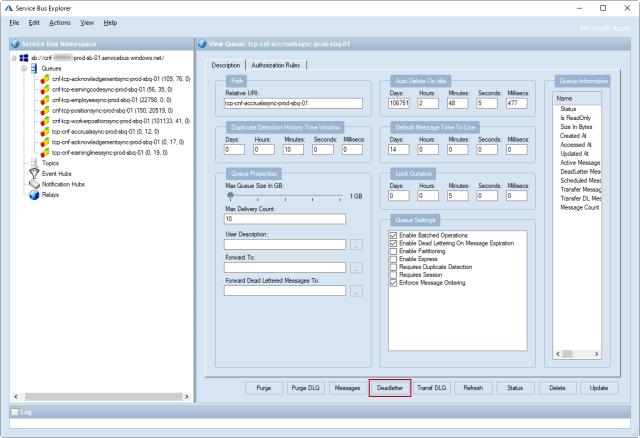
Select a queue and select the Deadletter button.
-
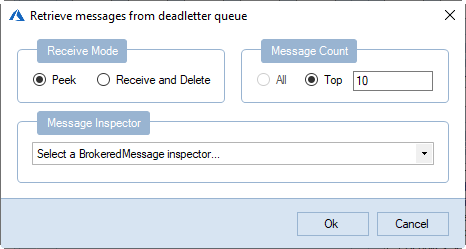
In the Retrieve messages from deadletter queue dialog, select Ok.
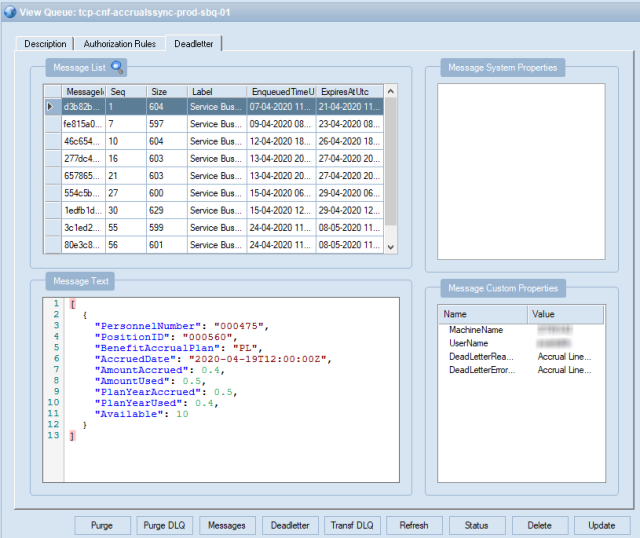
The deadletter messages are displayed on the Deadletter tab.
-
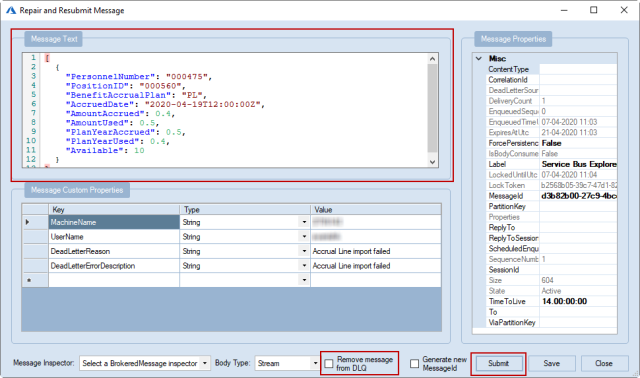
Double-click a dead letter message to view the Repair and Resubmit Message dialog.
The dead letter message is removed from the list in the Deadletter tab.
-
In the Repair and Resubmit Message dialog, perform the following steps:
-
In the Message text field, make the required corrections to the message.
-
Select the Remove message from DLQ check box.
-
Select Submit.
-
In the Select a target Queue or topic dialog, select Ok.
-
