Event Scheduling
Event scheduling enables you to schedule an event to occur based on a recurrence pattern. Event scheduling utilizes the Job Scheduler in SQL Server and the existing stored procedure sproc_Notification_Timer_ScheduledEvent.
The stored procedure takes the following arguments:
Entity: Schedule
Event: Schedule Occurrence Event
sproc_Notification_Timer_ScheduledEvent @key = ‘Birthdays’(example)
The stored procedure creates the job that can be scheduled in SQL Server Management Studio.
Create and Attach a Schedule to a Job in SQL Management Studio
-
In Object Explorer, connect to an instance of the SQL Server Database Engine, and then expand that instance.
-
Expand SQL Server Agent, expand Jobs, right-click the job you want to schedule, and select Properties.
-
Select the Schedules page, and then select New.
-
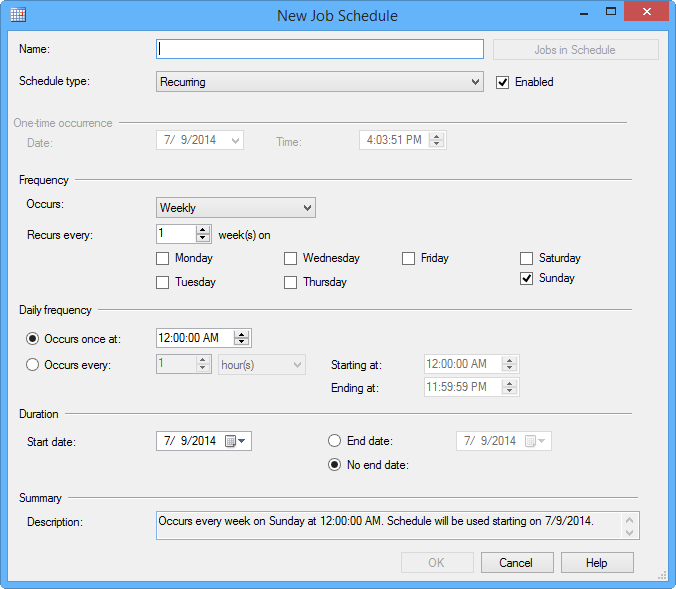
In the Name box, type a name for the new schedule.
-
Clear the Enabled check box if you do not want the schedule to take effect immediately following its creation.
-
For Schedule Type, select Recurring. Complete the Frequency, Daily Frequency, and Duration groups in the New Job Schedule window.
Attach a Schedule to a Job
-
In Object Explorer, connect to an instance of the SQL Server Database Engine, and then expand that instance.
-
Expand SQL Server Agent, expand Jobs, right-click the job that you want to schedule, that is, the job created by the stored procedure, and select Properties.
-
Select the Schedules page, and then select Pick.
-
Select the schedule you want to attach and select OK.
-
In the Job Properties dialog box, double-click the attached schedule.
-
Verify that Start date is set correctly. If it is not, set the date when you want for the schedule to start, and then select OK.
-
In the Job Properties dialog box, select OK.
