Azure Entra Configuration for NRE
The NRE (New Registration Experience) feature implementation requires the following configurations in Azure Entra:
-
Add SPA redirect URIs for Portal and Anthology Student Entra applications
-
Grant Admin Consent for User.Read under API permissions
Important: This configuration must be completed for any customer using NRE before proceeding with the feature.
Step 1: Add SPA Redirect URIs
Add the following SPA (Single Page App) redirect URIs to both the Portal and Anthology Student Entra applications:
-
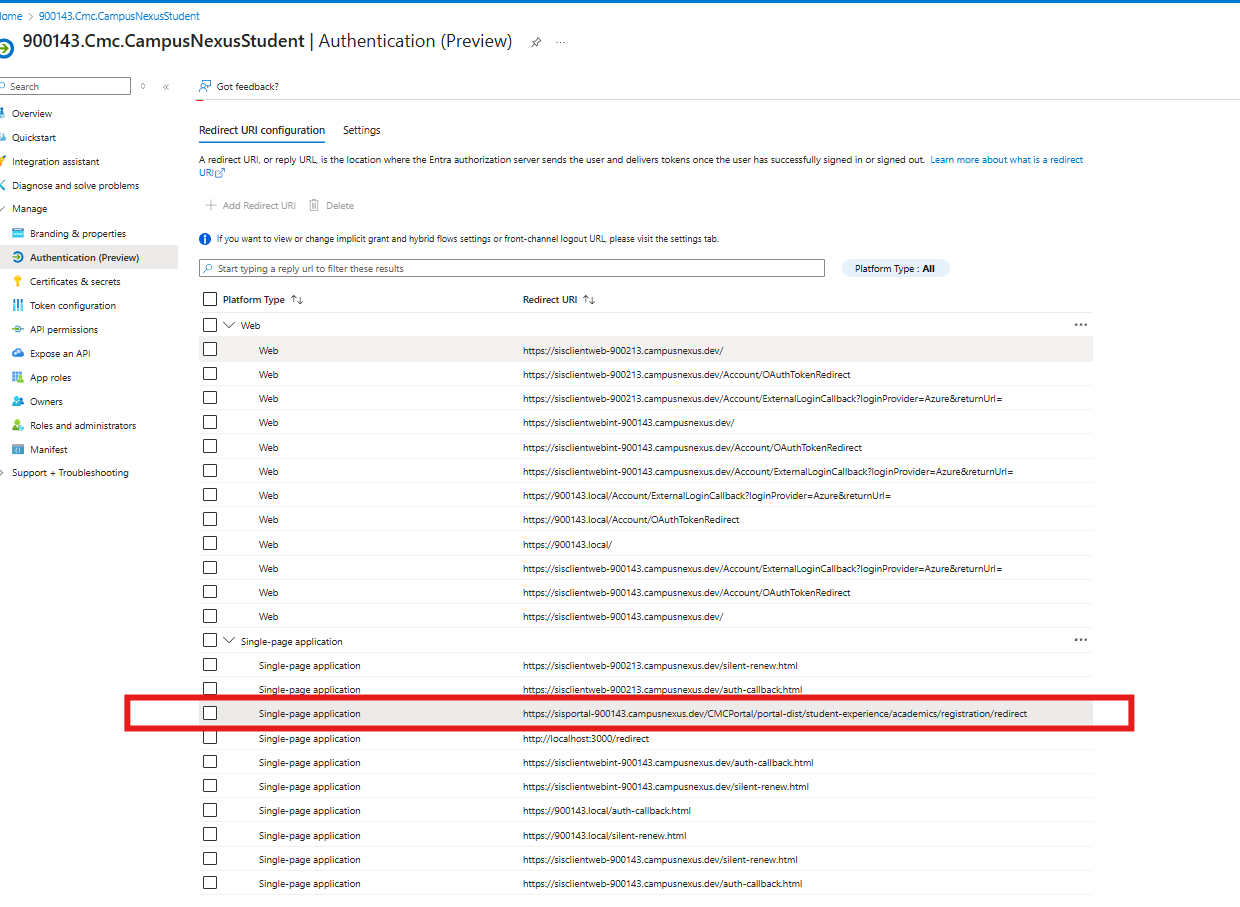
{{Portal_Application_Url}}/portal-dist/student-experience/academics/registration/redirect
-
Example of Portal Application URL: https://sisportal-900006.campusnexus.cloud/CMCPortal
The URL for the given environment will look like this:
“https://sisportal-900006.campusnexus.cloud/CMCPortal/portal-dist/student-experience/academics/registration/redirect”
Azure Portal - Authentication > Add Redirect URI
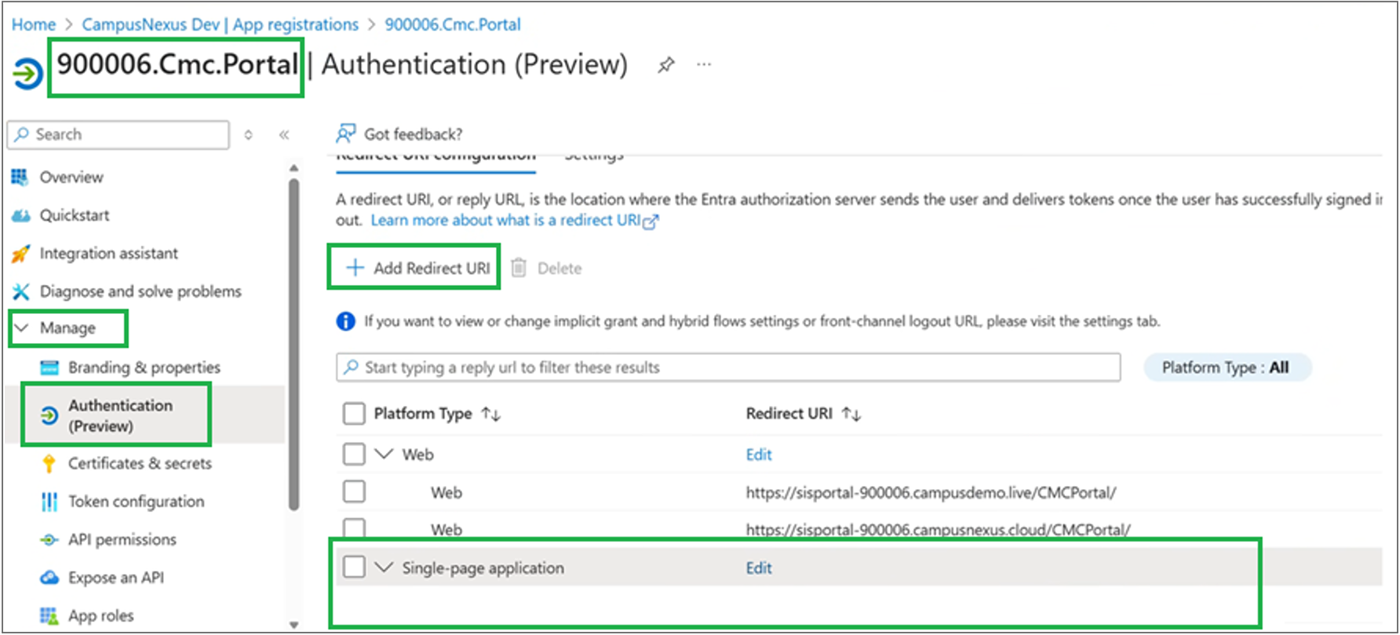
Add the Redirect URI as a Single Page Application to the Portal application.
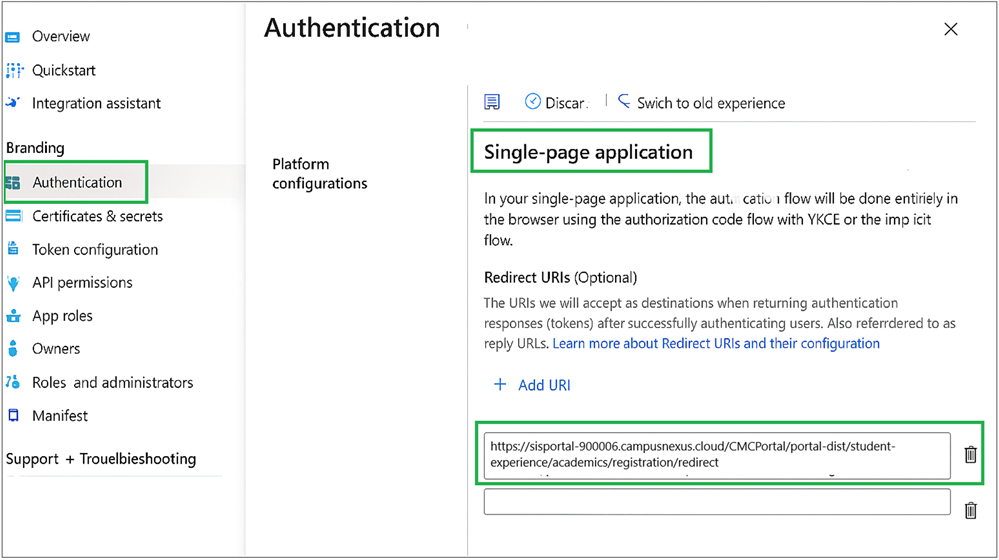
Add the Redirect URI as a Single Page Application to the Student application.
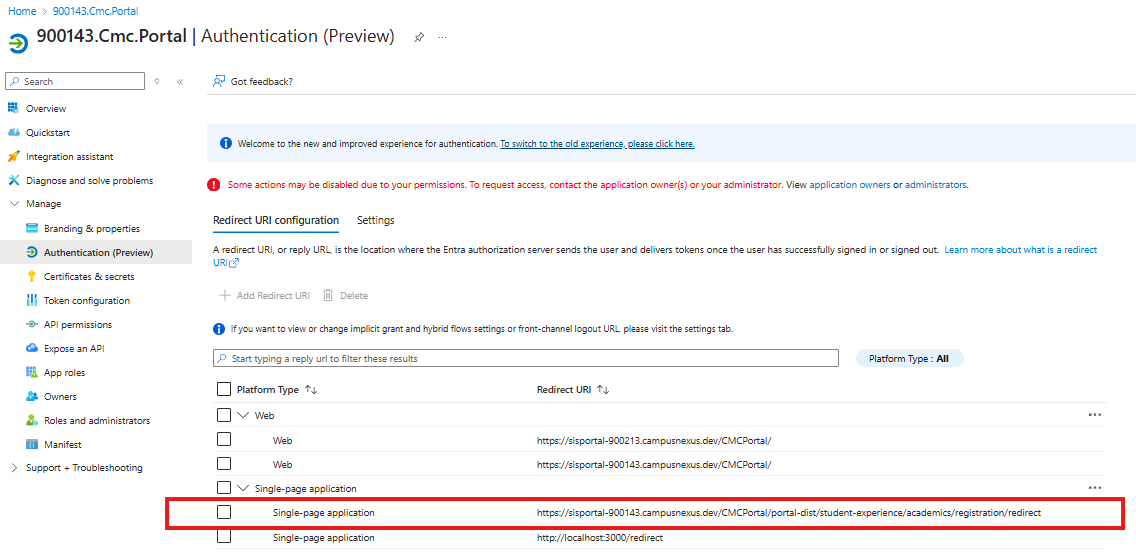
After adding the URL, the preview will look like this for the Portal application:
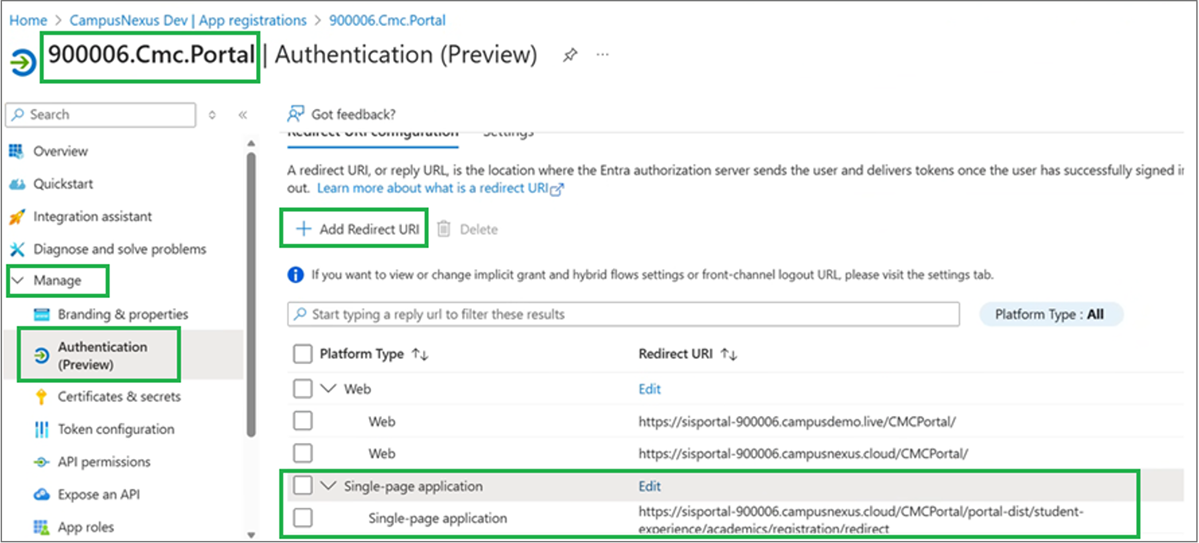
After adding the URL, the preview will look like this for the Student application:
Step 2: Grant Admin Consent
In the Portal Entra application, grant Admin Consent for the User.Read permission under API Permissions. Repeat this step for all environments listed above.
Azure Portal - API Permissions > Grant Admin Consent
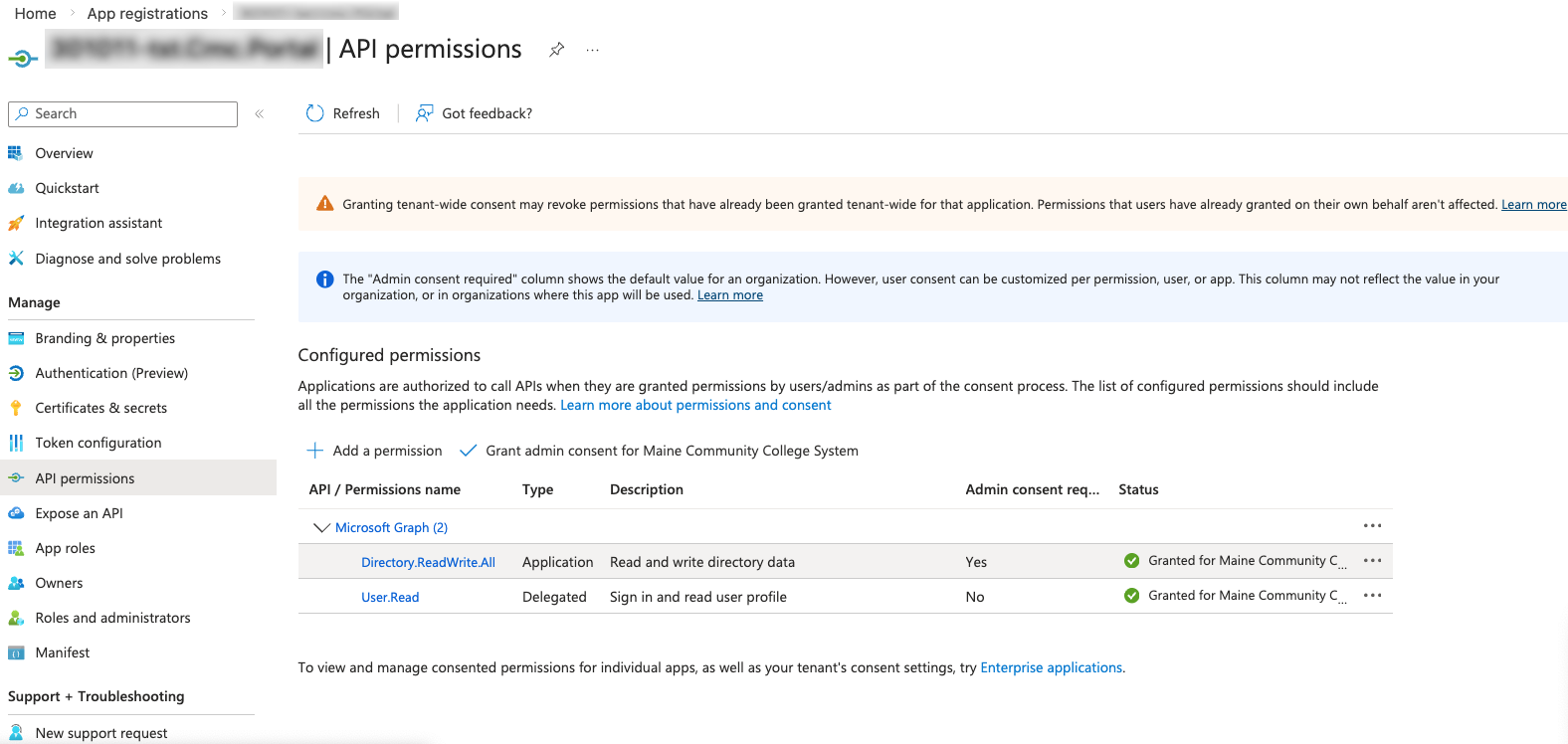
After adding the Admin Consent, the User.Read Admin Consent Required column should be Yes under Active.
For the Portal App Registration only:
Ensure that a User.Read permission is present and consented for the customer directory.
This can be Microsoft.Graph\User.Read or Azure AD Graph\User.Read, either will work.
-
If either is present and not consented, the customer must grant consent for their directory.
-
If neither is present, add the Microsoft.Graph\User.Read permission and grant consent.
These permissions will typically show the Admin Consent Required column as "No".
However, granting consent is still required for the Portal login because of the presence of Directory.ReadWrite.All.
