Registration via DPA
You can register for courses directly from the Degree Progress Audit (DPA) if your institution has enabled this feature, which provides the following functionality:
-
Students select required and/or elective courses and initiate registration without leaving the DPA while the system checks eligibility (for example, registration locks, registration groups, holds).
-
Students view available class sections for the selected course in current or future terms.
-
Students register for a class section while the system checks registration conditions for the selected class section (for example, seat availability, time conflicts, prerequisites, corequisites, registration relationships).
-
Students receive confirmation when the registration process is complete (success/failure)
Procedure to Register via the DPA
-
Navigate to My Academics > Degree Audit.
-
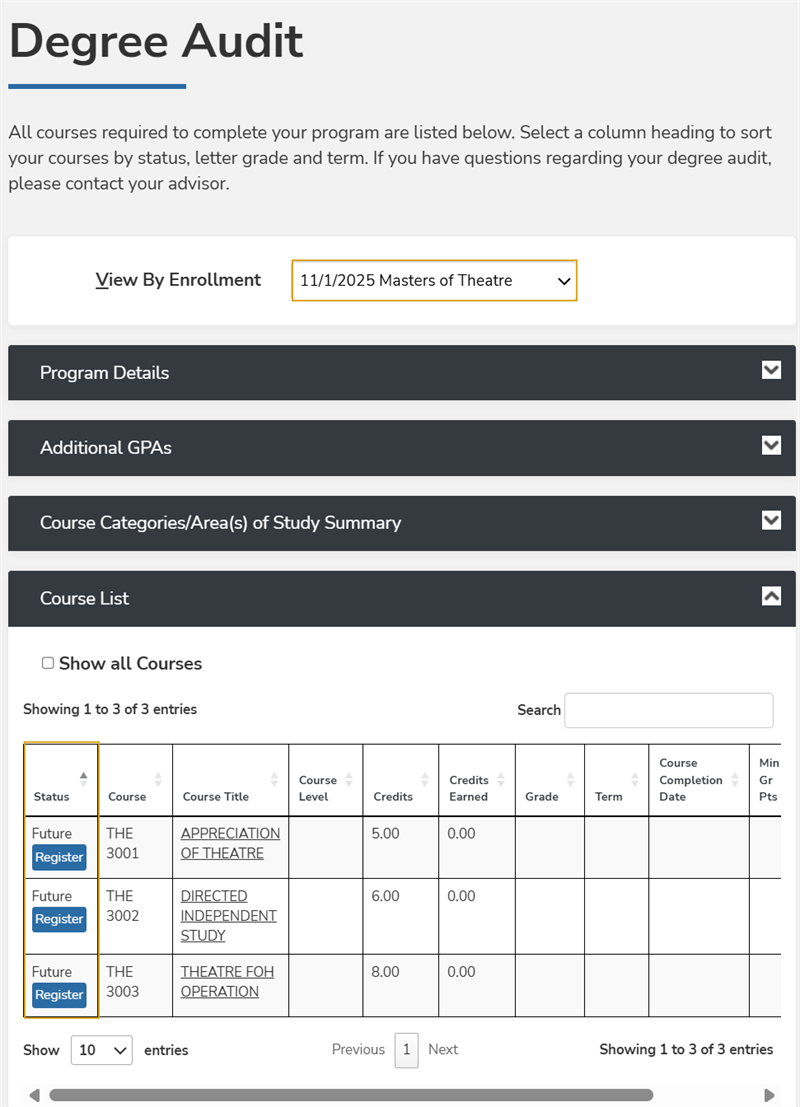
In the View by Enrollment list, select a program for which you have enrolled.
-
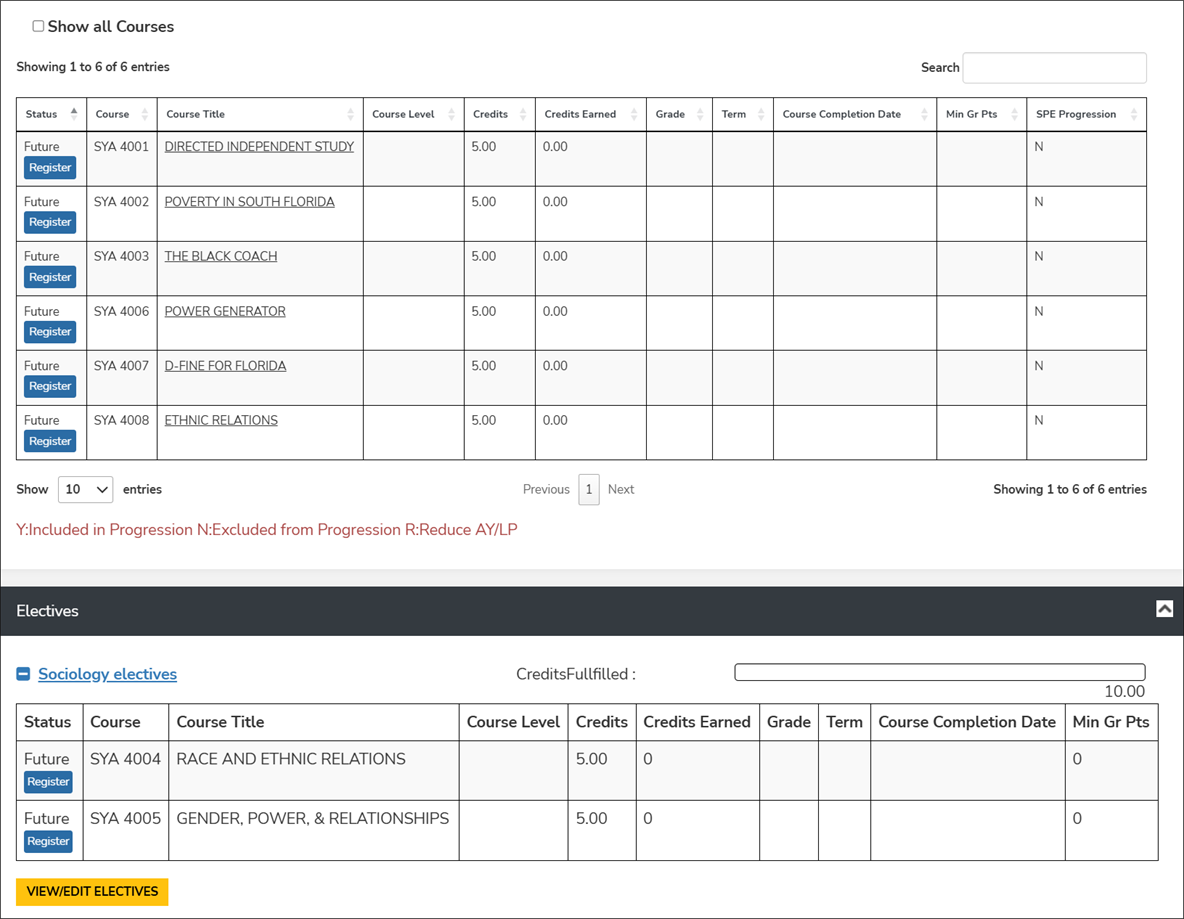
Expand Course List, Electives, and/or Courses Not Applied, find the course you want to take, and select the Register button. The Register button is displayed only for courses in Future status. The button is not displayed for previously registered courses in the Scheduled status.
At this point, the system performs a series of eligibility checks before displaying the course section details. A message will indicate the result of the eligibility check.
- If you do not receive a message, proceed with the next step.
- If you receive a message, determine the action to take. Refer to the following table.
Eligibility Check Results Message Action to Take Your registration window hasn't opened yet for this term.
Contact your institution's administrative office for more information.
Contact your institution's administrative office for more information.
Registration access unavailable due to registration hold. 
Contact your institution's administrative office to resolve the hold. You may need to submit specific documentation, pay outstanding fees, or resolve other administrative issues.
Registration locked for this term You can’t add, withdraw, or unregister from courses in this term because your schedule is locked.
Maximum number of credits/hours exceeded 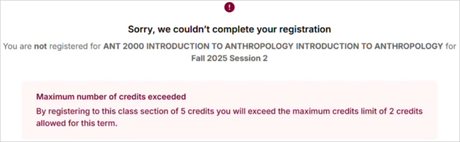
You have reached the allowed number of credits or hours for your program of study. You cannot register for this class.
You haven't met one or more requirements for this course: [list of prerequisites and/or corequisites] Example of failed prerequisite and corequisite validation:
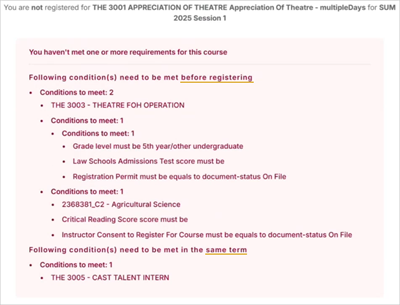
Example of a failed corequisite validation (after the prerequisite for the same course has been waived):
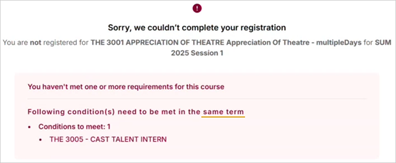
Register for the required courses listed in the message.
You have reached the maximum number of allowed attempts for this course. You cannot retake this course. Contact your academic advisor. You can register for this course, but in doing so, you will exceed your elective pool amount by X credits. These additional credits may not progress you towards completion of your degree. It may impact your tuition and financial aid. 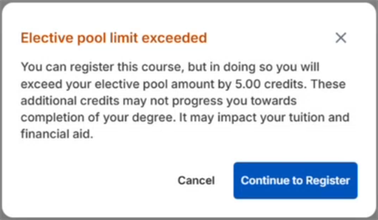
This is an alert that the additional credits for the class will not count towards your degree and may impact your finances. You can cancel the registration or proceed.
Your registration window hasn't opened yet for this term. Contact your institution's administrative office for more information. No terms available This course is not available for registration for any future term. This class may include additional steps to register; registration is only available on the portal's main registration page. You cannot register for this class from the DPA page. Select the link to the registration portal and proceed with your registration on the main registration page. The registration period ended on [End Date] at [End Time]. Registration is no longer available. This course is also offered as [list of cross-referenced courses] This is an informational message. You can proceed with the registration or select one of the listed cross-referenced courses if desired. This class section has class requirements that need to be met in the same term [list of conditions] Register for the classes that are required in the same term before you try to register for this class. The selected class conflicts with other registrations: [list of conflicting classes - course codes] 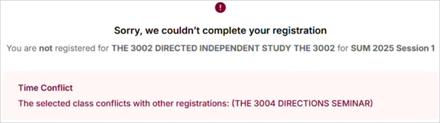
Select a class section in a different time slot or term. The class section has reached its maximum capacity. 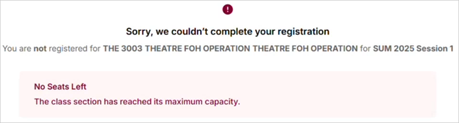
Select a class section that has seats available.
This message will also appear when:
-
A student unregisters, and a minimum number of students is required in the class.
-
A cross-listed section has reached maximum capacity.
After you have passed the eligibility check, the page displays the following:
- Course details (name, code, attributes, program)
- Term selection drop-down
- Cards with details about the class sections for the course
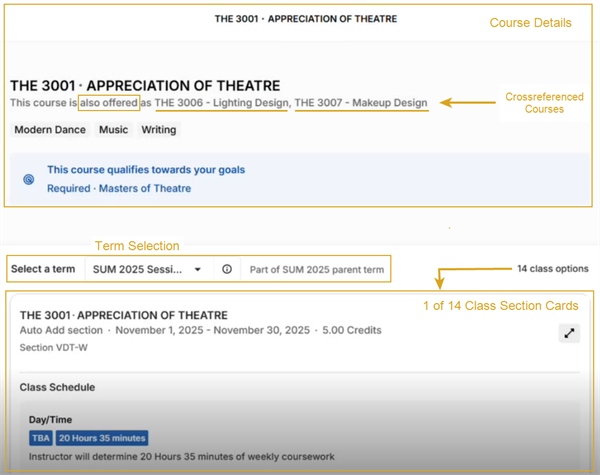
-
Select a Term to filter the class sections by term. Child terms are marked as "Part of <> parent term".
Review the class sections available for the selected term.
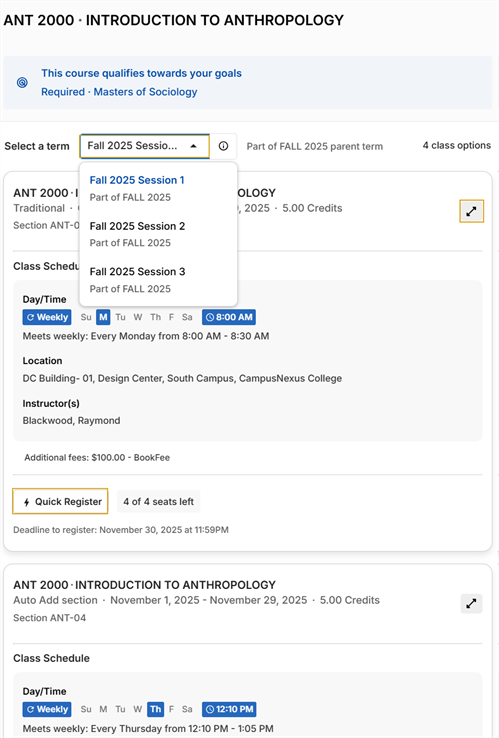
You can also select the information icon (
 ) next to the drop-down to view more details about the term.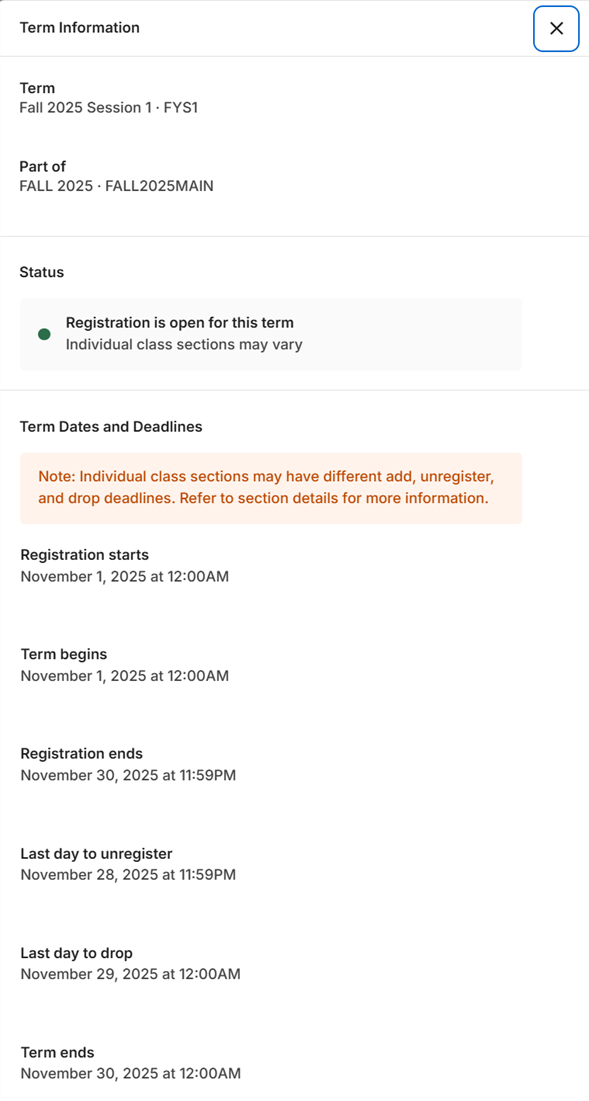
The page displays one or more class sections available for the selected course in the selected term.
-
The class section details include the:
- Schedule type (e.g., Various Days and Time (VDT), Student Specific Meeting (SSM))
Each class section card provides the following details:
- Section Name/ID
- Start and end date
- Schedule type and frequency pattern, for example:
- Single Session
- Multiple Schedules
- W (Weekly) — days of the week with start and end time
- M (Monthly) — with frequency pattern
- On a specific date — Date with start and end time
- TBD, hours of coursework — To be determined by students (also known as a Student Specific Meeting (SSM) schedule)
- TBA, hours of coursework — To be announced by instructor (also known as a Various Days and Times (VDT) schedule)
- Location (campus, building, and room or online)
- Instructors
- Count of seats available or label indicating that the class is “Full.”
- Credits (fixed or variable)
- Delivery method (online, hybrid, in-person)
- Fees
- Quick Register button (if eligible)
The class section cards are sorted by seat availability (open sections first, full sections last) and scheduled start date (earliest date first, latest last).
If a course does not have any available class sections, the following message appears: "This class is not available to register for any future term."
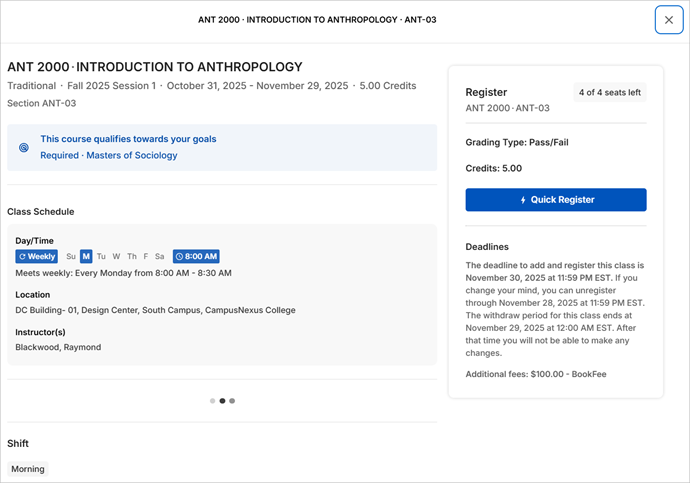
You can also select the expand icon (
 ) to view the details for the chosen class, including:
- Course description
- Prerequisites/Corequisites
- Crossreferenced courses (marked with "Course also offered as")
- Skills
- Course Attributes
- Seat availability
- Registration deadlines.
-
-
Select the Quick Register button on the class section card of your choice.
The Quick Register button is enabled if:
- At least 1 seat is available AND
- A waitlist is not required for enrollment AND
- The section does not use Student Choice Grading AND
- The section is not a variable credit class AND
- The end date and time to add classes have not passed.
The Quick Register button is disabled if:
- The section is full, and there is no waitlist.
- The section is full, and a waitlist is available.
- The section uses Student Choice Grading.
- The section is a variable credits class.
- The end date and time to add classes have passed.
When condition b, c, or d occurs, the following message appears: "This section requires additional steps to register. Please use the full registration process.” You will need to proceed with your registration on the main registration page.
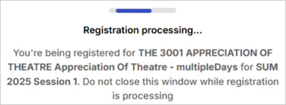
While the system processes your registration and performs validations, a progress bar with the following message is displayed. Do not close the window.
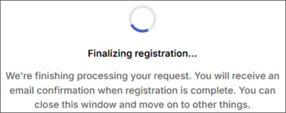
If the validations are successful, the following message is displayed. You can now close the window.
-
Once the registration is completed, you will receive a notification on the DPA page indicating success or failure of the registration.
If the registration is successful, the course will be added to your schedule.
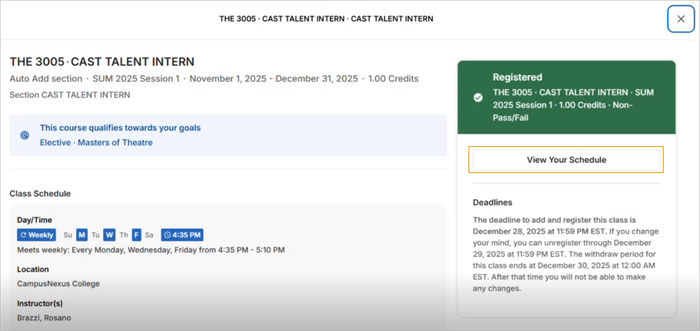
Select the View Your Schedule link to access your schedule and note that the class is added.
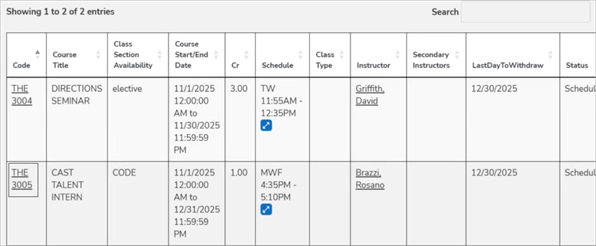
Depending on your institution's policies, you may also receive an email or SMS message.
