Account Summary
Administrator Notes: The Account Summary page is a redesign of the existing Account Information page in the Student Portal. This redesign is developed in a new microservice that can be deployed independently. Administrators can configure the new Account Summary page in the Anthology Student web app under Configuration > Student Experience > Account Summary.
Configure the display of the new Account Summary and the old Account Information using the following steps:
-
In the Portal Configuration tool, select the Portal URL and the Campus.
-
Navigate to Menu Groups > My Finances > Account Information.
Under Menu Item Transaction, select Student Account Summary.
This setting enables the existing (old) Account Information page in the Student Portal.
-
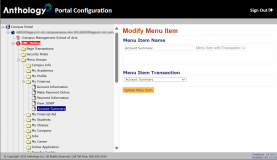
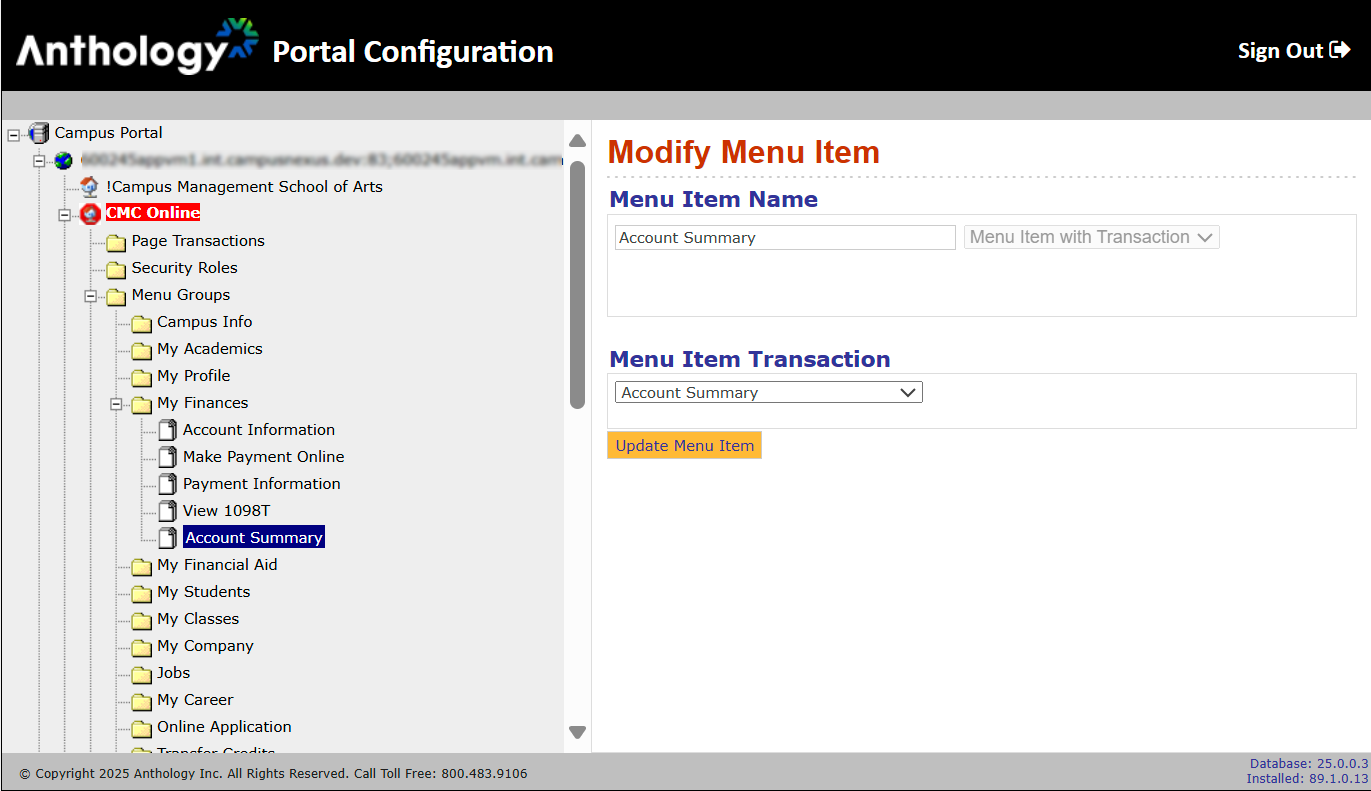
Navigate to Menu Groups > My Finances > Account Summary.
Under Menu Item Transaction, select Account Summary.
This setting enables the new Account Summary page in the Student Portal.
-
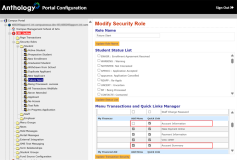
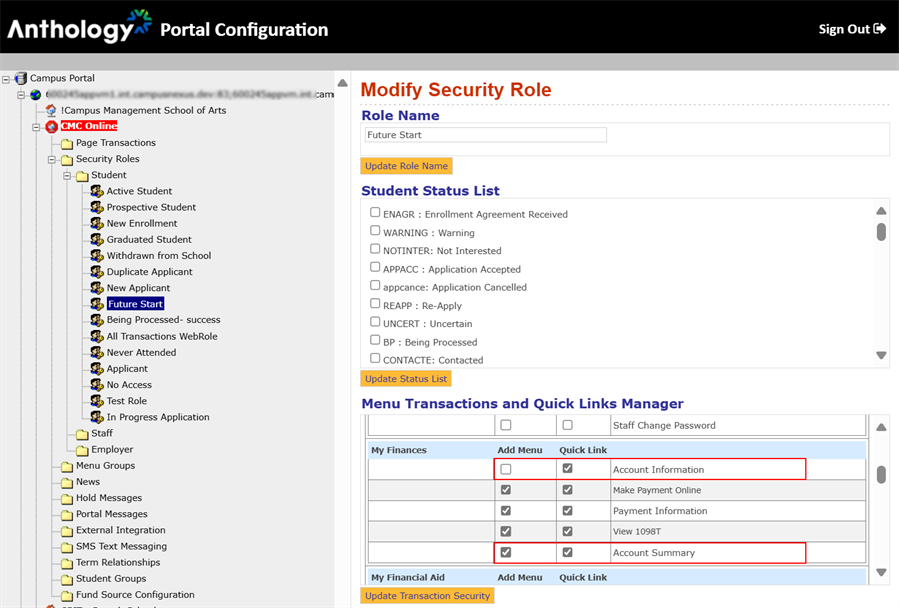
Navigate to Security Roles > Student and select a student role applicable at your institution (Active Student, New Enrollment, etc.).
Under Menu Transactions and Quick Links Manager, select the Add Menu and Quick Link check boxes for Account Summary.
This setting displays the new Account Summary page in the navigation tree of the Student Portal and resolves links to the page.
Repeat this step as applicable for the security roles at your institution.
-
If you do not want the old Account Information page displayed in the menu tree, clear the Add Menu check box for the Account Information page, otherwise select it.
Keep the Quick Link check box for the old Account Information so that links from the new Account Summary page to the old Account Information page are resolved (until the redesign is completed).
When the new Account Summary is enabled (even if the old Account Information is not disabled), the "Account Summary" link on the Financials tile on the home page takes the user to the new Account Summary page. 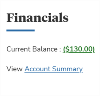
Students can still navigate to the existing My Statements, Registration Bill, and Subsidiary Statements pages on the old Account Information page from the new Account Summary page. This temporary solution is until the Student Experience > Student Accounts redesign is complete.
The system automatically identifies the current term by selecting a term start date closest to today's date. This term is then used to filter the Pending Charges & Discounts, Expected Funding, and Transaction History sections on the Account Summary page.
At the top of the page, you'll find a concise overview of your account, including:
-
Posted Balance – All posted transactions across all enrollments, including those from the current term (as determined by the system).
-
Pending Charges and/or Pending or Unposted Discounts – For the current term, if configured by your institution.
-
Expected Funding – For the current term, if configured by your institution.
-
Estimated Balance – Includes a Make Payment option, based on your institution’s configuration.
These values are the result of the following calculation:
Posted Balance + Pending Charges & Discounts - Expected Funding = Estimated balance

The detailed information below the account summary ribbon is displayed in the following sections that can be expanded ( ) or collapsed (
 ).
).
 Programs of Study
This section is presented only if configured for display by your institution. The program of study information will still be available in the transaction history grid even if this section is not configured for display.
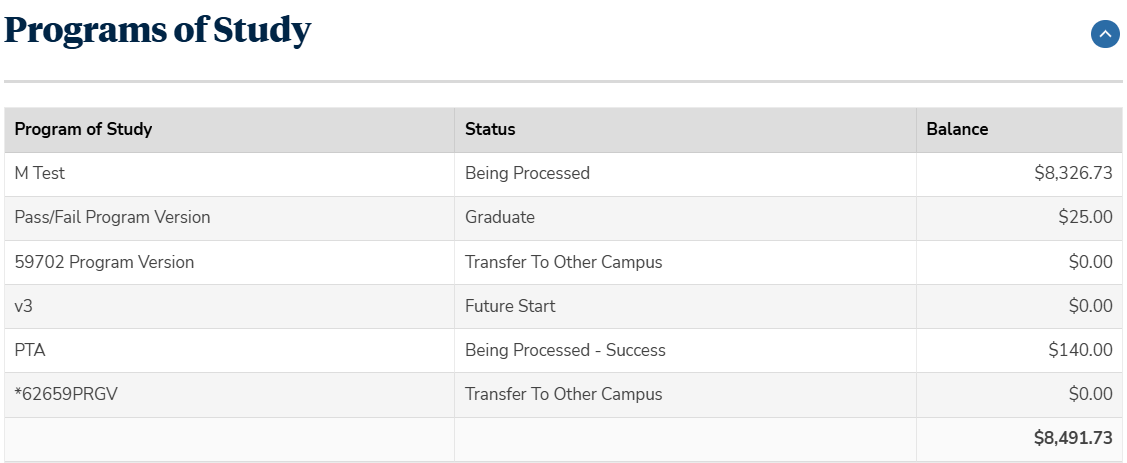
The grid presents each enrollment as a separate line item. The grid columns are:
Program of Study - Indicates the program version name associated with the enrollment.
Status - Indicates the status of the enrollment, such as Active, Applicant, Being Processed, Future Start, Graduate, Permanent Out, and Transfer To Other Campus.
Balance - Indicates the balance for the enrollment. The total sum is displayed at the end of all enrollments.
Expected Funding
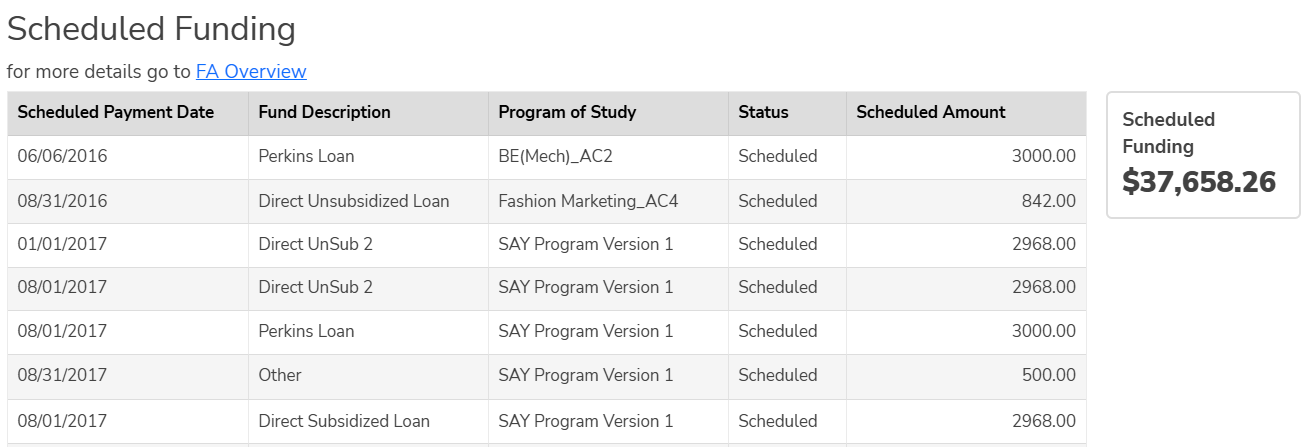
The Expected Funding section is filtered by the current term to display scheduled (not yet posted) Financial Aid and Student Payment Plan disbursements in chronological order based on the date scheduled. For more details about your financial aid, refer to the Financial Aid Overview.
The Scheduled Funding grid is presented only if it is configured for display by your institution. The grid contains the 5 columns shown below. The total scheduled funding is shown in a tile to the right of the grid.
Administrator Notes:
-
If "Show Scheduled Funding" is set to Yes, the system will display scheduled disbursements from awards that are in Approved status only in the Expected Funding section and will show the sum of the net amounts in the Expected Funding tile in the ribbon at the top of the page.
-
If "Show Funds in estimated and pending Approval Status" is set to Yes, the system will display scheduled (not yet posted) disbursements in Estimated, Pending Approval, and Approved status. This option cannot be set to Yes if the above is set to No.
-
If both "Show Scheduled Funding" and "Show Payment Plans" are set to No, the entire Expected Funding section and the Expected Funding tile will not appear on the Account Summary page
The Student Payment Plans grid is presented only if it is configured for display by your institution. The grid contains the 5 columns shown below. The total of the student payment plans is shown in a tile to the right of the grid. For more details about the payment plans, refer to the Payment Schedule.
Administrator Notes:
-
If "Show Payment Plans" is set to Yes, the system will display scheduled disbursements from awards that are in Approved status only in the Expected Funding section will show the sum of the net amounts in the Expected Funding tile in the ribbon at the top of the page.
-
If "Show Payment Plans in estimated and pending approval status" is set to Yes, the system will display scheduled (not yet posted) disbursements in Estimated, Pending Approval, and Approved status. This option cannot be set to Yes if the above is set to No.
-
If both "Show Scheduled Funding" and "Show Payment Plans" are set to No, the entire Expected Funding section and the Expected Funding tile will not appear on the Account Summary page
Transaction History
The Transaction History grid displays your ledger card transactions and running balance.
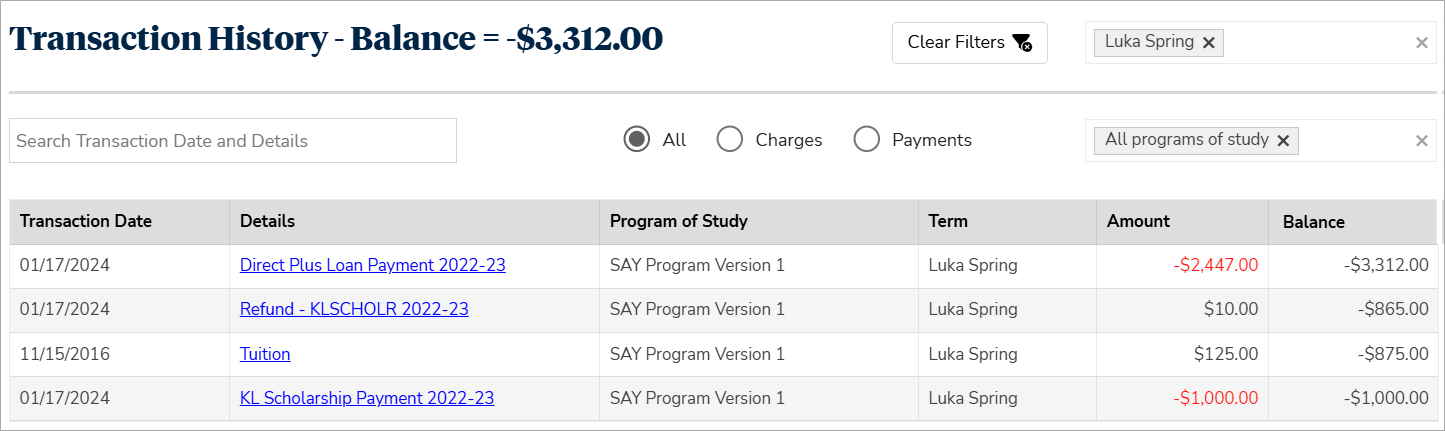
You can search transactions by date or description details. The search function is not case sensitive.
You can also filter the transaction history grid by:
-
Term - By default, the grid displays transactions for the current term. You can select a single term, multiple terms, or all terms.
-
Program of Study - By default, the form loads all programs of study. You can filter transactions for a single program of study (enrollment) or multiple programs of study.
If you are not yet enrolled in any program of study but do have transactions (such as deposits or fees that are not associated with any program of study), these transactions are displayed when you select all programs of study.
-
Transaction Type - You can filter transactions based on two main transaction types: charges or payments. By default, the form loads all transaction types.
You can reset all filters and restore the default sorting by selecting the  button.
The grid presents details for each transaction in the following columns:
-
Transaction Date - The transactions are sorted in descending order by date.
Pending transactions are always displayed at the top of the transaction grid. Since pending charges are not yet posted, they do not have a transaction date. Pending discounts are discounts that are not yet posted to your account. Pending discounts could be posted when their tuition charges are posted or go to “Unposted” status. When tuition discounts move to unposted status, the discounts need to go through a manual review and posting process by the school.
-
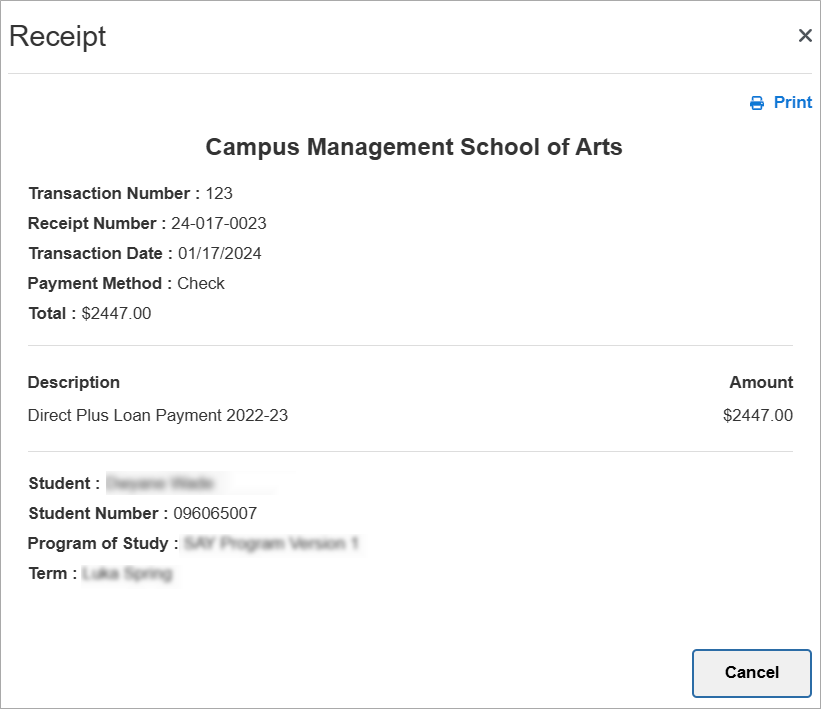
Details - Each link in the Details column opens a pop-up that shows a printable transaction receipt with the following information (as applicable): campus, transaction number, receipt number, transaction date, payment method, total, description, student name, student number, program of study, and term. The pop-ups display the transaction amounts as they are recorded in the database (even though the Transaction History grid might display the same transaction with the opposite value), depending on whether the transaction increases or decreases the account balance.
-
Program of Study - This column indicates the program of study associated with the transaction. You can filter the programs of study using the drop-down list at the top of the grid.
-
Term - Indicates the term associated with the transaction.
-
Amount - Indicates the amount of each transaction. Negative values in red text indicate amounts that decrease your account balance (for example, grants, scholarships, and loans).
-
Balance - Indicates the running balance calculated as a result of each transaction.
Select the Account Information link at the bottom of the page to access the pages for other account details, such as My Statements, Registration Bill, and Subsidiary Statement.
