Message Center
The Message Center submenu allows you to manage your appointments, view and acknowledge your alerts, acknowledge your holds, and contact your advisor.
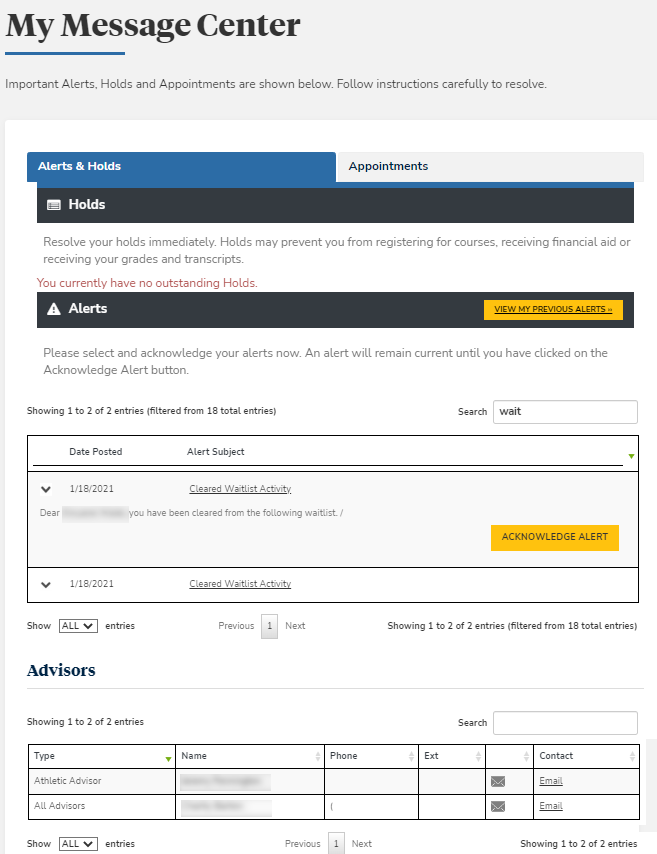
You can view your alerts, holds, and scheduled appointments in the Message Center page. This page also displays the designation and contact information of your advisors.
View and Acknowledge Alerts & Holds and Appointments
-
Navigate to Message Center > Message Center. The Message Center page is displayed.
-
You must acknowledge your alerts in Student Portal. Alerts are closed only after you acknowledge them.
-
Select
 or select the Alert Subject link to view details of an alert.
 -
Select View My Previous Alerts. Your older alerts and the alert acknowledgement dates are displayed.
-
Select the Acknowledge Alert button to accept an alert.
-
Select Back to Alerts and Holds. The Alerts and Holds tab is displayed.
-
-
You must acknowledge your holds in Student Portal. Holds are closed only after you acknowledge them.
-
Select
or select the Subject link to view details of a hold. -
Select the Acknowledge Hold button to accept a hold.
-
Select Next and Prev to browse through the grid pages or type a page number in the Go to page box and select Go.
-
-
Select the Appointments tab. Your scheduled appointments are displayed.
-
Select Next and Prev to browse through the grid pages or type a page number in the Go to page box and select Go.
Contact Your Advisor
You can view the designation and contact information of your advisors. You can also send an email to your advisors.
-
Select Email. Your default email client is displayed.
-
You can now send an email message to your advisor.
