Prerequisites and Configurations for Direct Data Integration
The topics in this section provide information on the prerequisites and configurations for Direct Data Integration.
Prerequisites
-
The institution must be live (installed and configured) with Anthology Reach and Blackboard.
-
Ensure a common unique student identifier exists between Anthology Reach and Blackboard.
-
Ensure that enrollment, academic period, and course history data is populated in Anthology Reach.
-
Ensure the LMS External Identifier field on the Course Section table in Anthology Reach is populated with a value that matches the course batch_UID field in Blackboard.
-
A current contract for the Anthology Succeed module is present.
-
The following steps must be performed by an Anthology Reach DevOps professional. The implementation team should create a Service Desk ticket for the Deployment team to perform the following tasks:
-
Set up integration mapping based on the attached ReachLMSIntegrationMappings.csv file.
-
In the Anthology Reach environment, open the AnthologyLearnIntegration solution and turn on the following cloud flows:
-
LMS_Contact – FileImport
-
LMS_CourseHistory – FileImport
-
-
Configurations to Enable Direct Data Integration
The following steps provide information on enabling the Direct Data Integration in Anthology Reach:
-
Create Folder Structure for File Import
File imports use Azure Storage file share folders for managing file import source files. This section summarizes the use of these folders. The folder structure will be setup automatically under existing common-inbound folder after the first time job runs.
-
<prefix>-drop- Stores the source file from which data will be imported.
Example: Common>inbound>lmsContact-drop
-
<prefix>-processing- The source file is stored in this folder during the import. An integration log record will be created when the file is moved to this folder.
-
<prefix>-processed- The source file will be moved to this folder when the import is complete in all import scenarios.
-
<prefix>-error- Contains a file of records that fail to import (format: <source file name>-Error).
Note:
-
Azure function will run every night @1AM or as adjusted and trigger the whole process. (Azure location time zone).
-
For the error handling and logging of integration, refer to File Exports and File Imports help topics.
-
-
Disable integration
By default, the contact (student) and course history integration is enabled. To disable it for one entity, create an integration mapping with following values:
Entity Mapping Name Internal Option Display Name Contact LMS_Contact_Integration_Enabled No Course History LMS_CourseHistory_Integration_Enabled No -
Match the Blackboard and Reach Records
-
Student/Contact: By default, the matching of students (contact records) is based on ‘Learn student id ’ matching with ‘External identifier’. The matching criteria can be modified by updating the ‘Fetch Xml’ query in integration mapping. The query used in the integration mapping is LMS_Integration_Contact_Matching_Query.
-
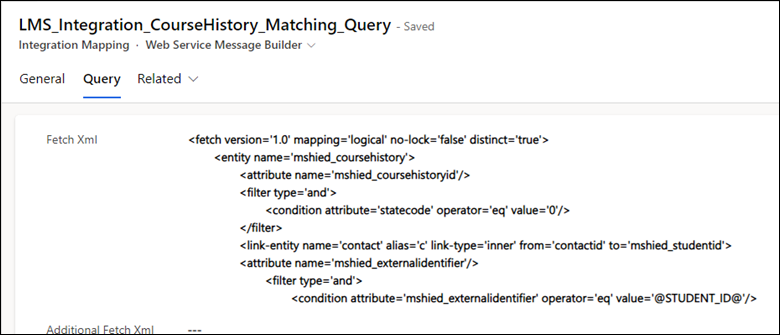
Course History: By default, the matching of course history records is done using the ‘Learn Student Id and course batch_uid’ with Reach’s ‘Contact’s External identifier and course section’s Lms External identifier’. The matching criteria can be modified by updating the ‘Fetch Xml’ query in integration mapping. The query used is LMS_Integration_CourseHistory_Matching_Query.
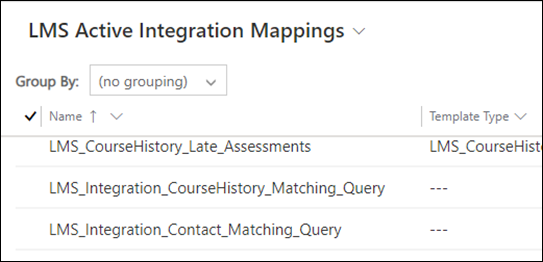
To update the query, go to the integration mapping view in Anthology Reach and locate the following two records:
-
LMS_Integration_Contact_Matching_Query
-
LMS_Integration_CourseHistory_Matching_Query
Default Fetch XML Queries for the Contact and Course Section Entities
The following table provides the default Fetch XML query present in the LMS_Integration_Contact_Matching_Query and LMS_Integration_CourseHistory_Matching_Query integration mapping records.
The place holder in the Fetch XML query should stay the same for contact = @STUDENT_ID@ and for course section = @COURSESECTION_ID@.
Entity Name Fetch XML Query Contact <fetch top='1'>
<entity name='contact'>
<attribute name='contactid' />
<filter type='and'>
<condition attribute='statecode' operator='eq' value='0' />
<condition attribute='mshied_externalidentifier' operator='eq' value='@STUDENT_ID@' />
</filter>
</entity>
</fetch>
Course history <fetch top='1' version='1.0' mapping='logical' no-lock='false' distinct='true'>
<entity name='mshied_coursehistory'>
<attribute name='mshied_coursehistoryid'/>
<filter type='and'>
<condition attribute='statecode' operator='eq' value='0' />
</filter>
<link-entity name='contact' alias='c' link-type='inner' from='contactid' to='mshied_studentid'>
<attribute name='mshied_externalidentifier'/>
<filter type='and'>
<condition attribute='mshied_externalidentifier' operator='eq' value='@STUDENT_ID@'/>
</filter>
</link-entity>
<link-entity name='mshied_coursesection' alias='cs' link-type='inner' from='mshied_coursesectionid' to='mshied_coursesectionid'>
<attribute name='anth_lmsexternalidentifier'/>
<filter type='and'>
<condition attribute='anth_lmsexternalidentifier' operator='eq' value='@COURSESECTION_ID@'/>
</filter>
</link-entity>
</entity>
</fetch>
-
