Errors with Data Conflicts
Description
Values such as usernames and course IDs must be unique in Blackboard and will be enforced. There are also unique keys that keep data aligned between Anthology Student and Blackboard. There are numerous scenarios where conflicts can arise. As examples, a username might be re-used by an Identity Provider, or a class section in Anthology Student is re-used inappropriately after being integrated with the LMS.
Example Error Messages
Student Course Status Changes - Unable to update User - Unique ID conflicts with existing record: userName
Student Course Status Changes - MembershipProcessingFunction - An item with the same key has already been added. Key: System.Net.Http.Headers.HeaderDescriptor
Student Course Status Changes - Unable to add User - Unique ID conflicts with existing record: externalId
Staff save - Unable to add User - Unique ID conflicts with existing record: username
Remediation
-
Identify the conflicting records in both Anthology Student and Blackboard
-
Review the error for identifiers and find the records in both systems
-
-
Take one of the following actions:
-
Delete the conflicting record in Blackboard—this is easiest but highest risk. Be absolutely certain the record is a mistake and hasn’t been used. Do not delete users or courses with student activity or content because deletion will purge this data.
-
Re-align the record by updating unique values in Blackboard to match Anthology Student
-
-
Retry processing the events.
Using Blackboard’s REST API to Retrieve Data Record Keys
When looking to resolve data conflict errors, it can be helpful to retrieve the data keys for a record in Blackboard. These don’t always appear in the UI and are used by integration processes to uniquely identify keys.
When viewing a record for a term, course, or user, you can use the appropriate API documented in Anthology’s Developer Documentation. For retrieving a record, you can call the API directly from a web browser’s address bar.
In the examples below, records are retrieved using information that can be found in the user interface, such as username and course Id. To make the record easier to read, select the checkbox “pretty-print.”
Examples
Retrieve user data in the Blackboard UI using a known Blackboard username:
https://<server.URL>/learn/api/public/v1/users?userName=demo01
{
  "results": [
    {
      "id": "_29548_1",
      "uuid": "a5c78feb81f24b12945ce2fb7cee2d18",
      "externalId": " SyStudent_38918",
      "dataSourceId": "_20_1",
      "userName": "jjones10",
      "studentId": "5193824",
Retrieve course data in the Blackboard UI using a known Blackboard course ID:
https://<server.URL>/learn/api/public/v3/courses?courseId=CIS404.001.20243
{
  "results": [
    {
      "id": "_13407_1",
      "uuid": "3a336ba39db24f7a99fbe79d2bbac8f2",
      "externalId": "82968",
      "dataSourceId": "_20_1",
      "courseId": "CIS404.001.20243",
      "name": "CIS404 Software Engineering II",
      "created": "2025-02-19T14:54:06.225Z",
      "modified": "2025-10-28T20:49:58.551Z",
Retrieve a user record with Anthology Student identifier (externalId in Blackboard):
https://<server.URL>/learn/api/public/v1/users?externalId= SyStudent_38918
Retrieve a course record with Anthology Student identifier (externalId in Blackboard):
https://<server.URL>/learn/api/public/v3/courses?externalId=82968
Using Blackboard’s REST API to Update Data Record Keys
Record updates using PATCH methods are documented in Blackboard’s API documentation. Technical staff can use REST utilities such as Postman to execute API calls. An alternative using batch files through the Blackboard UI is also available, outlined below.
Blackboard REST API resources:
https://developer.anthology.com/portal/displayApi
https://docs.anthology.com/docs/blackboard/rest-apis/start-here
Using Blackboard’s SIS Framework to Update Data Record Keys
Many find it simpler to use a delimited file to make record changes. These are processed through Blackboard’s SIS Framework. A single record or many thousands of records can be processed in a single batch.
Blackboard batch file resources:
Setting Up the Batch File Upload End Point
This process is only needed once to configure the location for uploading batch files to update records in Blackboard.
-
Navigate to Administrator Panel > Data Integration > Student Information Systems Integrations > Create Integration > Snapshot Flat. File.
-
Give the integration a name, such as “Upload data error corrections.”
-
Select the file delimiter that will be used. Comma is common. Some prefer a character, such as pipe, to avoid potential issues with commas in a data field that are expected.
-
Set the integration status. Initially, while validating the configuration, “testing” may be appropriate. “Active” is required for the configuration to allow record changes.
-
For a Learn Data Source, select to use the same Learn Data Source for new inbound data. Select the name of the data source as defined in the Integration Hub configuration. The name is likely “Anthology Integration Hub” or similar.
-
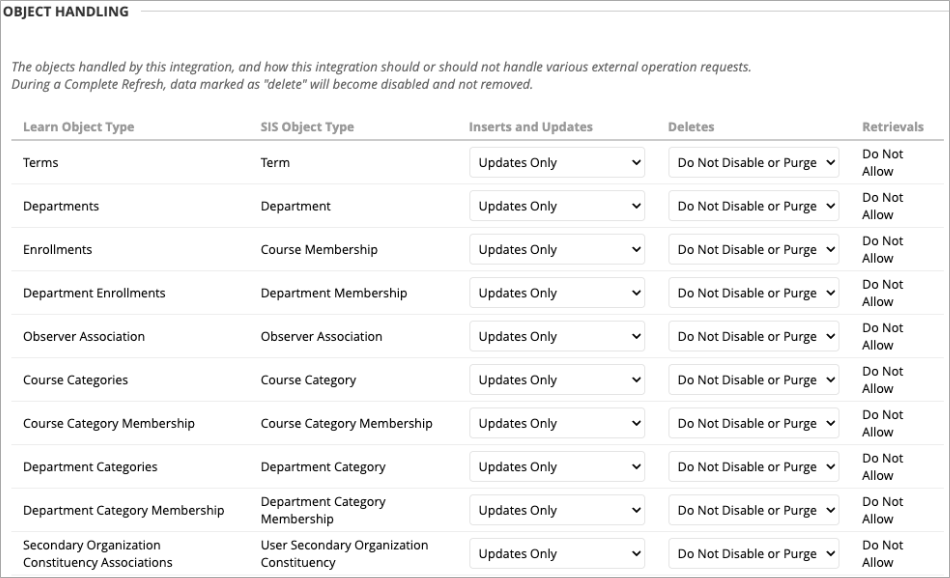
IMPORTANT! Set all objects to “Updates Only” under the “Inserts and Updates” column.
-
IMPORTANT! Set all objects to either “Do Not Disable or Purge” or “Do Not Purge” under the Deletes column.
Creating a Correction File
A correction file should be created in plain text format or exported from a spreadsheet editor in a delimited text file. Full details about data file formatting and required data fields by data object can be found here:
Example – Update a User Key
In this scenario, a user account leveraging a proper username was created directly in Blackboard, but should be managed by Anthology Student. The external key in Blackboard needs to be updated.
-
Find the appropriate records in both Blackboard and Anthology Student.
-
Identify the external identifier currently used in Blackboard (steps above) and the new identifier in Anthology Student.
-
Create a text file with the record. Multiple records can be updated at once.
-
As an example, a record might look like the following:
external_person_key,new_external_person_key,username
jjones10,SyStudent_38918,jjones10
-
-
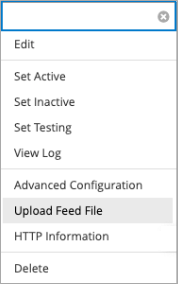
At the integration point (created above), select Upload Feed File from the drop-down menu.
-
Select the data correction text or CSV file.
-
Set the Data Type.
-
For this example, select “Person.”
-
To modify a Blackboard course, choose “Course.”
-
To modify a Term, choose “Term.”
-
To modify a student registration record or an instructor assignment record, choose “Course Membership.”
-
-
Leave the Operation Type as the default, “Store.”
IMPORTANT: Do not use the delete or advanced options. These modes are used for large data purges or significant data state changes that could result in data loss or interrupted user access.
