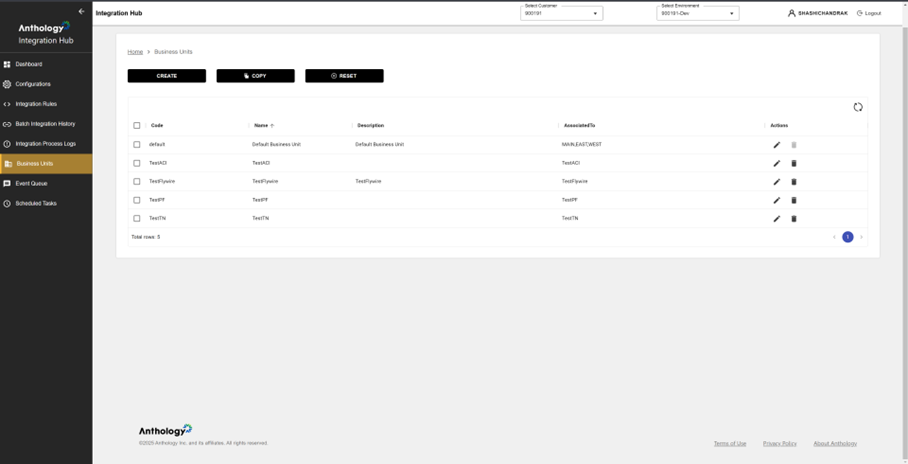
Business Units
Business units logically differentiate various integration processes. Multiple business units can be configured per customer to support different enterprise structures. The term "business unit" can have different meanings in different products. For example, in Anthology Student, business units can be specific campuses of a university. In Finance & HCM, legal entities represent business units. Anthology Reach operates using business unit structures at the data level.
You can use the Business Units screen in the Integration Hub to associate integration configurations with a customer's business units. If the customer has multiple business units, you can create multiple configurations. Each business unit can have different product integrations.
The Business Units screen leverages the Business Units API endpoints.
Features
-
Centralized Business Unit Management – Users can create, update, and delete business units.
-
User Control – Users can manage business units efficiently through an intuitive UI.
-
Bulk Operations – Ability to copy and reset business unit configurations.
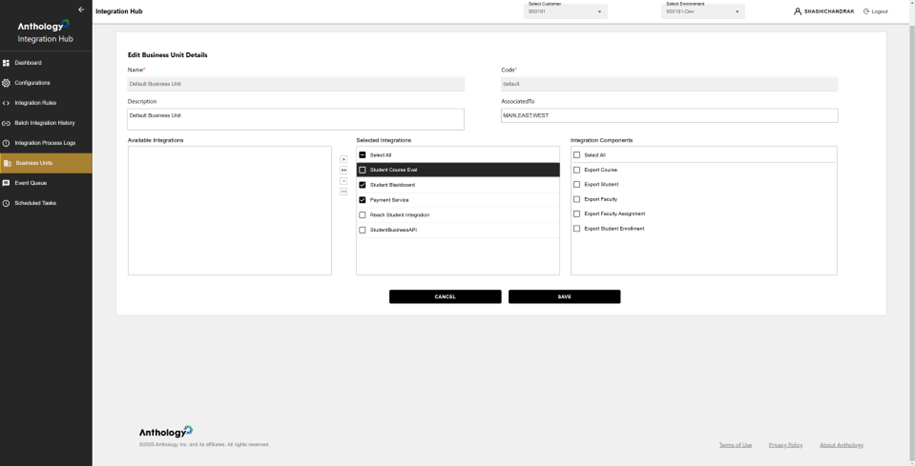
Screen Layout
-
Name (Required *) – Displays the name of the business unit (e.g., Default Business Unit).
-
Code (Required *) – Unique identifier for the business unit (e.g., default).
-
Description – Additional details about the business unit.
-
Associated To – Lists environments or categories linked to this business unit (e.g., MAIN, EAST, WEST).
-
Available Integrations – Displays a list of all integrations that can be assigned to the business unit.
-
Selected Integrations – Lists integrations currently assigned to this business unit.
Example: Selected Integrations:
-
Anthology Student - Blackboard
-
Payment Service
-
-
Selection Controls – Users can move integrations between Available and Selected Integrations lists.
-
Integration Components
-
Allows users to assign specific components within the selected integrations.
-
Example Components include:
- Export Course
- Export Student
- Export Faculty
- Export Faculty Assignment
- Export Student Enrollment
-
Select All Option – Enables quick selection of all components.
-
How to Use It
When the integration is deployed, the default business unit configuration is applied and listed in the Available Integrations panel. You can select products and product components, move them to the Selected Integrations panel, and save.