Batch Integration History
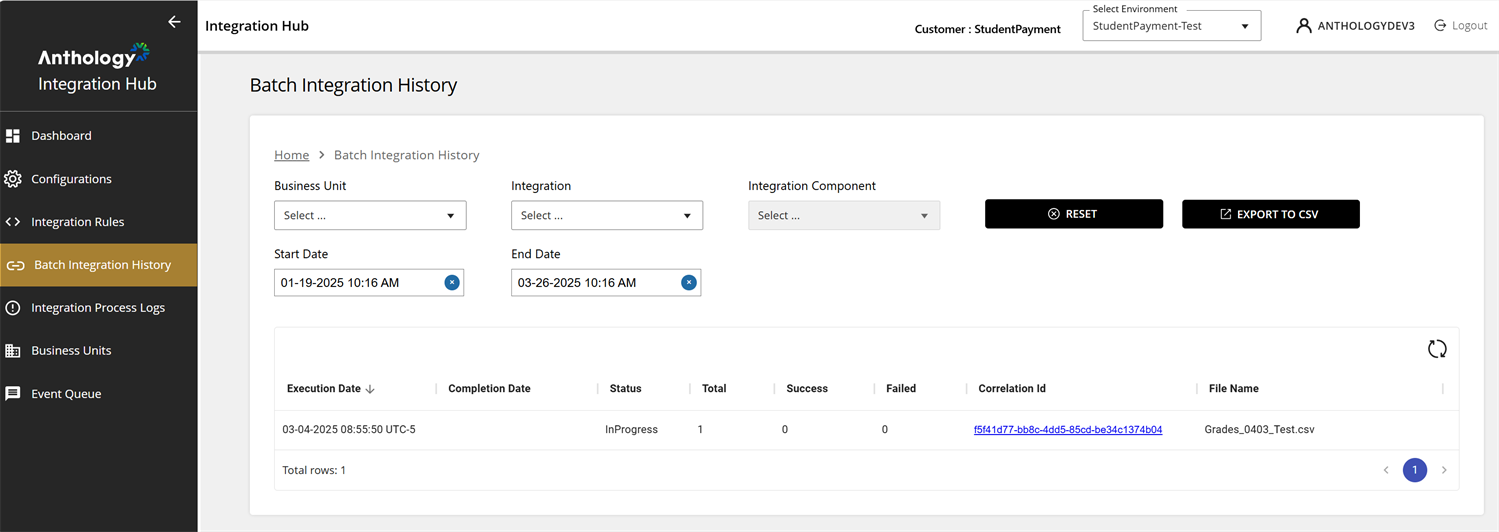
Some integration processes use file-based integration, for example, Blackboard and Anthology Student. When Blackboard drops a file in Azure file storage, the integration process picks up the file and converts it into multiple batches that are integrated with Anthology Student. The Batch Integration History screen provides a high-level summary of the batch integration processes, including execution status, correlation IDs, and downloadable logs.
The Batch Integration History screen leverages the Batch Integration History API endpoints.
Features
-
Batch Processing Monitoring – Provides real-time status of integration batch jobs.
-
Error Tracking – Differentiates between successful and failed records.
-
Correlation ID Lookup – Each batch job is assigned a unique ID for tracking and debugging.
-
Downloadable Reports – Logs can be downloaded for auditing and troubleshooting and failed records retrial.
-
Historical Analysis – Users can filter and export data for trend analysis.
Screen Layout
The Batch Integration History grid provides detailed information about batch integrations, displaying the following key columns:
-
Execution Date – Timestamp when the batch integration process started.
-
Completion Date – Timestamp when the process was completed (if available).
-
Status – Current state of the process (e.g., InProgress).
-
Total – Total number of records processed in the batch.
-
Success – Count of successfully processed records.
-
Failed – Count of records that encountered errors.
-
Correlation ID – A unique identifier for tracking the batch execution. The Correlation ID (hyperlink) provides a means to review all records in the batch.
-
Actions Column:
-
Download Icon (
 ) – Allows downloading logs or reports related to failed records of the batch. You can correct the errors and redeploy the file to the Azure file storage.
-
How to Use It
The Batch Integration History screen allows you to filter batch integration records based on:
-
Business Unit – Drop-down to select a business unit.
-
Integration – Drop-down to filter records for a specific integration.
-
Integration Component – Allows selection of an integration component.
-
Start Date & End Date – Date and time pickers to refine search results within a specific range.
-
Reset Button – Clears all selected filters.
-
Export to CSV Button – Exports batch history records for further analysis.
