Student Portal Site
Every page in the Student Portal site consist of three parts: Header, Main Content, and Footer. The header and footer are the same on every page. The main content varies from page to page based on the user's navigation selections.
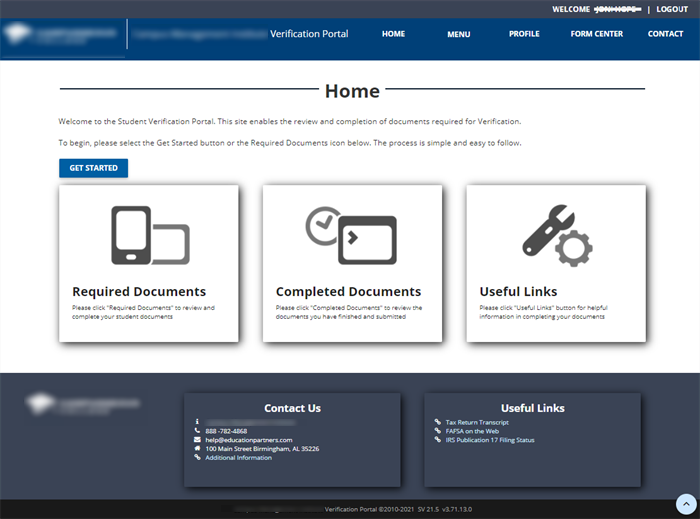
Header

The top right section of the header displays the name of the logged in user and the log out option.
The banner section displays the institution's logo and portal name and the following navigation options:
Home
The Home option provides easy navigation to any area of the Student Portal. The Home page displays the Get Started button and the Required Documents, Completed Documents, and Useful Links tiles.
-
Get Started Button

The Get Started button enables the student to navigate to the Required Documents page to begin the verification process.

-
Required Documents Tile
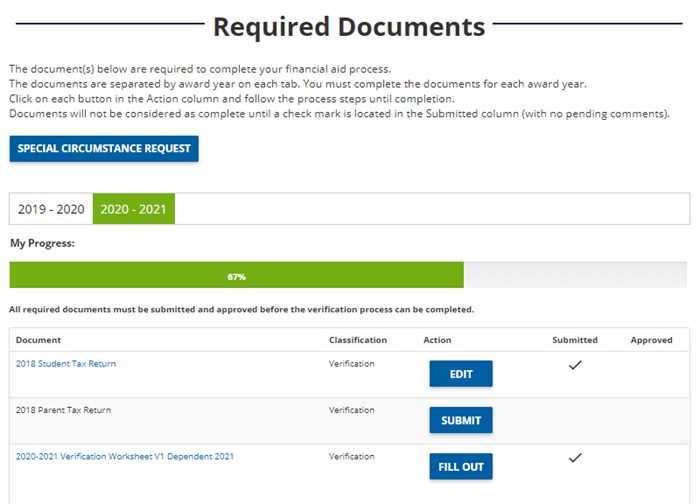
Like the Get Started button, the Required Documents tile links to the Required Documents page which lists the documents required for Verification, Comment Code, and Professional Judgment.
-
Completed Documents Tile
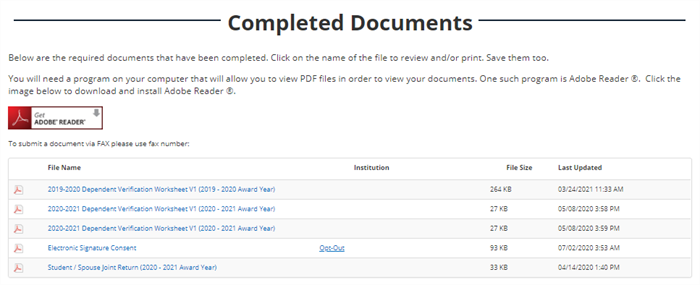
The Completed Documents tile links to the Completed Documents page which list the documents completed by the student and/or uploaded by the staff. The student can review and download PDF versions of the documents.
-
Useful Links Tile
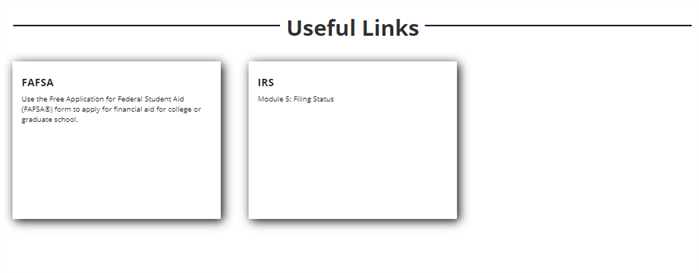
The Useful Links tile links to the Useful Links page which present URLs configured by the institution for the student to review as helpful resources. The links can also be accessed from the page footer.
Menu
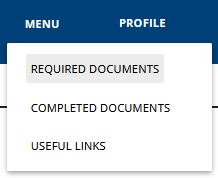
The Menu option provides navigation to the Required Documents, Completed Documents, and Useful Links pages.
Profile
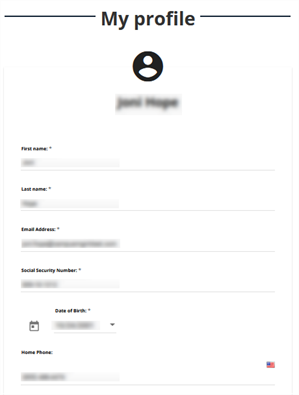
The Profile option links to the My Profile page which lists the student's demographic information. The Profile is configured by the institution. The student can edit any information that is not grayed out. The Profile enables the student to opt in or out of SMS text messaging and add social media links. The Profile also enables the student to reset the password.
Form Center
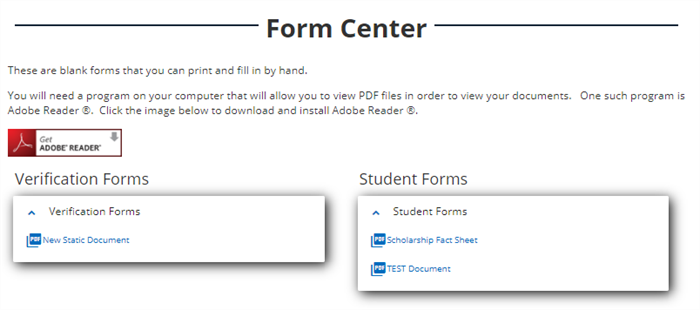
The Form Center option displays Verification, Comment Code, Professional Judgment, and General forms for the student to review and download. The Form Center is configured by the institution.
Contact
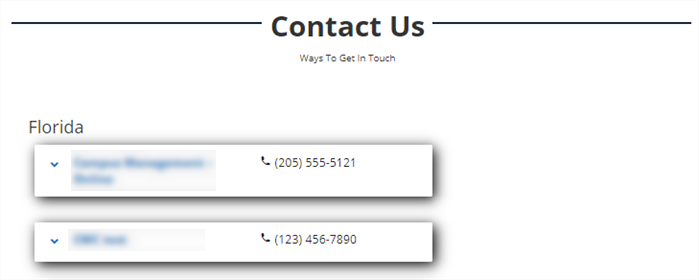
The Contact option displays the Contact Us page with information about the institution and the reviewer assigned to the student. If the student is not assigned a reviewer, the page will only list the institution. Refer to the Contact Us tile in the footer for additional information on the institution.
Main Content
The main content varies from page to page based on the user's navigation selections.
Footer
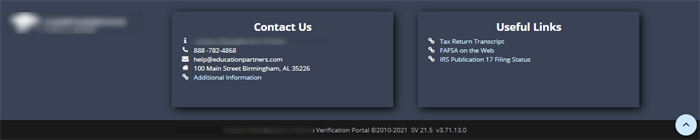
The footer of every page in the Student Portal displays the logo/name of the institution and the Contact Us and Useful Links tiles.
The bottom section is collapsible. When expanded, it shows the institution's portal name as well as copyright and version details of the Student Verification application.
