Emailing Applicants on their Application Status
This topic describes a framework where an email can be configured to be sent to applicants in the following scenarios:
-
If any of the following details relating to a Student's application are incomplete:
- Requirements – For example, requirements relating to submission of SAT scores are not complete.
- Recommendations – For example, applicants can be notified that 2 recommendations are due, one each from a Teacher and a Counselor.
- Invoice - For example, applicants can be notified regarding details of any outstanding amounts.
-
An agent has created an application on behalf of the student.
To enable this framework, the following templates are available out-of-the-box:
- Template - Application Pending Notification: Available in the Marketing > Templates > Marketing email templates area, this template includes the text of the email that will be sent to applicants.
- Template - Application Pending Notification: Available in the Marketing > Templates > Segment Templates area, this template includes logic to shortlist applicants to who the email will be sent.
- Template - Application Pending Notification: Available in the Marketing > Templates > Customer Journey templates area, this template includes a placeholder for each of the above templates.
- Template - Agent Application Registration: Available in the Marketing > Templates > Segment Templates area, this template includes logic to fetch applications that are created and submitted by an agent on behalf of a student in the last 5 days.
Prerequisites
- In your institution’s default solution, for the Application entity, verify that the Change Tracking option is enabled:
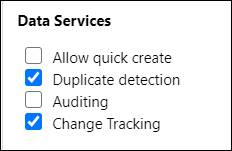
- The following options must be enabled from the user account from which emails will be dispatched to applicants:
- In the Email tab of the Set Personal Options dialog, the Allow other Microsoft Dynamics 365 users to send email on your behalf option must be enabled.
- In the Email Configuration page, select the user in the My Active Mailboxes grid, and then click
 .
.
To Send Emails to Applicants (In the Marketing application)
- In the Marketing execution > Marketing emails area, create a record in which the above email template is associated.
- In the Customers > Segments area, create a segment record in which the above segment template is associated.
- In the Marketing execution > Customer journeys area, create a customer journey record with the following details:
- In the Customer Journey Templates dialog, select Template – Application Pending Notification.
- In the Designer tab:
- Click Set audience, and associate the segment record created in step 2.
- Click Choose an email, and associate the email record created in step 1.
The creation process is complete.
Emails will now be sent to applicants based on configured settings.
Note: To make changes to functionality, it’s recommended to copy these templates and change behavior in the copied records. This will ensure the original templates are available if you want to switch back to default functionality.
