Attribute Picker and Attribute Picker Drop-down - Customizing Field Selection in Forms
Administrators can customize the list of values available for selection in fields. This means that only specific values from a global list can be made available depending on the institution’s business case. This behavior can be achieved using PCF (PowerApps component framework). Administrators can create components and fields to provide customized experience to users when selecting data in forms.
This topic describes configurations of the following controls:
- Attribute Picker
- Attribute Picker Drop-down
While the steps in this topic apply to the above controls, the option displayed in step 4g will not be available for the Attribute Picker Drop-down control.
After the configuration is complete, options that can be selected in fields will be displayed as follows:- Fields in which Attribute Picker functionality is configured will display options that can be selected in a tree structure. Users can drill down through one or more levels of relationships configured for the control.
- Fields in which Attribute Picker Drop-down functionality is configured will display options to be selected as a drop-down list. Attributes in relationship levels will not be available for selection.
Configuration Steps
In the form designer, double-click the field in which you want to customize the list of values that can be displayed. The Field Properties dialog will be displayed.
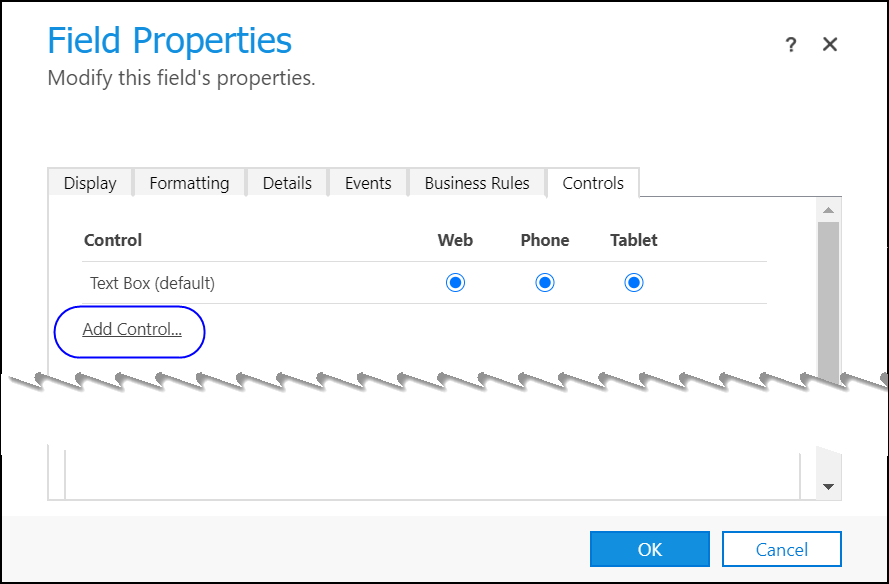
In the Controls tab, click:
Radio buttons of the interfaces (Web, Phone or Tablet) in which you want the control to appear.
Add Control – The Add Control dialog will be displayed.
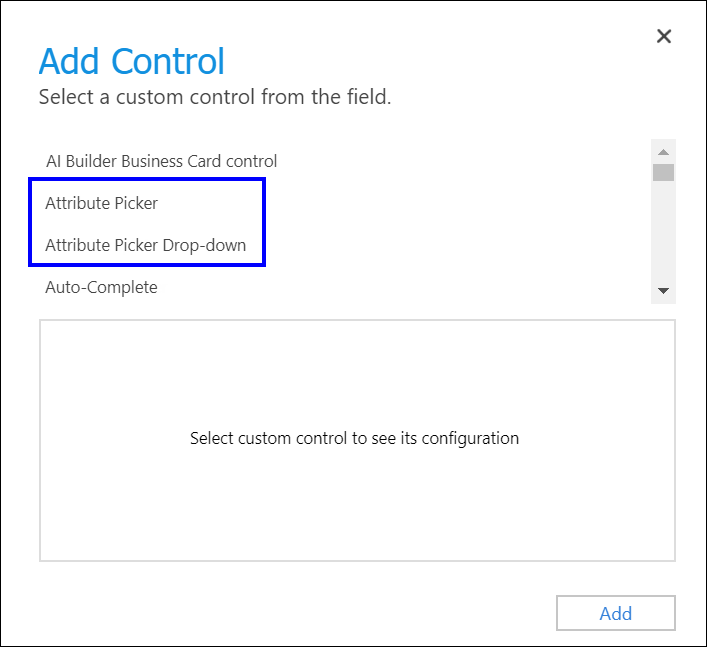
Select Attribute Picker or Attribute Picker Drop-down and then click Add. Controls for the selected option will be displayed.
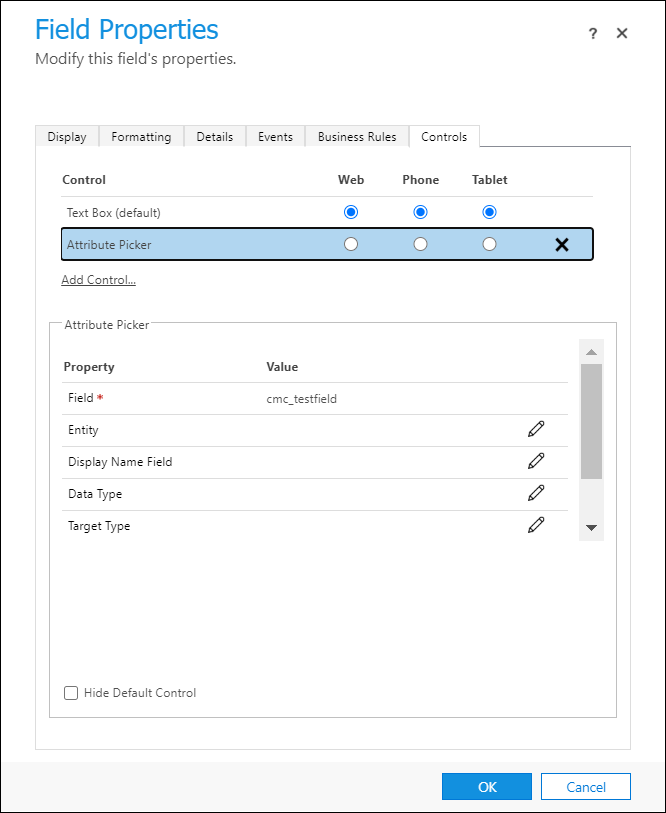
Perform the following steps in the indicated fields:
Field – Type the schema name of the field in which the attributes must be displayed.
Entity – Enables you to define the attributes that will load for the selected entity.
In the option Bind to a value on a field, select a field from the list that will be used as the Entity field value.Display Name Field - The display name of the field saved in step a will be saved in the field selected in this field.
Data Type – Enables the selection of a specific data type of attribute that must be loaded. For example, Lookup, Owner, etc.
In the option Bind to a static value, select the data type, such as a single line text (SingleLine.Text). Type a string that represents the value for the field.Target Type – Select the specific target type of lookup attributes that must display. This setting applies to Lookup attributes. For example, Contact, SystemUser, etc.
In the option Bind to a static value, select the lookup target type, such as a single line text (SingleLine.Text). Type a string that represents the value for the field.Attributes To Be Shown/Hidden – Select the specific attributes that must be listed. In the option Bind to a static value, select the attribute names, such as a single line text (SingleLine.Text). Type a string that represents the value for the field.
For example, {"hide":["createdby","modifiedby","createdonbehalfby","modifiedonbehalfby"],"show":[]}(Applicable only to the Attribute Picker control) Related Entities Expand Level – Enables you to define the level of relationships that must be displayed.
Type a value in the option Bind to a static value. For example, if the value 3 is typed, the user can drill down to 3 levels in the displayed tree view to select an attribute.
Click the Hide Default Control option if your institution’s Dynamics 365 application supports custom controls. The configured controls and data will be displayed.
Click OK to close the Field Properties dialog, and then click Publish, Save and Close.
The created custom controls will be available to users in your Anthology Reach implementation.
