Security Console
You can use the Security Console page to perform actions related to auditing for the Security Console. You can use the:
-
Audit tab to audit the changes that your institution has made in the Security Console.
Complete audit information is available in the Security Console version 3.3 and higher. If you use this feature with prior versions of the Security Console, information might be missing and some information might not be accurate. Anthology recommends that you upgrade to the latest version of the Security Console.
-
Export Details tab to export all or any combination of authorizations, staff members, roles, and groups to Excel.
To assist you in planning and auditing, use the Export Details tab to export lists from the Security Console to Excel. You can specify all or any combination of:
- Staff members
- Groups
- Roles
- Tasks
For example, you can export:
- A list of all the tasks, roles, and groups for one or more staff members (The tasks for those roles and groups is planned for a future release. If you want the tasks for the groups and roles, you will need to export again and specify All Tasks for roles and groups.)
- All the tasks for groups
- All the tasks for roles
- A complete list of the tasks in the Security Console for planning purposes
You can also save the criteria you specify and give it a name so that you can select it again in the future.
Prerequisites
You must have System - Settings – Security Console Audit - View Authorization.
Access Method
Select the Settings tile > expand System > select Security Console.
Procedure to Audit Security Console Changes
-
Select the Audit tab.
-
Specify Modified by Date range and select Apply Filters. By default, the system populates data for a day, the previous day to current date, in the grid. You can change the date range and apply filter.
-
Review the values in the list.
-
If you want to search the list, specify the search string in the search box and select the magnifying glass icon (
 ). For example, you can search for a user ID or module name (such as Admissions or Contact Manager).
Procedure to Export Authorizations
- Select the Export Details tab.
-
For the following options, select:
-
All optionname, to include all categories in the export.
-
The radio button next to the select field for the option. Once selected, you can then search and select specific items from the list.
-
-
Select the Export to Excel button.
Anthology Student exports the results and downloads an Excel file.
Examples
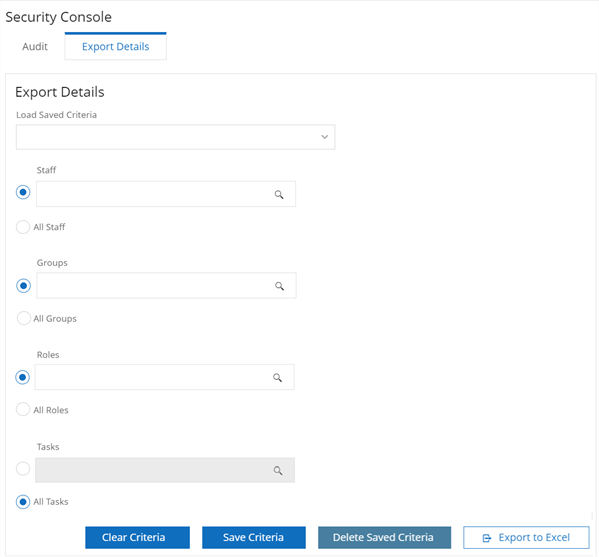
 List of All Tasks
The following example shows the options to select for a complete list of all tasks in the Security Console.
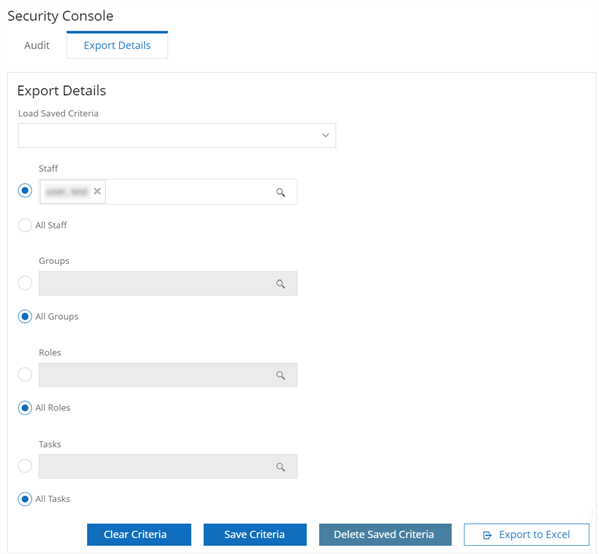
All Tasks, Roles, and Groups for a Staff Member
The following example shows the options to select if you want all tasks, roles, and groups for a staff member. If you want the tasks for the groups and roles, you will need to export again and specify All Tasks for roles and groups.
Additional Actions Available
| Task | Action to Take |
|---|---|
| Save a set of criteria |
You can specify a maximum of 5 sets of criteria.
|
| Delete a set of criteria |
|
| Clear the criteria on the page | Select the Clear Criteria button. |
