Merge Student Profiles
The Merge Student Profiles page is not available when Anthology Student is integrated with Anthology Finance & HCM.
You can use the Merge Student Profiles page to create a batch for merging multiple student profiles. In cases where duplicate student profiles exist, usually as a result of clerical error or name changes, the profiles are updated in the institution's records.
Use the History tab to review the status of all batches, review the results of specific batches, and manage the batches.
Take extreme care when using this feature. The process of merging student profiles is not reversible. Once you merge the student profiles into your current student profile, the original student profiles are deleted.
Anthology Student merges the following information.
-
Admissions deposits
-
Audit records
-
Do not call (DNC) status
-
Documents
-
Enrollment records and enrollment-related information (such as attendance). It also recalculates the GPAs.
-
Ethnic information
-
FAFSAs/ISIRs and Pell records. If there are duplicate PELL records, a confirmation message appears.
-
Financial aid estimates. If there is more than one record with the same academic year sequence, a confirmation message appears.
-
Inquiries. If your institution selected the Track Multiple Inquiries check box when it configured Contact Manager and Admissions settings for the campus, all inquiries are merged. If it is not selected, Anthology Student keeps the most current inquiry.
-
Roommate information
-
School statuses. Anthology Student uses the highest school status in the status hierarchy as the current status.
-
Student Accounts records. It also recalculates the accounts receivable balance and increments the transaction number to the next highest number. Merged transactions will be listed on the Ledger Card Transactions tab when the "All Program Versions" option is selected. You will have to associate these transactions with the appropriate program versions once the merge is completed.
-
Student status history
-
Veteran information
Anthology Student will
-
Remove applications for the student selected to be merged.
-
Update CampusNexus CRM (if integrated) and Portal.
Prerequisites
You must have:
-
Common - Processes - View authorization
- System Administration - Processes - Merge Student Profiles - Queue authorization
The campus for the students must not be configured to use a servicer to process financial aid (such as Global Financial Services).
The students must not have:
-
School-defined fields in both student records. If there are school-defined fields in both records, you must delete the school-defined fields from one or both student records and then process the merge again.
-
Incompatible lock statuses on the 1098-T batches. You must verify that the lock status for each batch in the same calendar year is in the same state (locked or unlocked) for both students, and then process the merge again.
-
Financial aid documents for the same award year. You must delete one of the documents and process the merge again.
Access Method
Select the Processes tile > locate System Administration > select Merge Student Profiles.
Procedure to Create and Queue the Batch
-
Select the Process tab.
-
Select a Campus
 .
. -
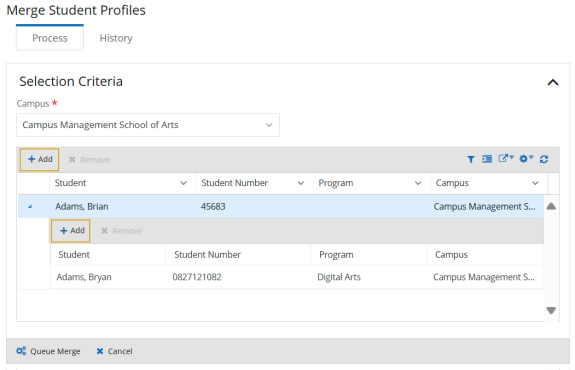
Select the Add button on the toolbar. Anthology Student displays the Select Student dialog.
-
Select the student and select the Select button. Anthology Student adds a record for the selected student to the grid. You can expand or collapse the record using the expand icon (
 ).
). -
In the record that was added to the grid, select the Add button. Anthology Student displays the Select Student dialog.
-
Select the one or multiple students with the profile that contains information that you want to merge. and select the Select button.
-
Anthology Student validates duplicate Pell records. If a duplicate Pell record exists, Anthology Student displays the dialog to resolve the conflict. Select the Resolve button.
Anthology Student displays the Merge Duplicate Pell Records dialog with the following values.
Select the award year link to merge the ISIR detail, and then select the Save button.
If you want to remove a student, select the required student record and select the Remove button on the toolbar.
-
Select the Queue Merge button.
- In the Queue Merge dialog, review or change the name of the batch and select the Queue button.
Anthology Student processes the batch and merges the student profiles.
When the batch completes, Anthology Student displays the results on the History tab so that you can review the results of merged student profiles.
Procedure to Review Results
-
Select the History tab.
Batches on this tab are available for 28 days by default. Anthology Student removes them after 28 days. If you need to keep the information for a batch, use the Export (
 ) button on the toolbar.
 -
Review the status and values for the batches in the list.
-
Select the name of the batch in the list. Anthology Student displays the details for the job in the Job Results list.
-
Review the values in the list.
