Edit or Cancel Student Payments or Other Cash Awards
You can edit or cancel payment schedules made by a student or payments made by an agency on behalf of the student. You can also edit other cash awards that do not require repayment.
Student payment schedules can be edited or canceled from more than one module in Anthology Student. They can be edited from:
- Financial Aid
- Student Accounts
For payment schedules, you can edit information for making automatic payments (such as scheduled payments made via a credit card or bank).
Payment schedules can be added by more than one module. They can be added:
- On the Awards page for Financial Aid
- Payment Schedule list for Student Accounts
The payments are posted on the student ledger card by Student Accounts. When a payment is made, Anthology Student updates the Student Academic Year ID column in the FA Disbursements table.
The initial scheduling of any payment plan associated with a fund source type of Cash or Other uses the same amortization logic that is used when payments are posted.
-
Calculation of the payment amount expected must include the net amount for any scheduled payments that are past due.
-
Calculation of the interest portion of the payment being made includes summing the interest amount of the payment being made, any accrued interest amount, and the interest amounts of any scheduled payments that are past due.
If the payment amount:
-
Equals the scheduled payment amount, there is no change to the future scheduled payment amounts
-
Is under or over the amount expected, the principal balance is re-amortized
Prerequisites
You must have:
-
Common - Student - View authorization
-
Either Financial Aid - Student Award - Edit authorization or Student Accounts – Payment Schedule – Edit authorization
If your institution has configured permissions for fund sources, you must also be in a staff group that has permission to edit the fund source. Refer to Fund Source Security.
If students want to make payments using a bank or credit card, they must have bank or credit card information specified in their Payment Information list (Select the Students tile > select the name in the Students list > expand Student Accounts > select the Payment Information tile.).
If students want to make automatic payments, your institution must also have configured Automated Clearing House (ACH) processing.
Access Methods
Select the Students tile > select the name in the Students list > expand Financial Aid > select the Awarding tile > Awards tab.
Select the Students tile > select the name in the Students list > expand Student Accounts > select the Payment Schedule tile.
Procedure to Edit Student Payments or Other Cash Awards
-
The action you take first depends on your location.
Awards tab:
- Verify that the program version is correct. If not, select the specific program version in the Program Version list.
- Select the Academic Year.
- Select the record for the student payment plan or other cash award in the list.
Payment Schedule page:
Select the record for the student payment plan in the list.
-
Review and change the values. The fields that are displayed will depend on your selection in Payment Source
 .
. -
If you made changes that can change the payment schedule, select the Recalculate button on the Scheduled Payments tab. Anthology Student recalculates a payment plan using the values that you specified.
-
If students want to make payments automatically using a bank or credit card, select the Auto Draft tab. The fields that are displayed after you select a value in the Authorized Payment Source
list will vary. If the payment gateway provider for your credit card or ACH processor is ACI and you select a credit card or bank account that was added for one-time use only, Anthology Student displays a warning message letting you know that the credit card or bank account selected can be used for one payment only. Based on this, you can decide to use the selected card or bank account or choose another card or bank account for auto-draft.
-
Select the Note tab to add notes.
-
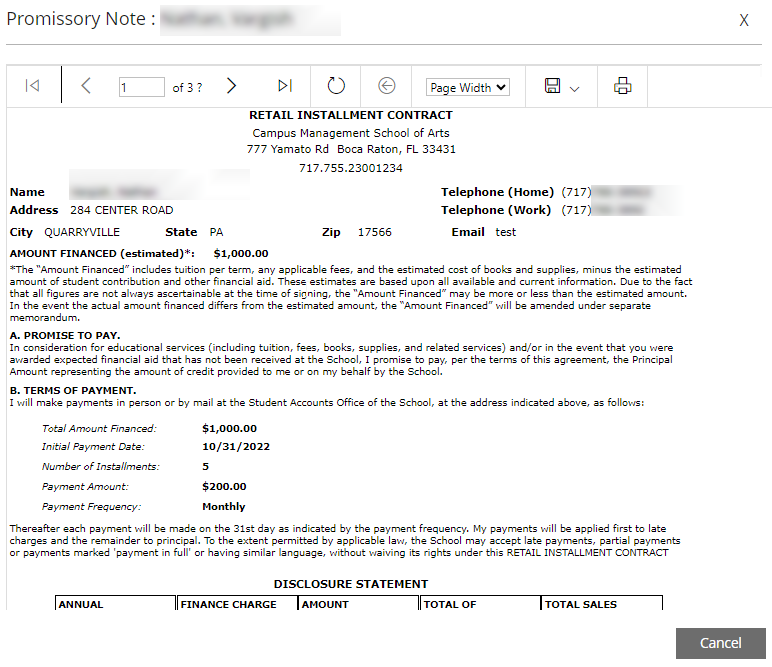
If the "Print Promissory Note" option is enabled for the campus under Configuration > Financial Aid > Fund Sources > Rules and Attributes, the Promissory Note button is displayed in the toolbar of the fund source section.
Select the Promissory Note button to view and print the promissory note for the student's payment schedule.
-
If you want to save and:
-
Continue making changes, select the Save button
-
Close, select the Save & Close button
-
Anthology Student:
-
Validates the dates and the payment schedule
-
Sums the interest and principal amounts in the grid where the status is Scheduled and saves the values in Interest Balance and Principal Balance in the FA Student Aid table
-
If you specified an agency and the agency is not already in the Agency Affiliation list for the student, asks you if you want to add the Agency Affiliation list (Select the Students tile > select the name in the Students list > expand Contact Manager > select the Agency Affiliations tile.)
Limitations
You cannot edit an award if the fund source for the award has been disabled.
Procedure to Cancel Student Payments or Other Cash Awards
-
The action you take first depends on your location.
Awards tab:
- Verify that the program version is correct. If not, select the specific program version in the Program Version list.
- Select the Academic Year.
- Select the record for the student payment plan or other cash award in the list.
Payment Schedule page:
Select the record for the student payment plan in the list.
-
In the Status
field, select Canceled. -
Select the Save button on the toolbar. Anthology Student changes the status to Canceled, but the record remains in the list.
