Register a Course from the Student Course List

You can register a student into a class section.

When you register, unregister, and drop courses for students, Anthology Student performs validations and identifies conflicts. If you have the required specialized permissions, you can override the conflicts.

  • As an audit, and the student is not required to attend or complete coursework, ED considers it an audit course, and the LDA should not be updated. You can take attendance, but Anthology Student will not update the LDA for students in an audit course.

  • Not as an audit, and the student is required to attend or complete coursework, ED considers it a course where the LDA should be updated. When attendance is taken in this course, Anthology Student updates the LDA.

Prerequisites

You must have:

  • Common - Student - View authorization

  • Academics - Student Course - Edit authorization

The course must: 

  • Have a value of Future for Course Status

  • Be active or inactive and have active substitutes

For cross-referenced courses, your institution must have:

  • Enabled cross-reference sharing groups (CRSG) for the logged-in staff member

  • Enabled cross-referencing for the Academic Records module

To override conflicts, you must have the appropriate specialized permission. For example:

  • Allow maximum students in class and Add/Drop date Override - All CampusesClosed Select the check box to give a staff member permission to override the maximum class size when registering students in a class section for all campuses. During registration, a message is displayed when the maximum class size is about to be exceeded on the Student Courses page. (Select the Students tile > select the name in the Students list > expand Academic Records > select the Student Courses tile.) The staff member can determine if it is okay to register the student anyway. If this check box is selected, the campus setting for Add/Drop is overridden. or Allow maximum students in class and Add/Drop date Override - Users Campuses OnlyClosed Select the check box to give a staff member permission to override the maximum class size when registering students in a class section for the campuses they are authorized to work with. During registration, a message is displayed when the maximum class size is about to be exceeded on the Student Courses page. (Select the Students tile > select the name in the Students list > expand Academic Records > select the Student Courses tile.) The staff member can determine if it is okay to register the student anyway. If this check box is selected, the campus setting for Add/Drop is overridden.
  • Allow User to Override Registration HoldsClosed Select the check box to give a staff member permission to override a registration hold on their Student Courses page and register students without needing to remove these students from a registration hold group. (Select the Students tile > select the name in the Students list > expand Academic Records > select the Student Courses tile > add or select a course in the list > select the Register button.)

  • Allow Prerequisite/Corequisite registration and Maximum Course Attempts OverrideClosed Select the check box to give a staff member permission to override prerequisite and corequisite course requirements when processing a single student registration in a course for which there are other courses required as prerequisites or corequisites. It also gives a staff member permission to override the maximum course attempts rule when registering a student on their Student Courses page. (Select the Students tile > select the name in the Students list > expand Academic Records > select the Student Courses tile.)

If you want Anthology Student to display a message, when you register for a class, assigned to an elective pool which is satisfied and will exceed the elective pool limit for catalog, course category, program version or area of study configured for that campus, your institution must have configured Display Elective Pool Warning During RegistrationClosed Select this check box if you want Anthology Student to display a warning message when the elective/substitution pool criteria has been exceeded during registration. check box on the Campuses page. (Select the Settings tile > expand System > select Campuses > add or select a campus > select the Academic Records tile.)

You should also be familiar with the Background for Requisite Validations and Conflicts.

Access Method

Select the Students tile > select the name in the Students list > expand Academic Records > select the Student Courses tile.

Procedure to Register a Student to One or More Class Sections

  1. Select one or more records in the list with the same status and select the Register button.

  2. In Course Information, specify the following values and select Next.

    Academic YearClosed The academic year date range configured by your institution and associated with the record.

    CampusClosed The campus where the student or students were enrolled.

    CourseClosed The code and name of the course associated with the record. Some pages also indicate the course status (Active or Inactive).

    NoteClosed Area that displays, or that you can use, to specify comments or additional information related to the record or subject.

    Parent TermClosed The parent term associated with the course.

    Register as AuditClosed Indicates the course must be registered as an audit course.

    SubstitutionClosed The substitution course from the courses configured as a substitution pool in the course list. If you selected the Substitution check box, select the substitution course.

    Substitution CourseClosed The substitution course from the courses configured as a substitution pool in the course list. If you selected the Substitution check box, select the substitution course.

    TermClosed Specifies the term associated with the record. Terms are configured by your institution. The term start date must be before the end date of the award year.

  3. In Class Section Selection, review and specify the following values.

    If you want to enable View Registration Relationships button, then the selected class section must have active registration relationships. You can view Registration Relationship conflicts for the selected class section.

    CreditsClosed Credits associated with the course definition and for variable credits from the student's enrollment in the class section.

    Days of WeekClosed The day of the week is displayed automatically. This is a read-only field. You cannot modify or edit the day of the week.

    Delivery MethodClosed The delivery method of the course. For example, online, on ground. They are configured by your institution. To automatically add a class section, your institution must have configured the delivery with Auto Add Class Section set to Yes.

    HoursClosed The number of hours associated with the record (e.g., attendance hours, course hours, hours worked) during a specified period.

    Primary InstructorClosed The instructor or instructors assigned to the course, class section, or class section session.

    Number on WaitlistClosed The number of students already on the waitlist for the class section.

    Reg. Rel.Closed Indicates whether the class section has active Registration Relationships.

    Seats AvailableClosed The seats available in the class section.

    SectionClosed The code and name for the class section.

    WaitlistClosed Indicates whether a waitlist is configured for the course or class section.

    Waitlist Expired onClosed The date when the configured waitlist is no longer valid.

    Waitlist MaximumClosed The maximum number of reservation seats allowed for the course.

    If you want to view the class schedule details, select the Expand icon icon.

    The following fields are displayed.

    BuildingClosed The name of the building. The values are configured by your institution.

    DayClosed The days of the week. For example, days for which the class is scheduled.

    InstructorsClosed The instructor or instructors assigned to the course, class section, or class section session.

    LocationClosed The location/address associated with the item or person.

    RoomClosed The code and name of the room where the class is taken. Rooms are defined by your institution. You can select multiple rooms at a time.

    TimeClosed The times the class or class section is scheduled for.

  4. If Cross-Referenced Courses is displayed, review the shared or cross-referenced courses that display the following values and select a course.

    If you want to enable the View Registration Relationships button, then the selected class section must have active registration relationships. You can view registration relationship conflicts for the selected class section.

    CampusClosed The campus where the student or students were enrolled.

    CourseClosed The code and name of the course associated with the record. Some pages also indicate the course status (Active or Inactive).

    Days of WeekClosed The day of the week is displayed automatically. This is a read-only field. You cannot modify or edit the day of the week.

    Primary InstructorClosed The instructor or instructors assigned to the course, class section, or class section session.

    Is Cross ReferenceClosed Indicates that the course is offered at multiple campuses.

    Number on WaitlistClosed The number of students already on the waitlist for the class section.

    Preview OnlyClosed "Preview Only" for cross-referenced courses is a display indicator showing that while the course is cross-referenced and viewable, it is not open for registration at that time. This means the course section is displayed for informational purposes, allowing students or staff to view details about the course without being able to register for it at that moment.

    Reg. Rel.Closed Indicates whether the class section has active Registration Relationships.

    Seats AvailableClosed The seats available in the class section.

    SectionClosed The code and name for the class section.

    WaitlistClosed Indicates whether a waitlist is configured for the course or class section.

    Waitlist Expired onClosed The date when the configured waitlist is no longer valid.

    Waitlist MaximumClosed The maximum number of reservation seats allowed for the course.

    If you want to view the class schedule details, select the Expand icon icon.

    The following fields are displayed.

    BuildingClosed The name of the building. The values are configured by your institution.

    DaysClosed The days of the week. For example, days for which the class is scheduled.

    InstructorsClosed The instructor or instructors assigned to the course, class section, or class section session.

    LocationClosed The location/address associated with the item or person.

    RoomsClosed The code and name of the room where the class is taken. Rooms are defined by your institution. You can select multiple rooms at a time.

    TimesClosed The times the class or class section is scheduled for.

  5. Specify the following details. The values can vary and depend on your configuration.

    CreditsClosed Credits associated with the course definition and for variable credits from the student's enrollment in the class section.

    Expected End DateClosed The date the student completes the class. This value is filled in by default, based on the Class Section End Date.

    HoursClosed The number of hours associated with the record (e.g., attendance hours, course hours, hours worked) during a specified period.

    Pass/Fail CourseClosed Indicates whether the course will be graded on a pass or fail basis only.

    Student Start DateClosed The date the student starts the class section/program version. This value is filled in by default based on the Class Section Start Date. Some processes, reports, and list include the option to filter records by start date or start date range.

  6. Select the Register button.

    Anthology Student

    • Performs validations and displays messages when you cannot register the student for a course and a dialog if there are conflicts. In the dialog, you can select View Details to display details. If you have the necessary permission, you can override the conflicts. In the example, the staff member does not have permission.
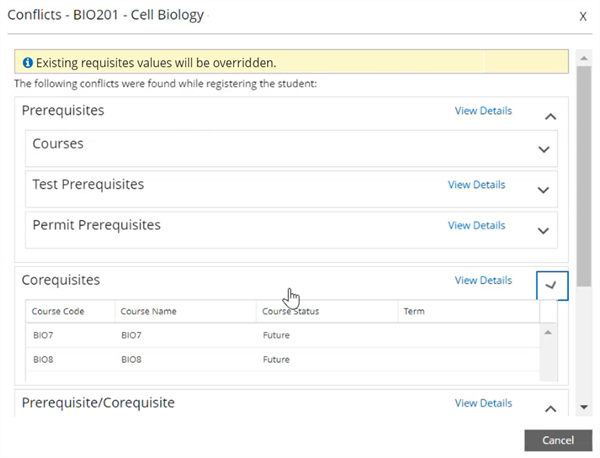
      Shows the conflict dialog.

    • Updates the course to a status of Scheduled, along with the other details, such as section, term, start date, instructors, and so on.

    • For cross-referenced courses, the value in the Cross-Referenced column is changed to Yes.