Register a Course from the Degree Pathway
You can use the Degree Pathway page to register a student for a course in their schedule.
When you register, unregister, and drop courses for students, Anthology Student performs validations and identifies conflicts. If you have the required specialized permissions, you can override the conflicts.
The table shows the validations that Anthology Student performs. The table indicates which validations:
-
If you have permission, you can override and still register the student and where (if applicable)
-
Prevent you from registering a student
If Anthology Student prevents you from registering, it displays the reason why.
| Validation |
Override and Register |
Override and Register from Student Course List Only |
No Override and Register |
|---|---|---|---|
| Course add or drop period has expired. |
X |
|
|
| Course is associated with a locked term sequence. |
X |
|
|
| Course is not currently scheduled for any terms or is a dependent course. |
|
|
X |
| Class section has the maximum number of students allowed, and it has been exceeded. |
X |
|
|
| Class section is full, and the student will go on the waitlist. |
X |
|
|
|
Courses selected are not advancing the fulfillment of the requirement rule, because the requirement rule is already fulfilled. This warning is displayed only for Elective Pool course registrations when a Requirement Rule is configured for the Elective Pool and the Requirement Rule status is Fulfilled. |
X | ||
|
Maximum count of units(credits/hours) for the given elective pool will be exceeded by the given number of units (credits/hours) beyond the elective pool units (credits/hours) limit. This warning is displayed only for Elective Pool course registrations when Campus level setting Display Elective Pool Warning During Registration is turned ON and the required units(credits/hours) limit of given Elective Pool is being exceeded with the course registration. |
X | ||
| Student expected start date is after the class start date. |
X |
|
|
| Student already has a grade for the prerequisite course. |
X |
|
|
| Student does not meet a prerequisite or corequisite. |
X |
|
|
| Student meets an antirequisite. |
X |
||
| Student has a conflict in their schedule with another course. |
X |
|
|
| Student has a registration hold. |
X |
|
|
| Student has a schedule lock. |
X |
|
|
| Student has exceeded the maximum number of retakes for the course. |
X |
|
|
| Student is already taking the course in the same or overlapping terms. |
|
|
X |
| Student is not registered for corequisite courses. |
X |
|
|
| Student is already taking the course. |
X |
|
|
| Student is on a registration hold. |
X |
|
|
| Student is repeating the course. |
|
X |
|
| Student is retaking the course. |
X |
|
|
| Term is closed. |
X |
|
|
When a student registers for a course as an audit, Anthology Student follows the guidelines from the U.S. Department of Education (ED). If a student is registered in a course:
-
As an audit, and the student is not required to attend or complete coursework, ED considers it an audit course, and the LDA should not be updated. You can take attendance, but Anthology Student will not update the LDA for students in an audit course.
-
Not as an audit, and the student is required to attend or complete coursework, ED considers it a course where the LDA should be updated. When attendance is taken in this course, Anthology Student updates the LDA.
Prerequisites
You must have:
-
Academics - Student Degree Pathway - Manage authorization
-
Academics - Student Course - Edit authorization
The plan must be approved and:
-
The course must have been moved from the course list to the term
-
A term selected for that Term column
The course must:
-
Have a value of Future for Course Status
-
Be active or inactive and have active substitutes
For cross-referenced courses, your institution must have:
-
Enabled cross-reference sharing groups (CRSG) for the logged-in staff member
-
Enabled cross-referencing for the Academic Records module
To override conflicts, you must have the appropriate specialized permission. For example:
- Allow maximum students in class and Add/Drop date Override - All Campuses
 or Allow maximum students in class and Add/Drop date Override - Users Campuses Only
 Allow Prerequisite/Corequisite registration and Maximum Course Attempts Override
If you want Anthology Student to display a message when you register for a class assigned to an elective pool that is satisfied and will exceed the elective pool limit for the catalog, course category, program version, or area of study configured for that campus, your institution must have configured Display Elective Pool Warning During Registration check box on the Campuses page. (Select the Settings tile > expand System > select Campuses > add or select a campus > select the Academic Records tile.)
Access Method
Select the Students tile > select the name in the Students list > expand Academic Records > select the Degree Pathway tile.
Methods for Registering for the Course
There is more than one method. You can either:
-
Access the Student Courses list from this page and then register for the course from that page using detailed course information and separate lists for courses, shared courses, and cross-referenced courses. You also have to override each conflict individually.
-
Select and quick-register the selected course from this page using abbreviated course information and a consolidated list of the courses, shared courses, and cross-referenced courses. You can also override all the conflicts at once.
Procedure to Register from the Student Course List
-
If not already selected, select the approved custom plan.
-
Select the box for the class.
-
Either:
-
Select the Register button on the toolbar
-
Right-select and select Register
Anthology Student displays the Student Course list for the student with the course expanded at the bottom. For information about registering for the course from that page, refer to Register a Course from the Student Course List.
-
Procedure to Register from the Degree Pathway
-
If not already selected, select the approved custom plan.
-
Select the box for the class.
-
Either:
-
Select the Quick Register button on the toolbar
-
Right-select and select Quick Register
Anthology Student displays a dialog. The values displayed in the dialog and the values you can specify or change will depend on how the class was configured using the Class Scheduling tile.
-
-
In the dialog, review or specify the values.
-
Review the values in the grid and select the course.
-
Review and specify the remaining values.
-
Select the Validation Check button.
Anthology Student performs the validations and displays a grid that lists the conflicts and warnings.
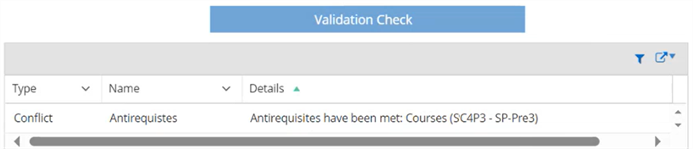
In the grid, review the following values.
-
If there are:
-
No conflicts, select the Register button
-
Conflicts
-
Conflicts
-
Anthology Student updates the course to a status of Scheduled, along with the other details, such as section, term, start date, instructors, and so on.
