Favorites
The Favorites feature enhances usability and efficiency within the Student Profile by minimizing the number of clicks and page loads needed to access commonly used information. This user-specific feature allows users to personalize their view with Favorites and set a default tile, ensuring they arrive directly at the content most relevant to them. This improvement leads to faster navigation, increased user satisfaction, and greater productivity.
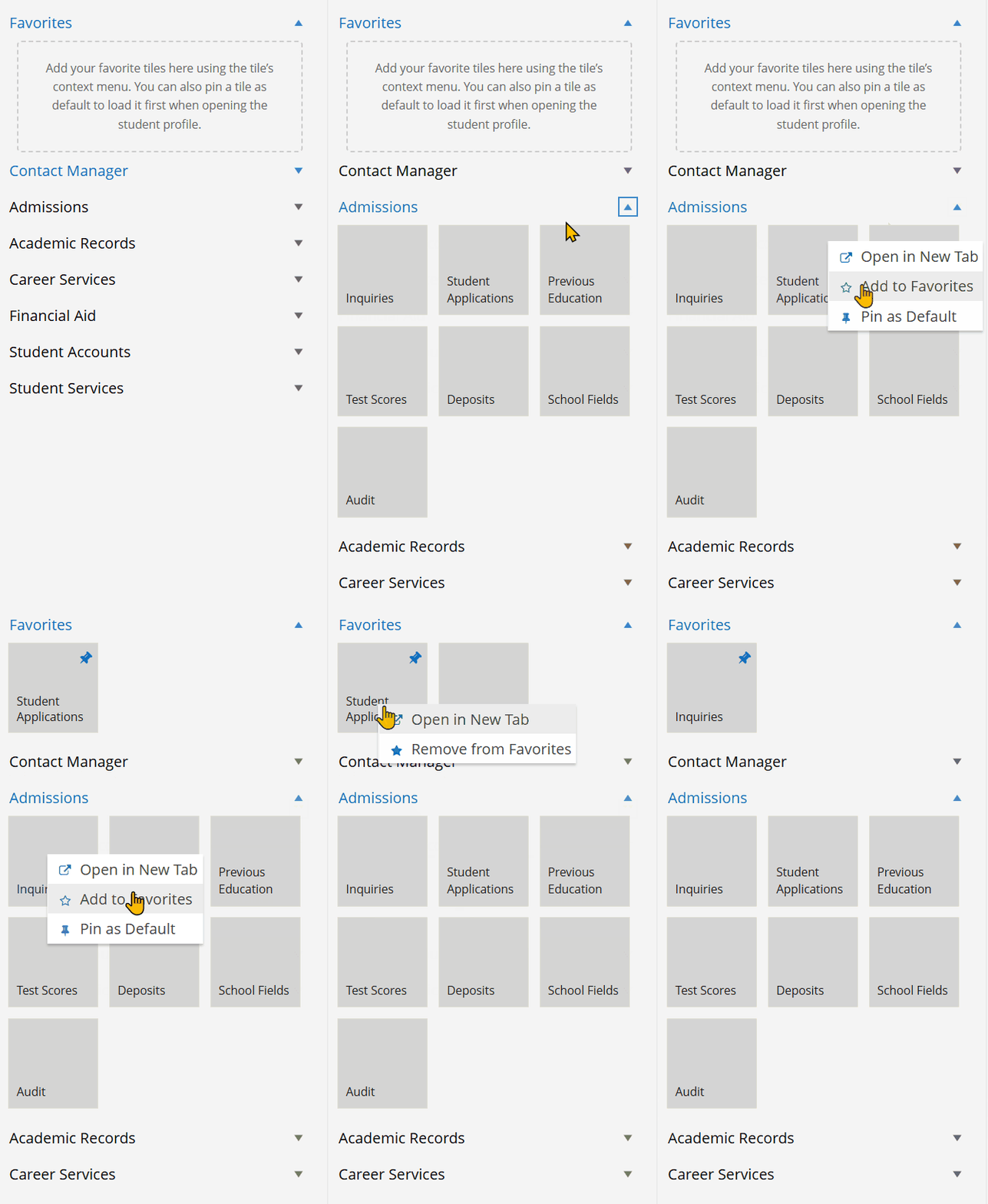
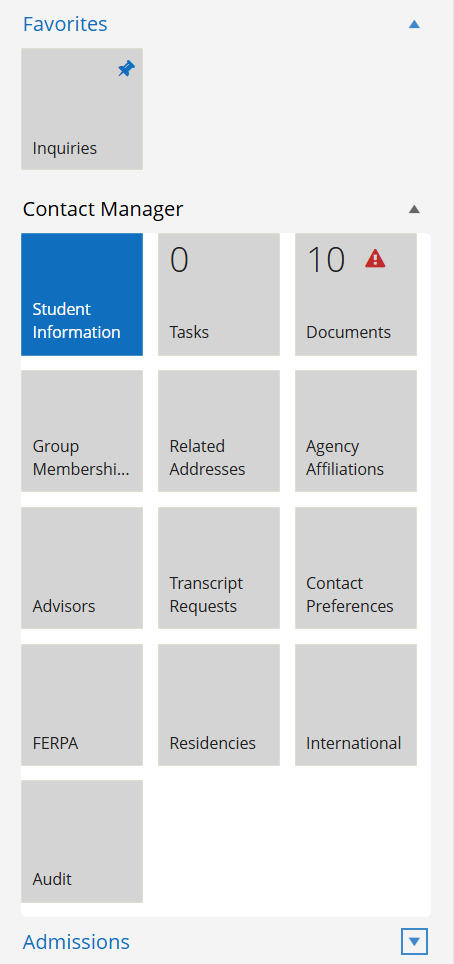
Additionally, we moved the Personal Information details that were previously loaded in the Student Profile by default to the Student Information tile in the Contact Manager section. This allows the detailed information to be accessed only when needed, rather than loading it by default.
Prerequisites
Depending on your task, you must have Common - Student - Edit, New, and View authorization.
Access Method
Select the Students tile and search for the student's name.
Procedure to Manage Favorites
-
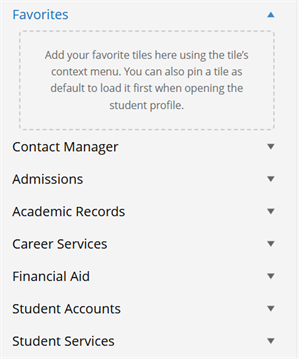
Select a student to access the Student Profile. The Favorites is an expandable and collapsible section on the right side of the page. By default, it is expanded.
-
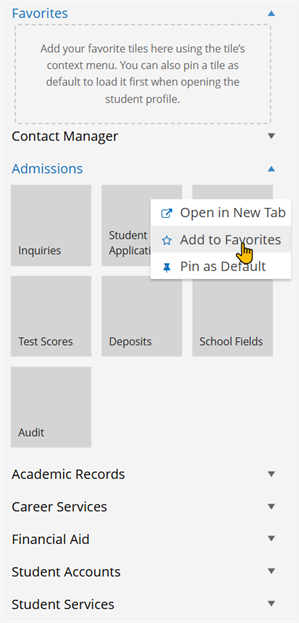
Expand a module section, such as Contact Manager or Admissions, right-click a tile in the expanded section, and select Add to Favorites.
-
When a tile is added to Favorites, it is duplicated—it remains in the original module and also appears in Favorites.
-
You can add, edit, or pin the favorite tile at any point of time.
-
You can pin one tile as the default tile. Whenever you navigate to the Student Profile, the page will display the content of the default tile.
-
Tiles are displayed in the order they were added to the Favorites section, except for the default tile, which is always in the first position.
-
If tiles with the same name are added, the module name is appended in parenthesis. Example: "Audit (Academic Records)", "Audit (Financial Aid)"
-
If a tile is already added in the Favorites section, the context menu displays the option "Remove from Favorites". Removing a tile from Favorites will not remove it from the original module.
-
Up to 9 tiles can be added to the favorite section. If you add more than nine tiles, an error message is displayed.
-
