Data Dictionary
You can use the Data Dictionary page to set or clear the Required attribute for data elements. You can also view the descriptions of all data elements which can be used when designing custom reports for your institution.
SQL Data Types
The Data Dictionary is based on Microsoft's SQL Database Management System. When you access the Data Dictionary and drill down to individual data items, the data types listed in the following table are referenced.
| Type of Data | Base Data Type | Synonyms | Range/Domain | Storage Size |
|---|---|---|---|---|
| Integer | int | integer | Whole numbers
from -2,147,483,648 to 2,147,483,647 |
4 bytes |
| Integer | smallint | Whole numbers from -32,768 to 32,767 | 2 bytes | |
| Integer | tinyint | Whole numbers from 0 to 255 | 1 byte | |
| Packed Decimal (exact numeric) | numeric (p,s) decimal (p,s) |
dec | Whole or fractional numbers from -10^38 to 10^38 | 2-17 bytes, depending on specified precision, p, which can range to 38 digits. On average, 1 byte of storage is required per every 2 digits of precision. |
| Floating point (approximate numeric) |
float (15-digit precision) |
float(n),
where n is between 8 and 15 Double Precision |
Approximations
of numbers from -1.79E308 to 1.79E308 Positive range: 2.23E-308 to 1.79E308 Negative range: -2.23E-308 to -1.79E308 |
8 bytes |
| Floating point (approximate numeric) |
real (7-digit precision) |
float(n), where n is between 1 and 7 | Approximations
of numbers from -3.40E38 to 3.40E38 Positive range: 1.18E-38 to 3.40E38 Negative range: -1.18E-38 to -3.40E38 |
4 bytes |
| Character (fixed length) |
char(n) | character
(n) character (character without a specific size is synonymous to a 1-character field, char(1)) |
Up to 255 characters, as designated by the n, of the installed character set | 1 byte per character n declared, even if partially unused. |
| Character (variable length) |
varchar(n) | character
varying (n) Char varying (n) |
Up to 255 characters, as designated by the n,of the installed character set | 1 byte per character stored. Declared but unused characters do not consume storage. |
| Monetary | money | Numbers with accuracy to
one ten-thousandth of a unit (four decimal places), typically used to
store currency values. From -922,337,203,685,477.5808 to 922,337,203,685,477.5807 |
8 bytes | |
| Monetary | smallmoney | Numbers with accuracy to
one ten-thousandth of a unit (four decimal places), typically used to
store currency values. From -214,748.3648 to 214,748.3647 |
4 bytes | |
| Date and Time | datetime | Combined date
and time representation. (SQL Server does not have separate DATE and TIME
data types.) Date part: 01-JAN-1753 to 31-DEC-9999. Time part: Number of milliseconds since midnight of the given date |
8 bytes | |
| Date and Time | smalldatetime | Combined date and time representation. Date part: 01-JAN-1900 to 06-JUN-2079 Time part: Number of minutes since midnight of the given date |
4 bytes | |
| Binary (fixed length) |
binary(n) | Any binary representation (bit patterns) up to 255 bytes | n bytes, even if n is partially unused. | |
| Binary (variable length) |
varbinary(n) | binary varying | Any binary representation (bit patterns) up to 255 bytes | The number of bytes actually stored. No storage for space declared but not used. |
| Long text/BLOB | text and image | Text: Character
data up to 2 gigabytes (GB). Image: Binary data up to 2 GB. The text and image data types are always variable length. |
If not null, a 16-byte pointer is used on the data page, plus however many 2-KB pages are required to store the actual length. Text and image pages cannot be shared. A single byte entered in a text or image column requires its own 2-KB page (most being unused). | |
| Boolean | bit | 0 or 1 | Bit data types share a byte with other bit columns of the same table. Hence, 8-bit columns of the same table use one byte of storage. If the table has only 1-bit columns, it still uses 1 byte, although 7 more such columns could be added "for free." |
Custom Labels
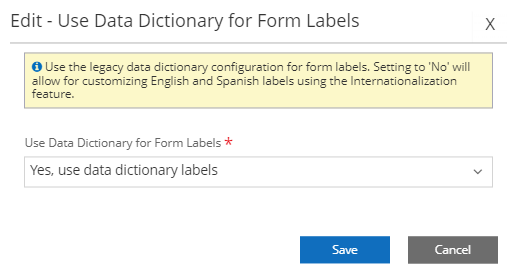
The setting of the Use Data Dictionary for Form Labels option under Settings > System > General determines how form labels are populated and customized. Select the Settings tile > expand System > select General.)
-
If you want to use the label names from the Data Dictionary present in the legacy interface of Anthology Student, set the 'Use Data Dictionary for Form Labels' option to Yes. To customize the labels, go to the Data Dictionary in the legacy interface of Anthology Student and change those label texts.
-
If you do not want to use the legacy Data Dictionary and have configured the Internationalization feature, set 'Use Data Dictionary for Form Labels' to No . To customize labels and message text, download, modify, and upload the PO file. For more details, refer to Internationalizations. You cannot use the Data Dictionary page to modify label names.
Prerequisites
You must have:
-
To view the page, System - Settings - Data Dictionary - View authorization
-
To add or edit, System - Settings - Data Dictionary - Manage authorization
Access Method
Select the Settings tile > expand System > select Data Dictionary.
Procedure to Edit Items
-
Select a Module
. By default, the Common module is selected.
-
Select an Entity
. By default, the AddressTypeEntity in the Common module is selected.
-
Select Apply Filters. Anthology Student displays the Data Dictionary grid.
-
Use the Search Display Name field to filter the records in the grid based on a value in the Display Name column.
-
Select or clear the check box in the Required column to make a field optional or required in the Anthology Student interface.
-
Select Save to save the changes.
