Background and Operation of Tasks
The Event Types that are configured for task templates determine how the task template is configured and how it operates.
Descriptions and Operation for Task Templates
Depending on the event type, tasks are either:
-
Completed and closed automatically by Anthology Student
-
Closed automatically by Anthology Student when an event occurs
-
Manually completed and then closed
The tables below list and describe the valid Event Types for task templates, their configuration and operation, and whether the tasks are completed and closed automatically.
| Event Type | Description | Configuration and Operation | Task Completed & Closed Automatically? |
|---|---|---|---|
| Auto Disb. Cancellation/Disb. To Re-expect Alert | Sends an email to staff if a disbursement is canceled or a canceled disbursement is moved back to the associated award year range by the Student Pace Evaluation (SPE) tool. |
Emails can be configured by your institution to contain:
These tasks can also be configured to attach documents automatically. |
Yes |
| E-Mail Student |
Sends an email to the student on the date and time specified in the task. The email is sent to both email addresses specified in the Student profile (the email address and the other email address). If either of the fields is blank, then the email is sent to the email specified in the non-blank field. If both the email address fields are blank, it fails to send the email. |
||
| E-Mail Staff | Sends an email to the staff member on the date and time specified in the task if the task is assigned to a specific staff member who has an email address. The staff account record must have an email address populated. | ||
| E-Mail to Employer | Sends an email to an employer about the student on the date and time specified in the task. | ||
| E-Mail Organization | Sends an email to contacts configured for an organization. | ||
| Job Notification E-Mail | Sends an email to the student about an available job. | ||
| Waitlist E-Mail to Student | Sends an email to a student when the capacity of the course is full and the student is on the wait list. |
| Event Type | Description | Configuration and Operation | Task Completed & Closed Automatically? |
|---|---|---|---|
| Incident | Provides a record for the incident for the Jeanne Clery Campus Crime Report (federally required) | Incidents are configured for the incident types. They can then be selected when a staff member adds an incident. | When the task is created, Anthology Student marks it as Task Template (Closed). |
| Event Type | Description | Configuration and Operation | Task Completed & Closed Automatically? |
|---|---|---|---|
| Letter | Sends a letter to a student. |
Letters can be configured by your institution to contain:
These tasks can also be configured to:
|
The status of the task stays in Pending until you print the letter using Anthology Student. (Select the Processes tile > locate Contact Manager > select Letters.) Once it is printed, Anthology Student closes the task automatically. |
| Event Type | Description | Configuration and Operation | Task Completed & Closed Automatically? |
|---|---|---|---|
| Message | Reminder to complete a task. (The task will be the only record of the activity.) | None | Yes |
| Other Task | Tasks that do not fall into any other category. | None | No |
| Event Type | Description | Configuration and Operation | Task Completed & Closed Automatically? |
|---|---|---|---|
| Incoming Phone Call (no call scripts) | Tracks and keeps notes for calls from students to your institution. | In some cases, calls can have scripts that are predefined by your institution that you can display when you go to close the task. | No |
| Outgoing Phone Call (no call scripts) | Tracks and keeps notes for calls from your institution to students. | ||
| Meetings | Schedules and tracks meetings for students. |
The meeting is displayed on the Portal for the student and the staff member in the Assigned To field. In some cases, meetings can have scripts that are predefined by your institution that you can display when you go to close the task. If the Show Comments Online with Task check box was selected for the meeting when it was configured, the comments that you specify in the Comments box are displayed on the Portal. |
No |
| Event Type | Description | Configuration and Operation | Task Completed & Closed Automatically? |
|---|---|---|---|
| SMS-Text Message | Sends a text message on the date and time specified in the task. |
Text messages can be configured by your institution to contain:
|
Yes |
| Event Type | Description | Configuration and Operation | Task Completed & Closed Automatically? |
|---|---|---|---|
| Job Notification Alert | Displays an alert message about an available job. |
Student alerts can be configured by your institution to contain:
|
The status of the task stays in Pending until the alert is acknowledged by the student on the Portall. Once it is acknowledged, Anthology Student closes the task automatically. |
| Student Alert | Displays an alert message that you specify. | ||
| Waitlist Web Alert To Student | Displays an alert when the capacity of the course is full and the student is on the wait list. |
Where Tasks Can Be Added
The table shows the locations in Anthology Student where the task templates configured with the event types can be added. For example, if you need to add a task for an employer-related task for a student, you can add the task from the Employers page, High School Tasks page, your tasks list from the Home page, or from the Student Profile for the student.
If an Event Type cannot be added from one of the locations in the table, the task is generated by Anthology Student. For example, when you add an available job, you can specify that Anthology Student adds a Job Notification E-Mail task and sends an email to a student.
| Event Type |
Locations Where Task Can Be Added |
System Generated |
||||||
|---|---|---|---|---|---|---|---|---|
|
Configuration > Employer |
Configuration > Employer Groups |
Processes > High School Tasks |
Home > Tasks |
Student Profile > Tasks |
Home > Groups |
Processes > Incidents |
||
| Auto Disb. Cancellation/Disb. To Re-expect Alert (email) |
|
|
|
|
|
|
|
X |
| E-Mail Student |
X |
X |
X |
X |
X |
|
||
| E-Mail Staff |
X |
X |
X |
X |
X |
X |
|
|
| E-Mail to Employer |
X |
X |
X |
X |
X |
X |
|
|
| E-Mail Organization |
|
X |
X |
|
|
|
|
|
| Incident |
|
|
|
|
|
|
X |
|
| Incoming Phone Call |
X |
X |
X |
X |
X |
X |
|
|
| Job Notification Alert (web alerts on Portal) |
|
|
|
|
|
|
|
X |
| Job Notification E-Mail |
|
|
|
|
|
|
|
X |
| Letter |
X |
X |
X |
X |
X |
X |
|
|
| Meetings |
X |
X |
X |
X |
X |
X |
|
|
| Message |
X |
X |
X |
X |
X |
X |
|
|
| Other Task |
|
|
X |
X |
X |
X |
|
|
| Outgoing Phone Call |
X |
X |
X |
X |
X |
X |
|
|
| SMS-Text Message |
|
|
|
X |
X |
X |
|
|
| Student Alert (web alerts on Portal) |
X |
X |
|
X |
X |
X |
|
|
| Waitlist E-Mail to Student |
|
|
|
|
|
|
|
X |
| Waitlist Web Alert To Student (web alerts on Portal) |
|
|
|
|
|
|
|
X |
Tasks Triggered by Portal Events
Tasks can be triggered by events on the Financial Aid Overview page in the Student Portal. For more details, refer to Configuration > Student Experience > Financial Aid Overview (Financial Aid Overview Tab - Internal Administrative Notifications, Housing tab, and Notifications tab).
Example:
When a student selects a housing status on the Financial Aid Overview page in the Student Portal, a “Housing Status Submitted” task is added to the designated staff member. The staff member receiving the task is specified in Configuration > Student Experience > Financial Aid Overview > Notifications tab. The “Housing Status Submitted” task is generated by the “Other Task” event type.
You can configure task templates for tasks and notifications generated by the Financial Aid Overview page (refer to System Templates for Financial Aid Overview Notifications).
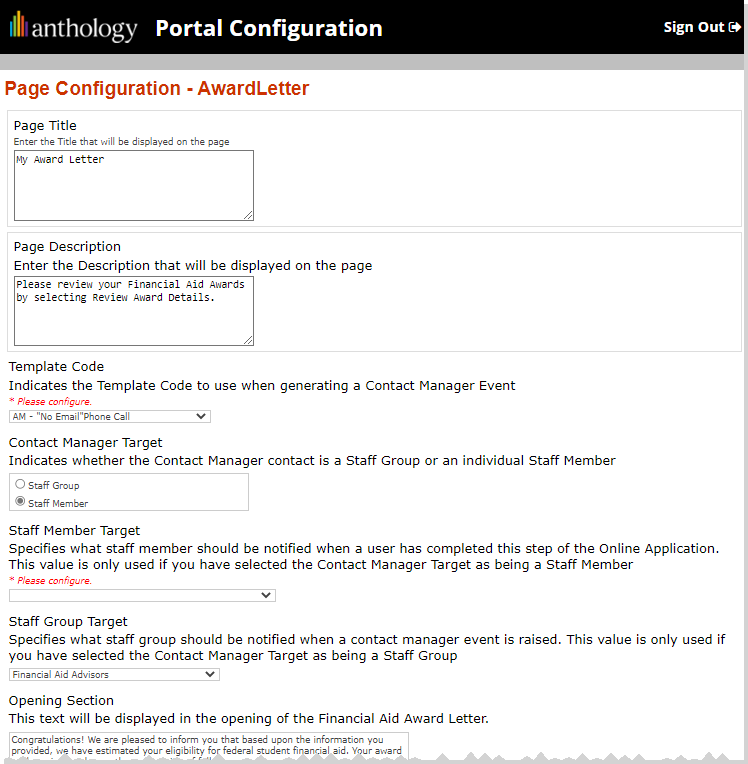
Tasks can also be configured in the Portal Configuration Tool under Page Transactions > Student Award Letter. For example, a task for a Financial Aid Advisor can be triggered when a student accepts or rejects a loan on the Award Letter page in the Student Portal.