Direct Loan Analysis Report
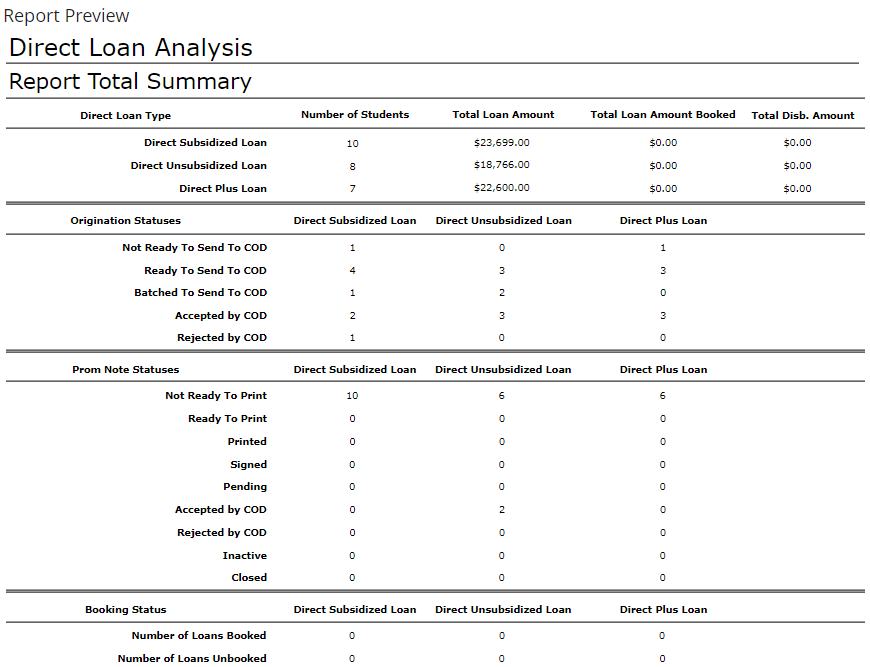
You can use the Direct Loan Analysis report to generate a detailed analysis of the Direct loan activity at your institution. The report also includes a summary page of statistics about your institution's Direct loans.
If you frequently generate reports with the same selection criteria, you can save the selection criteria under a name. This makes it easier to create reports in the future with the same selection criteria.
Prerequisites
You must have:
-
Common - Reports - View authorization
-
Either Reports - Financial Aid - Direct Loan Analysis or Financial Aid - All Reports authorization (All Reports provides authorization to view all reports for Financial Aid.)
To configure the timeout duration for the Export to Excel button, your institution must have configured Export to Excel Timeout in Seconds under Settings > System > General.
Access Method
Select the Reports tile > expand Financial Aid > select Direct Loan Analysis Report.
Procedure to Generate the Report
-
Specify the data selection criteria.
Book Date
From and ToOrigination Date
From and To
Take the appropriate action.
| Task | Action to Take | |
|---|---|---|
| View the report |
|
|
| Export the report |
Anthology Student exports the generated report as a CSV file, which may be viewed in Excel. In some cases, the exported file will contain additional data not displayed in the report on your screen. If you entered special characters like *, -, !, (, or ) in the report fields, Anthology Student automatically prepends an apostrophe to those field values upon export to Excel or CSV. The apostrophe is added to reduce vulnerability, as these characters are perceived by Excel as an actionable formula. Once the report is exported to Excel, Anthology suggests using find and replace on the characters only if necessary to restore original values. |
|
| Save the selection criteria |
|
|
| Delete the selection criteria |
|
You can also save to a student group. For more information, refer to Create or Update a Student Group Using a Report.
Details for the Report
In the report:
-
By default, the report details are sorted by Student Name
-
The Report Total Summary page is displayed at the end
| This feature applies to U.S. compliance only. |
