Import Student Funding Records
You can use the Process tab on the Automated Student Fund Management form to import an Excel file and load the data into a staging table. You can then review and edit the imported funding records before you submit the records to the main student funding table in Anthology Student.
The Excel file used for the data import must have a specific set of columns.
-
For Regulatory US 25.8.0 and forward, use the new template STUDENTSFM_230620252_Original.xlsx.
The Academic Year, Term, and Payment Period columns were added to the template in Regulatory US 25.8.0. The template contains two worksheets: StudentFundMgmt and ALLTERMS. -
For versions prior to Regulatory US 25.8.0, use the existing template STUDENTSFM_18082023_Template.xltx.
The system imports only files created using Microsoft Excel version 2001 and later.
Excel Template Limitations and Guidance
-
The RED columns indicate required fields that the system expects.
-
The BLACK columns are not required. The following fields are colored BLACK when Max Amount Type is selected as Award Year.
- Max Paid Credit Limit
- Min Credit Hours
- Max Credit Hours
-
Agency and Agency Branch will not be in BLACK color when the Fund Source Type selected is Grant (Other than Pell).
-
As of now, the Re-Award column allows selecting “Do Not Re-Award”. However, if you want to make changes to this field then, upon import, you can search for this student on the Search tab and edit the student.
-
As of now, Transaction Category will show only Tuition and Priority as 1. However, if you want to add or change Transaction Categories, you can search for this student on the Search tab and edit the student.
-
As of now, the Excel template is limited to 1000 rows. To add more rows, right-select the previous row and select "Insert". Inserting rows before the 1001th row will retain formatting and pre-applied validations.
-
Any rows that are duplicates will be in BLUE color.
-
Do not rename the worksheet from StudentFundMgmt to any other name.
-
Export the Terms to an Excel file. (Select Configuration > Academic Records > Terms > Export to Excel (All Results). Refer to Terms.)
-
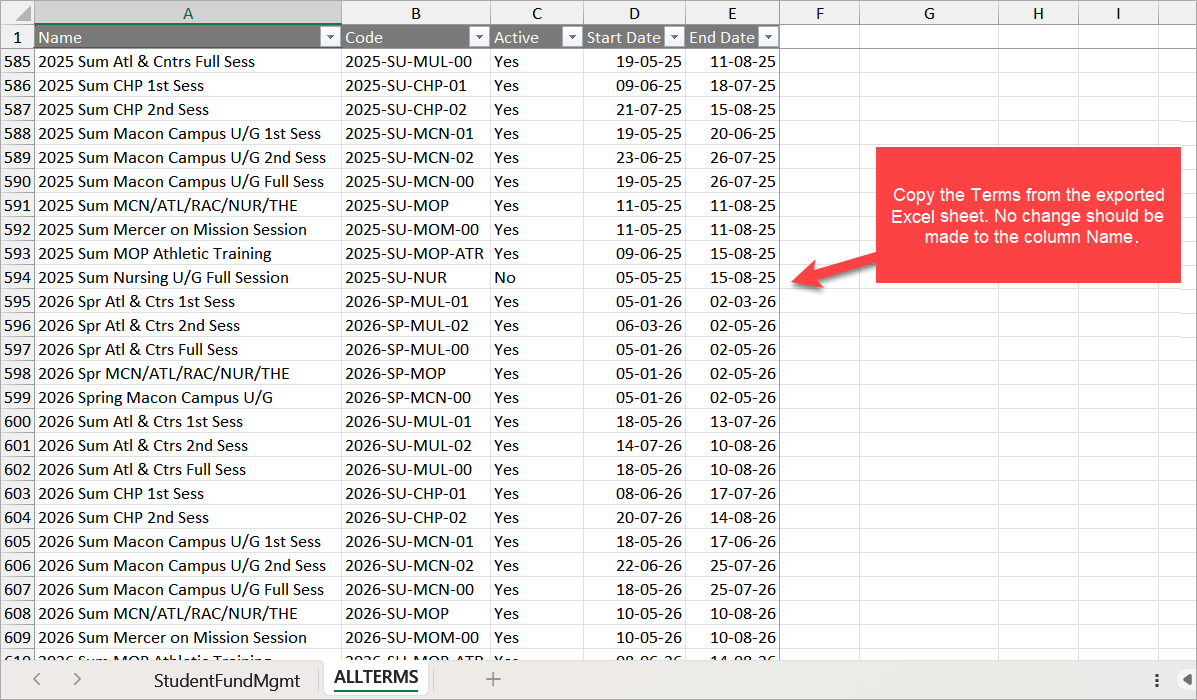
Copy the Terms to the ALLTERMS worksheet in the Excel template provided above.
-
Do not modify the Name column in the ALLTERMS worksheet because the Name column is used in the StudentFundMgmt worksheet for deriving data.
-
All the active terms are listed in the Term Code column in the StudentFundMgmt worksheet.
-
When the effective date in the StudentFundMgmt worksheet is entered, the Term Code column will list the terms that have the Start Date after the Effective Date.
-
The Award Year entry in the StudentFundMgmt worksheet is mandatory for the system to read the Academic Year, Term, and Payment Period values.
-
When multiple rows are entered in the Excel file for the student with different Enrollment, different Fund Source Code, and different Award year, the new row should be added into the UI upon import.
-
If the above row is the same as the new row, the UI will display the merged rows.
-
When the prior row is entered only with SSN and the immediate row is entered with the Student Number, but both are for the same student, only one row is shown in the UI.
Matching of Student Records
Students in the Excel file must be identified by Student Number and/or SSN. The SSN takes precedence over the Student Number. If the SSN is valid and the Student Number is invalid, the Student Number will be updated in the grid by the SSN lookup.
Upon import of the records from the Excel file:
-
If the student exists in the Anthology Student database, Anthology Student will auto-fill values for the student record, for example, student name, enrollment, fund source code, and other information that is available in the system. You can then review the data and edit field values as needed.
-
If the student SSN does not exist in the Anthology Student database, the system will load the file and store the SSN in the staging table until that record is matched to a student in the Anthology Student database and enrollment information is created in Anthology Student. The record in the staging table will not be editable on the Process tab because relevant funding information is not found in the Anthology Student database. However, you can delete the record from the staging table. Once the daily background job Sync FaStudentFundSourceBatchDetail_FAA and SyStudent has run, matched records can be edited in the staging table. Refer to Background for Scheduled Jobs in Anthology Student.
When a student record is imported from an Excel file and the student is not enrolled, the SFM process loads the student information into the staging table as ‘Not Enrolled’. The student record will be updated automatically once the student is enrolled in Anthology Student (Student Profile > Academics > Enrollments) and the daily background job Sync FaStudentFundSourceBatchDetail_FAA with Enrolment Details has run. By default, the student will be assigned the 1st Academic Year (AY) and all the Terms or Payment Periods that are created or associated with that Academic Year. Users can still select the SFM batches from the Open Batches tab and modify the Academic Years, Terms, or Payment Periods in the grid on the Process tab. Refer to Background for Scheduled Jobs in Anthology Student.
Process Flow
For a flowchart of managing outside awards through import, staging, and processing, refer to Student Fund Management - Process Flow.pdf.
The image below shows a database diagram for the Student Fund Management import process.
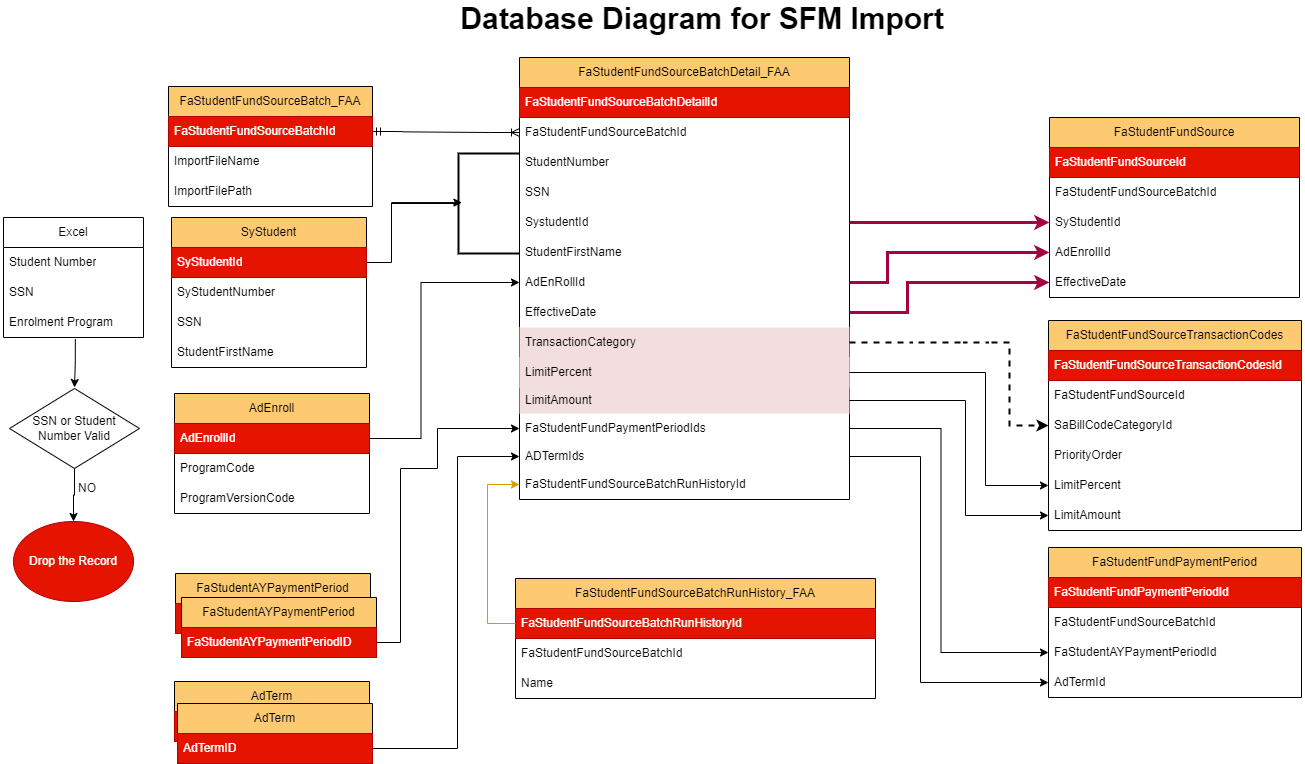
To view the data flow diagram, select SFM-Import-DFD.xlsx.
File Locations
The system automatically creates the sfm_archive folder
in the EDE path. The Excel file to be imported can be placed in the EDE path or uploaded from the local system. When a file is uploaded, it is moved from its original location into the sfm_archive folder. The EDE path should be valid as the file import from the local system will copy the Excel file into the EDE path.
When the import process is completed, the file is renamed by appending the BatchId and time stamp to the original file name.
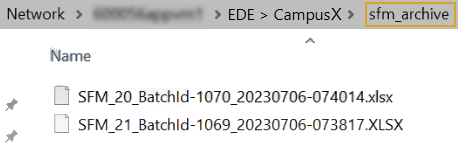
In the example, the original import files named SFM_20.xlsx and SFM_21.XLSX were moved to the sfm_archive folder and renamed as SFM_20_BatchId-1070_20230706-074014 and SFM_21_BatchId-1069_20230706-073817.
Prerequisites
You must have:
-
Common - Processes - View authorization
-
Financial Aid Automation - Processes - Automated Student Fund Management - Process - Delete, Edit, Save, and View authorization
Access Method
Select the Processes tile > expand Financial Aid > select Automated Student Fund Management.
Procedure to Import Student Funding Records
-
Select the Process tab to specify the file selection criteria and manually queue the import job.
-
The Campus EDE Path field displays the configured EDE path for your campus.
-
In the File Option drop-down list, select one of the following options:
-
Choose From Campus EDE Path (default)
Select this option if the Excel file has been placed in the EDE path for your campus. The files will be listed in the Available File drop-down. Choose one or multiple files in the list.
-
Upload File
Select this option to import the Excel file from a local drive. Select the Choose File button, navigate to the file in your local system, and select the Upload button.
The system will save the Excel file to the
sfm_archivefolder in the EDE path and process it from there. The Upload File functionality validates that the file name provided for upload does not already exist in thesfm_archivefolder. Only the file name is verified against any existing file in the folder. The contents of the file are not compared. You will receive an error message when you attempt to import a file from a location other than the EDE Path and a file with the same name already exists in thesfm_archivefolder.
-
-
Select the Queue Import button. The following confirmation messages will appear:
-
"SFM Import file [path and file name] successfully uploaded." (This message appears when the Upload File option is selected.)
-
"File import queued successfully."
-
"Automated Student Fund Import Succeeded."
-
-
Continue with the Open Batches tab. Refer to Review Imported Student Funding Records.
