Gradebook
You can use the Gradebook page to post grades for lessons, midterms, and final grades for class sections for students. You can also use the page to configure the lessons that are graded for a class section. For example, you can configure the exams and presentations that are graded during the class section.
If lessons are configured for the class section and they use weights as a percentage of the total grade for the class section, the final grade is calculated by Anthology Student when you specify the grade for the last lesson.
-
Use the Final tab to post the final grades for students.
-
Use the Midterm tab to post midterm grades for students.
-
Use the Lessons tab to post the grades for specific lessons in a class section. For example, you can post grades for all of the exams, presentations, and reports configured for the class section.
-
Use the Lesson Setup tab to configure or delete the lessons for class sections. Since the lessons are defined at the class section level, different sections of the same course may have different lesson plans. When you delete a lesson and there are already grades for students, you also delete the grades associated with the lesson.
You can also configure the class section to use weights as a percentage of the final grade for the class section. Anthology Student automatically calculates the final grade when you specify the last grade for a lesson. If you do not configure lessons to use weights as a percentage of the final, the final grades must be specified on the Final tab.
If lessons are configured for the class section and they use weights as a percentage of the total grade for the class section, the final grade is calculated by Anthology Student when you specify the grade for the last lesson.
Prerequisites
You must have:
Depending on your task, you must have:
-
Academics - Processes - Post Final Grade - View and Edit authorization
-
Academics - Processes - Post Mid Term Grade- View and Edit authorization
-
Academics - Processes - Post Lesson Grade - View and Edit authorization
-
Academics - Processes - Post Lesson Setup - View, New, Edit, and Delete authorization
The term and class section must be active to post a grade.
You must have selected Yes for Require Final Grade Change Reason Select Yes to require staff members to select a reason when they edit a final grade for a student on the Student Courses. If you select Yes, your institution must also have configured the reasons for final grade changes using the Configuration tile. on the General page (Select the Settings tile > expand Academic Records > select General.)
For midterm grades, your institution must have configured the campus so that it allows posting of midterm grades.
For lesson grades, you must have added lessons for the class sections using the Lesson Setup tab on the same page.
The setting for Calculate Grades In Progress must be enabled. Select the Settings tile > expand System > select Campuses > add or select a campus > select the Academic Records tile. (Refer to Grades & Registration Settings for Campuses.)
Access Method
Select the Processes tile > expand Academic Records > select Gradebook.
Procedure to Post a Final Grade
-
Select the Final tab.
-
Specify the values. The fields that are displayed will depend on how you have configured Academic Records.
|
Campus The campus or campuses to which a person or item is assigned. It is filtered to display the campuses to which you have access. In some cases, it is also used to filter a list to only those items for the campus. In some lists, you can select more than one campus or select All. In lists that display columns, if the column contains more than one campus, you cannot sort or filter on that column.
Course The code and name of the course associated with the record. Some pages also indicate the course status (Active or Inactive).
|
Start Date If your institution has configured floating term scheduling for Academic Records, specify a range of start dates for the course.
Term Specifies the term associated with the record. Terms are configured by your institution. The term start date must be before the end date of the award year.
|
-
Select the Apply Filters button. Anthology Student displays information about the class section and a list of students. The list includes students with grades posted from other locations in Anthology Student and students who dropped.
-
Verify that you have the right class section by reviewing the values for the list.
|
End Date The last date the item is effective or can be used. Depending on the context of the associated record, the end date can also be the end of a time range, session, or activity (e.g., job, program, course, term, payment period, academic year, enrollment).
Instructor The instructor or instructors assigned to the course, class section, or class section session.
Section The code and name for the class section.
|
Start Date The first day the item takes effect or becomes active. Depending on the context of the associated record, the start date can also be the start of a time range, session, or activity (e.g., job, program, course, term, payment period, academic year, enrollment).
Student Registered The number of students registered in the course.
|
-
In the list, review the values for the student.
|
Class Status The status of the student for the class section.
Enrollment Status The associated School Status on the student's enrollment.
|
Student The last and first name of the student. In some lists, the name of the student is highlighted. If it is highlighted, you can select the link, and it will display the Student Profile or a page available from the profile (such as their Documents list in Contact Manager). To display the Student Profile, you must have Common - Student - View authorization. If the link takes you to a page available from the profile, you must have authorization for that page. For example, if it displays the Documents list, you must have Contact Manager - Student Document - View authorization.
Student ID The ID assigned to the student in the Anthology Student database. While your institution can assign student numbers in a format that they choose, this ID is associated with a student in the database. It is displayed at the end of the URL when you are working with a student in the Student Web App and can also be used to search and locate students.
|
-
In the record for the student, select in the cell to specify the values.
|
Grade Note Area that displays, or that you can use, to specify comments or additional information related to the record or subject.
Incomplete Exp Date If the letter grade is an I for incomplete, displays the date when the student must have completed the class section and the new numeric grade must be entered. If the new numeric grade is not entered by the date, Anthology Student automatically changes the I to the letter grade that corresponds to the numeric grade configured in the grade scale. The number of days used to calculate the date is configured for Academic Records by your institution and is added to the end date of the class section.
Letter Grade The letter grade posted for the enrollment. They are configured by your institution. Each letter grade code needs to be unique. If your institution has also configured a grade scale for a campus and program versions that contains limits for the numeric grades, Anthology Student can convert number grades into a letter grade.
|
Numeric Grade The numeric grade posted for the enrollment. If your institution has configured a grade scale for a campus and program versions that contains limits for the numeric grades, Anthology Student can convert the number grade into a letter grade.
Rate Specifies a value in addition to the numeric and letter grade. For example, if a time competed needs to be recorded in the gradebook, you can specify it here.
|
-
Select Save to save the changes.
The Rate and Grade Note column must be associated with the Numeric Grade or the Letter Grade column.
After you save final grades, Anthology Student can automatically unregister students from conditional courses if:
-
Your institution has configured Anthology Student to unregister students
-
The class section for the grade is a prerequisite, prerequisite rules were configured, and the prerequisites are not met (For example, a conditional class section is unregistered if the prerequisite rule requires a C or higher in the class section and the grade for the class section specified is less than a C or incomplete.)
Your institution can also configure a reason so that you know when a student has been unregistered automatically. The reason is displayed on the Course Status Changes tab on the Audit page for the student so that you can identify any course that was unregistered automatically. (Select the Students tile > select the name in the Students list > expand Academic Records > select the Audit tile.)
If you change the value under Letter Grade The letter grade posted for the enrollment. They are configured by your institution. Each letter grade code needs to be unique. If your institution has also configured a grade scale for a campus and program versions that contains limits for the numeric grades, Anthology Student can convert number grades into a letter grade. or Numeric Grade The numeric grade posted for the enrollment. If your institution has configured a grade scale for a campus and program versions that contains limits for the numeric grades, Anthology Student can convert the number grade into a letter grade. and select Save, Anthology Student displays the Final Grade Change dialog.
Select the Reason The reason for the change in a record or the reason why a process failed. for the grade change and select Save. Anthology Student saves the records.
Procedure to Post a Midterm Grade
-
Select the Midterm tab.
-
Specify the values. The fields that are displayed will depend on how you have configured Academic Records.
|
Campus The campus or campuses to which a person or item is assigned. It is filtered to display the campuses to which you have access. In some cases, it is also used to filter a list to only those items for the campus. In some lists, you can select more than one campus or select All. In lists that display columns, if the column contains more than one campus, you cannot sort or filter on that column.
Course The code and name of the course associated with the record. Some pages also indicate the course status (Active or Inactive).
|
Start Date If your institution has configured floating term scheduling for Academic Records, specify a range of start dates for the course.
Term Specifies the term associated with the record. Terms are configured by your institution. The term start date must be before the end date of the award year.
|
-
Select the Apply Filters button. Anthology Student displays information about the class section and a list of students. The list includes students with grades posted from other locations in Anthology Student and students who dropped.
-
Verify that you have the right class section by reviewing the values for the list.
|
End Date The last date the item is effective or can be used. Depending on the context of the associated record, the end date can also be the end of a time range, session, or activity (e.g., job, program, course, term, payment period, academic year, enrollment).
Instructor The instructor or instructors assigned to the course, class section, or class section session.
Section The code and name for the class section.
|
Start Date The first day the item takes effect or becomes active. Depending on the context of the associated record, the start date can also be the start of a time range, session, or activity (e.g., job, program, course, term, payment period, academic year, enrollment).
Student Registered The number of students registered in the course.
|
-
In the list, review the values for the student.
|
Class Status The status of the student for the class section.
Enrollment Status The associated School Status on the student's enrollment.
|
Student The last and first name of the student. In some lists, the name of the student is highlighted. If it is highlighted, you can select the link, and it will display the Student Profile or a page available from the profile (such as their Documents list in Contact Manager). To display the Student Profile, you must have Common - Student - View authorization. If the link takes you to a page available from the profile, you must have authorization for that page. For example, if it displays the Documents list, you must have Contact Manager - Student Document - View authorization.
Student ID The ID assigned to the student in the Anthology Student database. While your institution can assign student numbers in a format that they choose, this ID is associated with a student in the database. It is displayed at the end of the URL when you are working with a student in the Student Web App and can also be used to search and locate students.
|
-
In the record for the student, select in the cell to specify the values.
|
Grade Note Area that displays, or that you can use, to specify comments or additional information related to the record or subject.
Letter Grade The letter grade posted for the enrollment. They are configured by your institution. Each letter grade code needs to be unique. If your institution has also configured a grade scale for a campus and program versions that contains limits for the numeric grades, Anthology Student can convert number grades into a letter grade.
|
Numeric Grade The numeric grade posted for the enrollment. If your institution has configured a grade scale for a campus and program versions that contains limits for the numeric grades, Anthology Student can convert the number grade into a letter grade.
|
-
Select Save to save the changes.
To remove the all the grades in the editable cells, select the Clear All button in the grid toolbar. A dialog will give you the option to confirm or cancel the removal of the grades.
Procedure to Post a Lesson Grade
-
Select the Lessons tab.
-
Specify the values. The fields that are displayed will depend on how you have configured Academic Records.
|
Campus The campus or campuses to which a person or item is assigned. It is filtered to display the campuses to which you have access. In some cases, it is also used to filter a list to only those items for the campus. In some lists, you can select more than one campus or select All. In lists that display columns, if the column contains more than one campus, you cannot sort or filter on that column.
Course The code and name of the course associated with the record. Some pages also indicate the course status (Active or Inactive).
|
Start Date If your institution has configured floating term scheduling for Academic Records, specify a range of start dates for the course.
Term Specifies the term associated with the record. Terms are configured by your institution. The term start date must be before the end date of the award year.
|
-
Select the Apply Filters button. Anthology Student displays information about the class section and a list of students. The list includes students with grades posted from other locations in Anthology Student and students who dropped.
-
Verify that you have the right class section by reviewing the values for the list.
|
End Date The last date the item is effective or can be used. Depending on the context of the associated record, the end date can also be the end of a time range, session, or activity (e.g., job, program, course, term, payment period, academic year, enrollment).
Instructor The instructor or instructors assigned to the course, class section, or class section session.
Section The code and name for the class section.
|
Start Date The first day the item takes effect or becomes active. Depending on the context of the associated record, the start date can also be the start of a time range, session, or activity (e.g., job, program, course, term, payment period, academic year, enrollment).
Student Registered The number of students registered in the course.
|
-
In the list, review the values for the student.
|
Class Status The status of the student for the class section.
Enrollment Status The associated School Status on the student's enrollment.
|
Student The last and first name of the student. In some lists, the name of the student is highlighted. If it is highlighted, you can select the link, and it will display the Student Profile or a page available from the profile (such as their Documents list in Contact Manager). To display the Student Profile, you must have Common - Student - View authorization. If the link takes you to a page available from the profile, you must have authorization for that page. For example, if it displays the Documents list, you must have Contact Manager - Student Document - View authorization.
Student ID The ID assigned to the student in the Anthology Student database. While your institution can assign student numbers in a format that they choose, this ID is associated with a student in the database. It is displayed at the end of the URL when you are working with a student in the Student Web App and can also be used to search and locate students.
|
-
In the record for the student, select in the cell to specify the values.
-
Select Save to save the changes.
To remove the all the grades in the editable cells, select the Clear All button in the grid toolbar. A dialog will give you the option to confirm or cancel the removal of the grades.
If you:
-
Want to use weights as a percentage of the final grade so that Anthology Student automatically calculates the final grade, specify values for the Percent Final fields that total 100%
-
Do not want to use weights as a percentage of the final grade and do not want Anthology Student to automatically calculate the final grade, specify 0% for all Percent Final fields
-
Select the Lesson Setup tab.
-
Specify the values. The fields that are displayed will depend on how you have configured Academic Records.
|
Campus The campus or campuses to which a person or item is assigned. It is filtered to display the campuses to which you have access. In some cases, it is also used to filter a list to only those items for the campus. In some lists, you can select more than one campus or select All. In lists that display columns, if the column contains more than one campus, you cannot sort or filter on that column.
Course The code and name of the course associated with the record. Some pages also indicate the course status (Active or Inactive).
|
Start Date If your institution has configured floating term scheduling for Academic Records, specify a range of start dates for the course.
Term Specifies the term associated with the record. Terms are configured by your institution. The term start date must be before the end date of the award year.
|
-
Select the Apply Filters button.
-
Review the existing lessons (if any).
|
Lesson Number The sequence number for the lesson.
Lesson Type Each lesson is configured with a lesson type. Lesson types are configured by your institution, for example, Book Report, Lesson, and Exam.
|
Name The name of the item (e.g., data set, batch, job, process, task, person, organization, entity, file).
Percent Final Specifies the weight of the grade as a percentage of the final grade for the class section. For example, 33.33 is 33.33% of the final grade. The value is stored in the database with 4 decimal places. For example, if you specify 33.33, it is stored as .3333.
|
-
If you want to:
-
Add a lesson, select the New button
-
Edit a lesson, select the record for the lesson in the list
-
Specify the values.
|
Code If you selected Yes for Use Midterm as Code, the field displays the word Midterm and the field is disabled. If you select No, you can use the field to specify a value for your own tracking purposes. The option to print and scan a roster to record midterm grades requires the use of form number F-15173-CMC-L. The class section must also have a lesson set up with a code of Midterm.
Lesson Number The sequence number for the lesson.
Lesson Type Each lesson is configured with a lesson type. Lesson types are configured by your institution, for example, Book Report, Lesson, and Exam.
|
Max Numeric Score The highest possible score for a test or lesson. For lessons that follow a numeric grading format, this is the highest possible numeric score you allocate for each lesson. For lessons that follow a Percentage grading format, student scores are recorded as a value over 100 percent, therefore the value in this field is set to 100 and cannot be modified. The numeric score you specify in this field is automatically rounded up to the number of decimal places limited for grades by your institution in Anthology Student. You cannot modify the score in this field if you have already posted grades for any lessons in the course.
Name The name of the item (e.g., data set, batch, job, process, task, person, organization, entity, file).
Note Area that displays, or that you can use, to specify comments or additional information related to the record or subject.
Percent Final Specifies the weight of the grade as a percentage of the final grade for the class section. For example, 33.33 is 33.33% of the final grade. The value is stored in the database with 4 decimal places. For example, if you specify 33.33, it is stored as .3333.
Use Midterm as Code Specifies that you want to use the word Midterm as the code for the lesson instead of a code you specify. When you select Yes, the code for the lesson will be Midterm and the Code field is disabled.If you want to use Midterm as the code, select Yes. If you would rather specfiy your own code, select No. If you select Yes, Midterm is displayed in the Code field, and it is read-only.
|
-
If you want to save and:
-
Continue making changes, select the Save button
-
Close, select the Save & Close button
-
Add another item to the list, select the Save & New button
If students are already enrolled in the class section, Anthology Student displays a message asking you if you want to add the lesson for the students.
Procedure to Delete Lessons
-
Select the Lesson Setup tab.
-
Select the record for the lesson you want to delete.
-
Select the Delete button.
If students who have grades for the lesson are enrolled in the class section , Anthology Student displays a message asking if you want to delete the lesson.
Procedure to Remove Grades
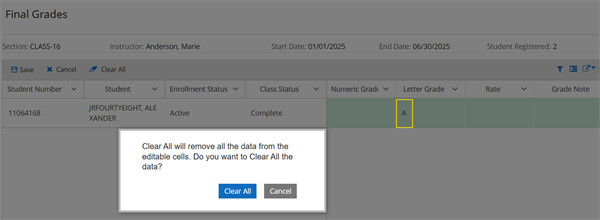
To remove all the grades in the editable (highlighted) cells, select the Clear All button in the grid toolbar on the Final, Midterm, and Lessons tabs.
A dialog will give you the option to confirm or cancel the removal of the grades. In the example below, the letter grade "A" will be removed if you confirm the Clear All action.