Manage Batches
Given appropriate permissions, you can use the Manage Batches page to perform the following actions on 1098-T batches:
-
On the Selection Criteria tab, you can:
- View, add, and delete batches
- Lock and unlock batches
- Change the Box 3 status for batches
-
On the Student Review tab, you can view the list of students in a 1098-T batch and add students.
The Student Review tab is enabled only when you select a batch on the Selection Criteria tab and select View All Students (Batch mode) or View Individuals (Individuals mode). Depending on the view mode and batch status (locked/unlocked), you can:
- Add and remove student records
- View and modify student record details
- Print 1098-T forms
- Make 1098-T forms available in the Student Portal
- Export records to an electronic file to be submitted to a print service or the IRS
- View reports
-
On the History tab, you can view the status of 1098-T export jobs.
Financial Aid Processes File Management
Anthology Student version 22.0 and later enables customers to manage files in Azure File Storage using the Financial Aid Processes File Management form under Processes > System Administration. Without this form, users cannot upload or download files to Azure File Storage due to security restrictions. The file management functionality enables you to place files in the location where specific financial aid processes (e.g., Application Data Export/Import, Clearinghouse, NSLDS Reports, and others) expect to find the files. For more details, refer to Financial Aid Processes File Management.
Prerequisites
You must have the following authorization:
-
Common - Processes - View
-
Regulatory 1098T - Processes - Manage Batches - Manage Batch Data
1098-T.2025 introduces campus-level security for the Manage Batches process so that the History tab displays only records specific to the logged-in user.
This enhancement requires the following configuration:
-
In Settings > System > Campuses > Campus Groups, select a Campus Group (or create one) that only has the campus that the user needs permission for.
-
In Settings > System > Staff, select your Staff member, and on the General tile, ensure the Campus Group for the user is the Campus Group from step 1.
Access Method
Select the Processes tile > expand IRS 1098-T > select Manage Batches.
Procedure to Manage Batches
Start with the Selection Criteria tab. The Batches section on this tab is expanded by default.
Selection Criteria Tab
The Selection Criteria tab displays all 1098-T batches for the current year. If you wish to view previous years, clear the filter on the Year column and then set the filter as needed.
 Batches
-
Review the columns in the Batches grid.
By default, the rows are sorted in descending order by Year (primary sort) and TCC number (secondary sort).
-
Sort and filter the list of batches as needed depending on the action you want to take.
Task Action to Take Result Lock a batch
Select the check box in the Locked column.
You must lock a batch before you can use it to:
-
Generate an electronic file for the IRS
-
Display 1098-T records on the Student Portal
-
Configure acceptance tracking
TIN Warning
For 1098-T export files submitted to the IRS, a valid TIN must be solicited in writing as specified in IRS Regulation 1.605. When the "TIN Solicited" check box is selected, submitters are certifying that they have made a good faith effort to obtain the student's TIN. Institutions risk a fine by the IRS if they submit a 1098-T export file with students who did not have a TIN and did not specify that they had solicited a TIN for those students.
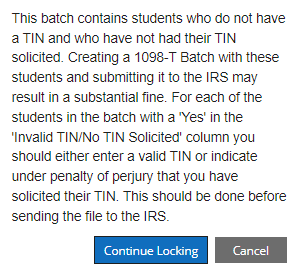
The 1098-T process for tax year 2022 and later displays the following warning when a user attempts to lock a batch if the batch contains records for students that do not have an SSN on file AND do not have the "TIN Solicited" flag selected. A similar message is displayed when the IRS 1098-T Export file is created.
When the warning is displayed, you can:
-
Select Continue Locking to proceed.
You can then set the "TIN Solicited" flag in a locked batch to make quick corrections before creating the export file.
— OR —
-
Select Cancel to prevent the batch from being created and proceed as follows:
-
Select View All Students in the grid toolbar to return to the Student Review tab.
-
Sort the records in the Student Review Batch grid based on the "Invalid TIN/No TIN Solicited" column. You can also export the records to an Excel file and then sort the records.
The "Invalid TIN/No TIN Solicited" column:
-
Is blank for all students that have an SSN on file AND have the "Solicited TIN" flag selected
-
Has a value of "Yes" for all students that do not have an SSN on file AND do not have the "Solicited TIN" flag selected
For records with a "Yes" in the "Invalid TIN/No TIN Solicited" column, take the needed steps to solicit a TIN or navigate to a student's record and add an SSN.
If you add an SSN, the batch must be regathered to remove the "Yes" in the "Invalid TIN/No TIN Solicited" column.
-
-
Select Select All TIN Solicited in the grid toolbar and then generate the export file (refer to Print/Export 1098-Ts).
-
Locking prevents updates to the records in the batch.
The "Last Modified By" value is updated.
Unlock a batch Clear the check box in the Locked column. The batch is unlocked, that is, you can add or remove students.
The "Last Modified By" value is updated.
Indicate that your institution's reporting method has changed Select the check box in the Box 3 column.
Box 3 is disabled for:
-
Batches for calendar year 2019 and later
-
Prior year batches once an electronic file is created
The Box 3 status change is saved.
The "Last Modified By" value is updated.
Use Billing Address The Use Billing Address check box is enabled only for unlocked batches.
Select this check box to use the student's billing address on the 1098-T in the export file and on the print form.
If you do not select this option, or if there is no stored billing address, the address on the student master record is used.
The Use Billing Address status change is saved.
The "Last Modified By" value is updated.
"Generate 1098-Ts using billing address..." is selected on the Student Review Tab > Export subtab.
View batch settings
-
Select a link in the Batch ID column.
-
Review the Batch Form below the grid.
-
Select Cancel to close the batch form.
The Batch form appears below the grid. Add a batch -
Select the New button in the grid toolbar.
-
Complete the Batch Form below the grid.
-
Select Save and Close on the batch form.
The Batch form is saved, and the batch is added to the grid. Delete a batch -
You cannot delete a locked batch.
-
You cannot delete a prior year batch once an electronic file is created.
-
If the batch form is displayed, you must close it first.
Select an unlocked batch and select the Delete button in the grid toolbar.
The batch is removed from the grid. Manage student records in Batch mode -
Select a row in the Batches grid.
-
Select the View All Students button in the grid toolbar.
-
Continue on the Student Review tab (Batch mode).
The list of students in the batch is generated and displayed on the Student Review tab. Manage individual student records on demand (Individuals mode) -
Select a row in the Batches grid.
-
Select the View Individuals button in the grid toolbar.
-
Continue on the Student Review tab (Individuals mode).
The Student Review tab displays an empty grid. -
Batch Form
The batch form appears below the Batches grid when you select a link in the Batch ID column or select the New button in the grid toolbar. The fields are editable only when the New button is selected.
The following options are available for selection only the first time the 1098-T batch is gathered:
- Box 7 date range
- Citizenship Codes
- Include Exempt Students...
The values specified for these options will apply to all students gathered in the initial batch, as well as any students added during subsequent processing attempts unless the batch is locked.
-
Specify the Calendar Year and select the TCC Number.
The values in the Calendar Year and TCC Number fields are filtered. You can only use values that do not have a batch already.
When the TCC number for the campus has changed, you can view students in locked and unlocked batches created for prior years, however, we do not recommend unlocking an old batch with the old TCC number and making changes. To edit the data, you must gather a new batch with the new TCC number.
-
(Optional) Select the Setup Box 7 Logic Date Range check box and specify the Box 7 Start Date and End Date.
-
Box 7 will be checked if the term tied to the charge has a start date between January 1st and March 31st of the following tax year.
-
Box 7 will be checked if there is no term tied to the charge and the transaction date of the charge is within the date range specified (dates must be within the current tax year).
-
-
Specify the Citizenship Codes to be included in the new batch. At least one option must be selected in the Include column.
By default, US citizens are included ("Include" is selected) and non-citizens and eligible non-citizens are allowed to be added ("Allow A..." is selected).
-
To include exempt students in the batch, select one or more of the Include IRS Exempt Student into the Batch options:
For the tax year 2021 and earlier:
-
Students with no reportable ledger card transactions for the tax year being reported.
-
Students with amounts billed equal to the scholarships or grants posted.
-
Students with amounts billed less than the scholarships or grants posted.
For the tax year 2022 and later:
-
Students with no reportable ledger card transactions for the tax year being reported.
-
Students whose qualified tuition and related expenses are paid entirely with scholarships.
By default, exempt students, that is, students who have zeros in Boxes 1, 4, 5, and 6 of the 1098-T form are not gathered into the batch.
-
-
If you want to:
-
Save and continue making changes, select the Save button.
-
Close, select the Save & Close button.
-
Return to the Batches grid without saving, select the Close button
-
Student Review Tab
The Student Review tab is displayed when you select a batch on the Selection Criteria tab and select the View All Students or View Individuals button. If the Student Review grid is not populated, select the Reload button ( ) on the toolbar.
The title of the Student Review Batch grid indicates the year, TCC number, and lock status of the selected batch, e.g., "Student Review Batch - <year>, TCC <tcc number> (Not Locked)"
For 2018 and earlier batches, if Box 3 is selected, the title also displays the text: "Reporting Method Changed"
The records and actions available in the grid depend on whether you selected View All Students (Batch Mode ) or View Individuals (Individuals Mode ) on the Selection Criteria tab and whether the batch is locked or unlocked.
Notes for Tax Year 2021 and Later
The "Exclude Box 4" flag is set to read-only for 2021 transactions and forward. The "Exclude Box 4" flag was only relevant during the first year an institution used Box 1 reporting. At this point, everyone is into their 3rd year of Box 1 reporting and the batches reported to the IRS would have been locked at least three years in the past to report to the IRS.
If the tax year is greater than 2020, the following occurs regardless of Fund Source settings or the “Include in 1098-T” setting in the student ledger record for CARES or HEERF II transactions:
-
CARES and HEERF II transactions based on the 2021/2022 awards that have not been given to the student as a stipend, refunded, or voided are eligible for inclusion in the Box 1 total.
Example: If the institution received a $1600 CARES or HEERF II award for a student in 2021, and the institution gave $1000 to the student as a stipend, $600 would be eligible to be included in the Box 1 total as cash received, held by the institution, and applied towards QTRE.
-
The Box 1 amount cannot exceed the amounts of QTRE plus Carryover charges when CARES or HEERF II grants are retained by the institution.
-
Payments from CARES or HEERF II grants are not reported in Box 5.
-
Adjustments made against a prior year grant are not included in the 1098-T calculation.
Batch Mode
In Batch mode, records for all students in a batch are generated. This may take some time depending on the number of records in the batch.
-
In the Selection Type drop-down list, select Campus or Student Group.
-
When you select Campus, a search field for campuses appears. Select one or more campuses.
-
When you select Student Group, a drop-down list of student groups appears. The list is populated with all active public student groups, plus student groups the user owns, plus student groups the user can access. Select one student group.
-
-
Select the Exclude accepted electronic delivery check box to exclude records that have been accepted electronically. This prevents the redundant printing of 1098-T forms for students who downloaded their 1098-T forms from the Student Portal. You can apply this filter with or without the Campus or Student Group filter.
-
Select the Apply Selection button.
When you select this button, check marks will appear in the first column of the grid for student records that match the Campus, Student Group, and "Exclude accepted electronic delivery" filters.
Any actions you take in the following steps will apply to the filtered list, that is, the records marked with a check mark in the first column. The Print/Export Count and TIN Solicited Count numbers at the bottom right below the grid indicate the number of filtered records.
-
Review the columns in the Student Review Batch grid:
TIN Warning
For 1098-T export files submitted to the IRS, a valid TIN must be solicited in writing as specified in IRS Regulation 1.605. When the "TIN Solicited" check box is selected, submitters are certifying that they have made a good faith effort to obtain the student's TIN. Institutions risk a fine by the IRS if they submit a 1098-T export file with students who did not have a TIN and did not specify that they had solicited a TIN for those students.
The 1098-T process for tax year 2022 and later displays the following warning when a user attempts to lock a batch if the batch contains records for students that do not have an SSN on file AND do not have the "TIN Solicited" flag selected. A similar message is displayed when the IRS 1098-T Export file is created.
When the warning is displayed, you can:
-
Select Continue Locking to proceed.
You can then set the "TIN Solicited" flag in a locked batch to make quick corrections before creating the export file.
— OR —
-
Select Cancel to prevent the batch from being created and proceed as follows:
-
Select View All Students in the grid toolbar to return to the Student Review tab.
-
Sort the records in the Student Review Batch grid based on the "Invalid TIN/No TIN Solicited" column. You can also export the records to an Excel file and then sort the records.
The "Invalid TIN/No TIN Solicited" column:
-
Is blank for all students that have an SSN on file AND have the "Solicited TIN" flag selected
-
Has a value of "Yes" for all students that do not have an SSN on file AND do not have the "Solicited TIN" flag selected
For records with a "Yes" in the "Invalid TIN/No TIN Solicited" column, take the needed steps to solicit a TIN or navigate to a student's record and add an SSN.
If you add an SSN, the batch must be regathered to remove the "Yes" in the "Invalid TIN/No TIN Solicited" column.
-
-
Select Select All TIN Solicited in the grid toolbar and then generate the export file (refer to Print/Export 1098-Ts).
-
Positive amounts shown in the Prior Year Adjustments (Box 4) column are for informational purposes only. Positive amounts for Box 4 will not be printed on the 1098-T report. Positive amounts will appear if voided transactions are marked as Previous Year. Box 4 amounts reflect negative payments for the previous year which will not be printed on the 1098-T form. The values are shown in the grid in case further verification or adjustments are needed by the end user.
By default, the rows are sorted in ascending order by Student.
-
-
The actions you can take depend on whether the batch is locked or unlocked.
Locked Batch - Batch Mode Task Action to Take Select records Choose Select All Across Pages to select all records. To select specific records, select Clear All Across Pages and then select individual rows. Print/Export When you select Print/Export, the Print, Publish to Portal, Export, and Reports subtabs are displayed below the grid. Continue with Print/Export 1098-Ts. View Details Select a student record and select the View Details button in the grid toolbar. Continue with View/Modify 1098-T Details. Unlocked Batch - Batch Mode Task Action to Take Select records Choose Select All Across Pages to select records across all pages. To select specific records, select Clear All Across Pages and then select individual rows. Change TIN Solicited Choose Select All TIN Solicited to select all TIN solicited records. To select specific records, select Clear All TIN Solicited and then select individual rows. Add a student to the batch -
Select the Add Student button in the grid toolbar. The Select Student dialog displays a grid listing all students in the database.
-
In the Select Student dialog, search for a student by name or select a student in the grid.
When you select the Show Filter Row button, you can sort and filter the grid by Name, SSN (if you have permission to view SSNs), Student Number, Program, Campus, or Phone.
Choose Select to add the student to the batch.
-
If the student exists in the batch, a validation message indicates that the student already exists, and the student is not added.
-
If the student exists in the batch and was previously marked as deleted from the batch, the deleted flag is updated in the database, and the student is added to the batch.
-
If the student does not exist in the batch, the tool performs the following validation:
The student's campus must match the campus associated with the TCC number of the batch AND the student's citizenship must be a member of the "Include 1098" or "Allow Add" setting for the batch.
-
If validation fails, a message is displayed, and the student is not added to the batch.
-
If the validation is successful, the student is added to the batch, the "Manually Added" flag is set to true, and the "Manually Added Date" is updated.
-
Remove a student from the batch -
Select a student record in the grid.
-
Select the Remove Student button in the grid toolbar.
-
Select Remove to confirm.
Print 1098-T forms / Create export files / Generate Reports When you select Print/Export, the Print, Publish to Portal, Export, and Reports subtabs are displayed below the grid. Continue with Print/Export 1098-Ts. Modify Details Select a student record and select the Modify Details button in the grid toolbar. Continue with View/Modify 1098-T Details.
-
-
To manage a group based on the student records you selected in the grid, select the Save Student Group button. The Save to Student Group pop-up is displayed.
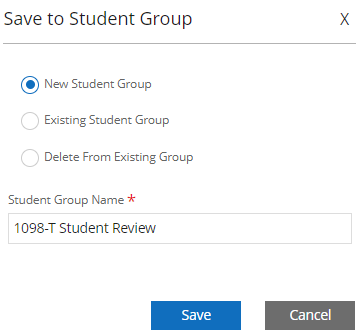
In the Save to Student Group pop-up, you can:
-
Select the New Student Group option and specify a Student Group Name to assign the students to a new group. The new group will have the following attributes:
- Type: Manual
- Group Visibility: Private
-
Select the Existing Student Group option and select a value in the Student Group field to add the students to an existing group. Only the original creator/owner of the group can add students to a group.
-
Select the Delete From Student Group option and select a value in the Student Group field to delete the students from an existing group. Only the original creator/owner of the group can delete students from a group.
Select Save to proceed.
-
Individuals Mode
After a 1098-T batch has been created for a tax reporting year, you can generate 1098-T forms for individual students on demand. To generate the 1098-T in this scenario, you would work in Individuals mode by selecting the View Individuals button on the Selection Criteria tab.
In Individuals mode, an empty grid is displayed on the Student Review tab.
-
The grid columns are the same as in Batch mode.
Positive amounts shown in the Prior Year Adjustments (Box 4) column are for informational purposes only. Positive amounts for Box 4 will not be printed on the 1098-T report. Positive amounts will appear if voided transactions are marked as Previous Year. Box 4 amounts reflect negative payments for the previous year which will not be printed on the 1098-T form. The values are shown in the grid in case further verification or adjustments are needed by the end user.
-
The only action available is to add a student to the grid. The validation depends on whether the batch is locked or unlocked.
Locked Batch - Individuals Mode Task Action to Take Add a student to the grid -
Select the Add Student button in the grid toolbar. The following message is displayed:
The student {0} does not exist in this Batch. This batch is currently locked. In order to add a student, the batch must be unlocked.
-
If applicable, unlock the batch and proceed with the unlocked batch.
You can only add students that are already in the batch and remove only those students that were added to the form, that is, the Add and Remove buttons do not impact the actual number of students stored in the batch.
Unlocked Batch - Individuals Mode Task Action to Take Add a student to the grid -
Select the Add Student button in the grid toolbar. The Select Student dialog displays a grid listing all students in the database.
-
In the Select Student dialog, search for a student by name or select a student in the grid.
When you select the Show Filter Row button, you can sort and filter the grid by Name, SSN (if you have permission to view SSNs), Student Number, Program, Campus, or Phone.
Choose Select to add the student to the grid.
-
If the student exists in the batch, the student is added to the grid, the "Manually Added" flag is set to true, and the "Manually Added Date" is updated,
-
If the student exists in the batch AND was previously marked as deleted from the batch, the deleted flag is updated in the database, and the student is added to the grid.
-
If the student does not exist, the tool performs the following validation:
The student's campus must match the campus associated with the TCC number of the batch AND the student's citizenship must be a member of the "Include 1098" or "Allow Add" setting for the batch.
-
If validation fails, a message is displayed, and the student is not added to the batch.
-
If validation is successful, the student is added to the batch, the "Manually Added" flag is set to true, and the "Manually Added Date" is updated.
-
-
-
Once students have been added to the Student Review grid in Individuals mode, all grid toolbar buttons will be enabled. You can:
-
Select All Across Pages or Clear All Across Page (toggle button)
-
Select All TIN Solicited or Clear All TIN Solicited (toggle button)
-
Add Student
-
Remove Student
In Individuals mode, the Remove Student option removes a student from the Student Review Batch grid. It does not remove the student from the batch.
-
Print/Export
When you select Print/Export, the Print, Publish to Portal, Export, and Reports subtabs are displayed below the grid. Continue with Print/Export 1098-Ts.
-
Modify Details
Select a student record in the grid. Select the Modify Details button in the grid toolbar. Continue with View/Modify 1098-T Details.
-
History Tab
By default, the History tab displays only batch jobs for the latest tax year. You can view the filter setting by selecting the Show|Hide Filters icon ( ) on the right side of the grid toolbar or by selecting the filter icon in the Calendar Year column header.
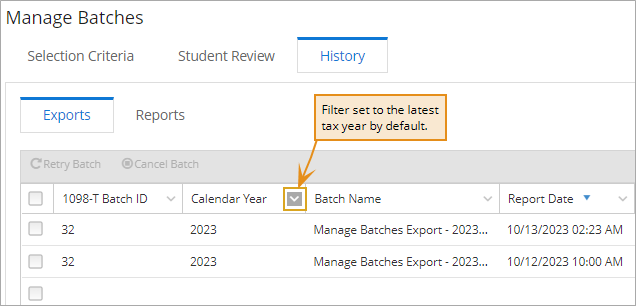
You can apply filters to other grid columns or clear the filter if you wish to view records from all tax years. The "Clear" filter option should also be used if no batches are displayed. The filter functionality is provided for the grids on the Exports and Reports sub-tabs. The UI retains the filter settings per user.
- Select Exports to view the results of 1098-T export jobs.
-
Select Reports to view the results of 1098-T print jobs.
When the Enable Campus Level Security On Batches feature is enabled, the records on the History tab will be filtered based on the logged-in user and the set of campuses from campus groups associated with this user. Record filtering on the History tab is based on the SyCampusId.
If a batch contains data from multiple campuses and the user doesn't have access to at least one of the campuses in the batch, the batch will not be visible to the user. For users who do not have access, the system displays the message, "You do not have access to this batch based on the Campus TCC number. Contact your system administrator."
The Manage Batches page will not allow users to select a TCC number and manage a batch if they do not have access to all the campuses for that TCC number. If the TCC is shared between campuses, the user will not see the TCC number to select in the drop-down, unless they have access to all campuses for that TCC.
Records with a NULL value in the CampusID field will be visible to all users. CampusID = NULL is assigned to records that are not in Succeeded status (e.g., Completed, Enqueued).
A clean-up script ensures that batches on the History tab that were created before the implementation of the campus-level security feature are also filtered based on the new campus-level security. The script runs at the batch level per process and assigns SyCampusId values to the records in the batch.
If the registry key setting "Enable Campus Level Security on Batches" is turned off under Settings > System > General, the History tab will load the records based on the default campus setting (Session Defaults).
Exports
The Exports tab displays a grid listing all 1098-T export jobs. If an export is done more than once for a single batch, each job will be listed. The jobs can be differentiated by date, time, and file name.
-
Review the columns in the Exports grid.
By default, the records are sorted in descending order by Start Date. You can use column sort and filtering options to customize the grid.
-
If the job status is Succeeded, the file is created in the Export File Folder. Access the Export tab.
If the job status is Completed and there is a Details link in the Results column indicating that the job did not succeed, you can select the Retry Batch button in the grid toolbar to resubmit the job.
This option can be useful if an error occurred after the job was submitted (e.g., network issues, SQL cannot be reached).
-
To remove a batch, select the Cancel Batch button in the grid toolbar. You can remove only failed export jobs.
Reports
The Reports tab displays a grid listing all 1098-T batch print jobs. If a print job is done more than once for a single batch, each job will be listed. The jobs can be differentiated by date, time, and file name.
-
Review the columns in the Reports grid.
By default, the records are sorted in descending order by Started date. You can use column sort and filtering options to customize the grid.
-
Select the View Report button to view or download the PDF file. You can also export the report data to Excel.
If the job status is:
- Succeeded, the Results column is empty, and the batch print file is created.
- Completed, there is a Details link in the Results column indicating that the job did not succeed.
The batch jobs remain available in the History grid for two weeks. If data in a report is revised, a new report needs to be created.
-
To remove a batch, select the Cancel Batch button in the grid toolbar. You can remove only jobs that have a Status of Completed.
| This feature applies to U.S. compliance only. |
